You are building a massive, beautiful castle in your favorite video game. It works perfectly on your computer. The lights flash, the doors open, and the graphics are smooth. You excitedly invite your friend over to see it, but when they open the game on their own laptop, everything breaks. The doors are glued shut, the walls are missing, and the game crashes.
This frustrating experience happens to software developers every single day. An application works perfectly on one computer but falls apart the moment it travels to another.
Why does this happen? Every computer has a unique personality. They have different operating systems, separate updates, specific settings, and various hidden files. If a program needs a certain file to run, and the next computer does not have it, the program panics and stops working.
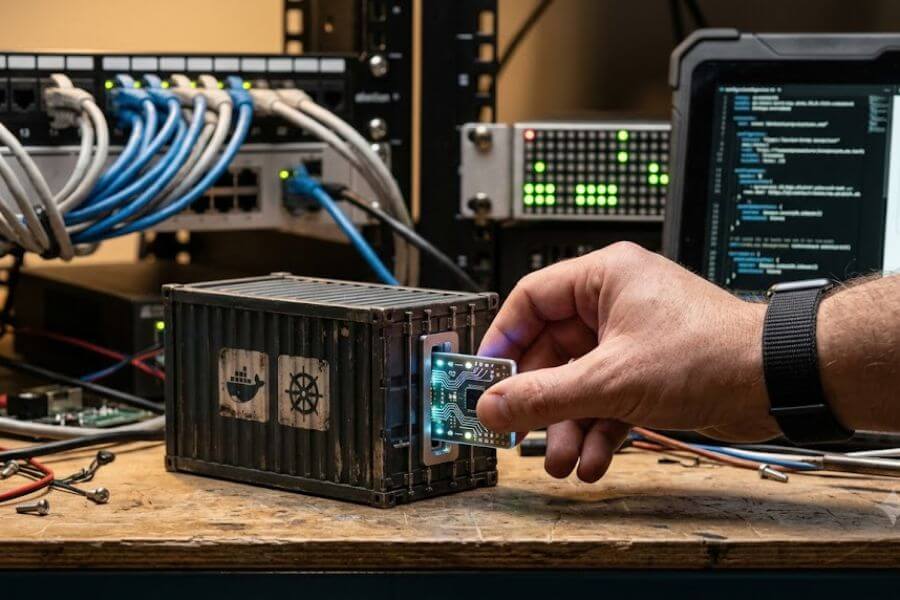
This is where containerization saves the day. Think of it as a magical shipping container. Instead of moving just the code for your application, you pack the code, the settings, the specific files, and the entire environment into a secure, lightweight box. Wherever that box goes, the application inside runs exactly the same way. Whether it is on your personal laptop, your friend’s desktop, or a massive server computer on the other side of the planet, the box protects the application and gives it everything it needs to survive.
Two incredible tools make this magic happen in the modern world: Docker and Kubernetes. Docker is the tool that builds and seals these magical boxes. Kubernetes is the master conductor that manages thousands of these boxes at the same time. Together, they form the backbone of the modern internet.
Welcome to the World of Shipping Containers for Software
To truly appreciate why these tools are so special, we must look at how people used to run software. In the old days, if a company wanted to run a website, they bought a physical computer called a server. They would install an operating system, put the website files on it, and turn it on.
This method created massive headaches. If the website became incredibly popular, the single physical computer would get overwhelmed and crash. If the company wanted to run two different programs on the same computer, those programs would often fight over settings and break each other.
To solve this, engineers invented virtual machines. A virtual machine is like a computer running inside another computer. Imagine opening a window on your desktop that contains an entirely separate operating system. While this helped isolate programs so they would stop fighting, it came with a huge cost. Every virtual machine needs its own full operating system. Operating systems are heavy, slow to start, and take up huge amounts of memory and storage. Running ten virtual machines meant running ten heavy operating systems on one physical machine.
Containers changed the game completely. Instead of copying a whole operating system, containers share the brain of the main computer while keeping the application files separate. This makes them incredibly lightweight, lightning-fast to start, and highly efficient.
Comparing the Options
| Feature | Physical Servers | Virtual Machines | Containers |
| Setup Time | Days or weeks to buy and configure | Minutes to launch an operating system | Seconds or milliseconds to start |
| Resource Usage | Highly wasteful; often sits idle | Heavy; requires dedicated memory and storage | Minimal; shares the main computer system |
| Isolation | Total physical separation | Strong separation via software | Smart separation via lightweight walls |
| Portability | Trapped on that specific physical hardware | Can move to computers with the same software | Can run anywhere that supports the container engine |
Meeting Docker: The Master Box Maker
Now that you understand the concept of a container, it is time to meet the tool that made them famous: Docker. Before Docker arrived, creating containers was complicated and required deep knowledge of mysterious computer systems. Docker changed everything by making the process accessible, understandable, and organized.
Docker uses three core concepts that you need to master: Images, Containers, and registries.
The Blueprints and the Buildings
Think of a Docker Image as a blueprint or a recipe. If you want to bake a cake, you look at a recipe. The recipe itself is just words on a page; you cannot eat it. However, when you follow the recipe and mix the ingredients, you get a real, physical cake.
In the Docker world, the Image is the recipe. It contains all the instructions, the code, and the files needed to make your application run. It is frozen and cannot be changed once it is made.
A Docker Container is the actual cake. It is the living, breathing, running version of your image. You can start a container, stop it, delete it, and recreate it using the image blueprint. If you need ten identical versions of your website running at the same time, you do not write the code ten times. You simply tell Docker to create ten containers from your single image blueprint.
The Storage Warehouse
Where do you keep these blueprints? You store them in a Docker Registry. The most famous public warehouse is called Docker Hub. Imagine a giant, online library where millions of developers share their pre-built blueprints for free. If you need a blueprint for a standard web server, a database, or a specific programming language, you do not have to create it from scratch. You can simply download it from Docker Hub and start using it immediately.
Building Your First Docker Image
Let us get your hands dirty and look at how we actually build one of these blueprints. To create a Docker image, you write a simple text file called a Dockerfile. This file is a step-by-step checklist that tells Docker exactly how to construct your application box.
Imagine we have a small, friendly web application written in a language called Python. We want to pack it into a Docker image. Here is what a typical Dockerfile looks like:
Dockerfile
FROM python:3.9-slim
WORKDIR /app
COPY . /app
RUN pip install --no-cache-dir -r requirements.txt
EXPOSE 5000
CMD ["python", "app.py"]
Breaking Down the Instructions
Every single line in that file serves a specific purpose to build the perfect environment:
- FROM python:3.9-slim: This tells Docker to start with a pre-made blueprint from Docker Hub. Instead of installing Python from scratch, we grab a tiny, pre-configured version that already has Python ready to go.
- WORKDIR /app: This creates a specific folder inside our container called app and moves us into it. Think of it as opening a clean workspace on a desk.
- COPY . /app: This grabs all the files from your actual computer folder and copies them directly into the container workspace folder.
- RUN pip install: This tells the container to download and install any extra packages or tools our application needs to run correctly.
- EXPOSE 5000: This opens a tiny communication window in the container wall, allowing outside traffic to talk to our application on port 5000.
- CMD [“python”, “app.py”]: This is the final command. It tells the container exactly what to do the moment it wakes up. In this case, it starts our application.
To turn this text file into a real blueprint, you open your terminal and type a simple command: docker build -t my-first-app .. Docker reads the file, follows the steps, and creates your image. To bring that image to life as a living container, you type docker run -p 5000:5000 my-first-app. Just like that, your application is running safely inside its container box.
Managing Many Boxes with Docker Compose
As you build bigger projects, you will quickly realize that an application rarely lives alone. A modern website usually needs a frontend container for the visual pieces people see, a backend container for the brain logic, and a database container to remember user information.
Running all these containers individually using single terminal commands gets messy and annoying very quickly. You have to remember to start them in the correct order, connect them to the same network, and type long commands for each one.
To solve this, Docker created a secondary tool called Docker Compose. Docker Compose lets you define a whole multi-container neighborhood in a single file called docker-compose.yml. Instead of launching every box one by one, you type a single command, and the entire neighborhood springs to life.
The Neighborhood Design
Here is an example of how you define a web application and a database together using Docker Compose:
YAML
version: '3.8'
services:
  web:
    build: .
    ports:
      - "5000:5000"
    depends_on:
      - db
  db:
    image: postgres:13
    environment:
      POSTGRES_PASSWORD: mysecretpassword
In this file, we define two services: web and db. The web service builds our application using the Dockerfile we made earlier and hooks up the ports. The db service uses a pre-made Postgres database blueprint straight from Docker Hub.
The coolest part is the line that says depends_on: - db. This tells Docker Compose that the website cannot start until the database is up and running safely. When you type docker-compose up, both containers launch, link together automatically, and start talking to each other without you writing any complicated networking code.
When Docker Is Not Enough: The Need for Kubernetes
Docker and Docker Compose are fantastic for developing applications on your own laptop or running a few containers on a single server. But what happens when your application becomes wildly successful?
Imagine you launch a new smartphone game that becomes a global sensation overnight. Millions of players join simultaneously. Your single server gets overwhelmed, runs out of memory, and crashes. You need to run hundreds of copies of your container across dozens of different computers to handle the massive crowd.
If one of those physical computers breaks or loses power in the middle of the night, the containers running on it will vanish. Who is going to wake up at three in the morning to move those containers to a working computer? If you launch fifty copies of your application, how do you distribute incoming traffic evenly so no single container gets overloaded?
Docker alone cannot solve these massive scale problems. You need a manager, an orchestra conductor, a traffic controller who monitors everything around the clock. That is exactly what Kubernetes is. Often abbreviated as K8s, Kubernetes is an open-source platform designed to automate the deployment, scaling, and management of containerized applications.
Understanding the Architecture of Kubernetes
Kubernetes can seem intimidating because it has many moving parts, but its design is highly logical. Think of Kubernetes as a major shipping company. The entire system is called a Cluster. A cluster is a collection of computers working together as a single team.
A Kubernetes cluster is divided into two main roles: the Control Plane and the Worker Nodes.
The Corporate Office: The Control Plane
The Control Plane is the brain of the operation. It does not run your actual application containers; instead, it watches over everything, makes big decisions, and issues commands. It consists of several vital components:
- API Server: This is the front desk of the office. Whenever you want to tell Kubernetes to do something, you talk to the API Server. It receives your instructions and shares them with the rest of the brain.
- etcd: This is the secure vault that stores all the facts about the cluster. It remembers exactly how many containers are running, which computers they are on, and how the network is set up. It is the single source of truth.
- Scheduler: This is the master coordinator. When you ask to launch a new container, the scheduler looks at all your available computers, checks how much free memory and muscle power they have, and decides the absolute best spot to place the container.
- Controller Manager: This is the office supervisor. Its only job is to make sure reality matches your wishes. If you say, “I want four copies of my website running,” the controller manager constantly counts them. If it finds only three copies because one crashed, it immediately gives the order to launch a new one.
The Warehouses: Worker Nodes
The Worker Nodes are the actual computers that do the heavy lifting. They receive orders from the Control Plane and execute them. Every worker node runs a few crucial programs:
- Container Runtime: This is the engine that actually runs the containers. While Docker used to be the main choice, Kubernetes can use various container engines to spin the boxes up and down.
- Kubelet: This is the local manager on each computer. It stays in constant contact with the Control Plane. It takes the commands from the brain, starts the containers, and reports back on their health status.
- Kube-Proxy: This is the local traffic cop. It handles the networking details, making sure that internet traffic finds the right containers inside that specific computer.
The Building Blocks of Kubernetes
Inside a Kubernetes cluster, you do not launch containers directly. Instead, you work with small, organized packages and abstraction layers. Understanding these components is essential to mastering the system.
Pods: The Smallest Units
A Pod is the smallest building block in Kubernetes. Think of a pod as a single, specialized wrapper or wrapper skin around a container. Usually, a pod holds just one container.
However, sometimes two containers are best friends and absolutely must work together in the same space. For example, you might have a main web application container and a secondary logging container that collects its error reports. You can put them both inside a single pod. Containers inside the same pod share the exact same network address and storage space, allowing them to whisper to each other instantly.
One crucial detail to remember is that pods are temporary. They are born, they do their job, and they die. If a computer fails, the pods on it disappear forever. Because pods are fragile, you almost never create individual pods manually. Instead, you use a higher manager called a Deployment.
Deployments: The Guardians of Scale
A Deployment is an instruction manual you give to Kubernetes to describe how your application should look and behave over time. You tell the deployment, “I want an application that uses this specific Docker image blueprint, and I want you to keep exactly three copies of it alive at all times.”
The deployment creates the pods and watches over them like a hawk. If a user deletes a pod by accident or if a server catches fire, the deployment notices the missing pod instantly. It communicates with the scheduler, finds a healthy computer, and spins up a matching replacement pod in a flash. This feature is called self-healing.
Deployments also make updates stress-free. If you update your website code and build a new version of your Docker image, you tell the deployment to use the new blueprint. Instead of shutting down the whole website and making your users angry, the deployment performs a rolling update. It spins up one new pod with the new code, tests it, and if it works, deletes one old pod. It repeats this carefully until all your pods are updated, resulting in zero downtime for your visitors.
Services: The Permanent Address
Because pods are constantly being created, destroyed, and moved around, their internal network addresses change every few minutes. If your frontend website needs to talk to your backend API pod, it cannot rely on an IP address that might vanish in an hour.
A Service solves this problem by acting as a permanent mailbox and a traffic director. A service sits in front of a group of identical pods and provides a single, unchanging name and network location. No matter how many pods are destroyed or created behind the scenes, other applications simply talk to the service, and the service handles the delivery.
Services also act as load balancers. When a wave of traffic hits the service, it divides the work evenly among all the healthy pods sitting behind it, ensuring no single pod gets overwhelmed.
Summary of Kubernetes Core Components
| Component | What It Represents | Main Responsibility | Lifespan |
| Pod | A wrapper around one or more containers | Runs the actual application code | Temporary; easily replaced |
| Deployment | The controller and manager of pods | Handles scaling, self-healing, and updates | Permanent structure |
| Service | A permanent entry point and network address | Routes traffic and balances workloads | Permanent structure |
Writing a Kubernetes Blueprint
To tell Kubernetes what you want, you write a text file using a format called YAML. This file describes your desired state. You do not tell Kubernetes how to build something step by step; instead, you describe exactly what you want the final result to look like, and Kubernetes figures out how to make it happen.
Let us look at a real example of a configuration file that creates a deployment for our web application:
YAML
apiVersion: apps/v1
kind: Deployment
metadata:
  name: my-web-deployment
spec:
  replicas: 3
  selector:
    matchLabels:
      app: web-app
  template:
    metadata:
      labels:
        app: web-app
    spec:
      containers:
      - name: python-web-container
        image: my-first-app:v1
        ports:
        - containerPort: 5000
Reading the Configuration
Let us read through this file like a human to see how simple it is:
- kind: Deployment: This specifies that we want to create a manager deployment, not just an individual pod.
- replicas: 3: This tells Kubernetes that we want exactly three identical copies of our pod running across the cluster at all times.
- matchLabels / labels: This is how Kubernetes plays tag. The deployment looks around the cluster for any pods tagged with
app: web-appso it knows which ones belong to its team. - image: my-first-app:v1: This tells Kubernetes the exact Docker image blueprint to download from our registry to build the containers inside the pods.
- containerPort: 5000: This tells the system which port the container is listening on inside its pod walls.
To send this file to the Kubernetes brain, you use a special command-line tool called kubectl. You type kubectl apply -f deployment.yaml. The API server receives the file, the scheduler picks the best computers, the kubelets start the containers, and the deployment manager begins monitoring them. Within moments, your application is running safely across multiple machines with full protection.
The Journey of an Application: Putting It All Together
Now that you know the tools and the building blocks, let us step back and look at the entire lifecycle of a containerized application from start to finish. This is how professional engineering teams build and run the websites you use every day.
Step One: Writing and Packing
An engineer sits at their desk and writes the code for a new feature. They create a Dockerfile that lists the exact ingredients their code needs to run. They run a build command on their local computer to pack everything into a shiny, clean Docker image.
Step Two: Shipping to the Warehouse
Once the image is built and tested locally, the engineer pushes it up to a registry warehouse, like Docker Hub or a private cloud registry. The image is now safely stored in the cloud, frozen and ready to be downloaded by any machine that needs it.
Step Three: Describing the Dream
The engineer writes a Kubernetes deployment file. This file specifies the application name, points to the image in the warehouse, and states that three copies must stay alive. It also defines a service file to create a permanent web address for the application.
Step Four: Letting the Brain Take Over
The engineer sends these files to the Kubernetes cluster using the kubectl apply command. The Kubernetes Control Plane takes over. The scheduler finds available space on the worker nodes, the worker nodes pull the image down from the cloud warehouse, and the containers launch.
If a server computer goes offline later that week, Kubernetes detects the loss instantly, recreates the missing pods on a different server computer, and updates the traffic routes without a single human lifting a finger. Your website stays online, your users stay happy, and you can sleep peacefully through the night.
Frequently Asked Questions
What is the main difference between Docker and Kubernetes?
Docker is used to create, package, and run individual containers on a single computer. It focuses on isolating your application code and its dependencies into a neat box. Kubernetes is a management tool that orchestrates thousands of those containers across a whole fleet of multiple computers, handling scaling, network routing, and automated recovery.
Can I use Docker without Kubernetes, or Kubernetes without Docker?
Yes, you can absolutely use Docker by itself. It is perfect for developing applications on your local machine or running small-scale projects on a single server. You can also use Kubernetes without Docker, as Kubernetes can work with alternative container engines that follow standard industry specifications for running isolated software boxes.
Do containers make my application completely secure?
Containers provide a fantastic layer of isolation by putting application processes inside their own walls, preventing them from interfering with other applications on the same computer. However, they are not automatically safe from everything. If you put insecure code with known bugs inside a container, or if you configure your network ports incorrectly, your application can still be vulnerable to outside attacks.
Why do people say containers are better than virtual machines?
Containers are much lighter than virtual machines because they share the core operating system of the host computer instead of carrying a massive, independent operating system inside themselves. This allows containers to start up in a fraction of a second and consume far less memory and processor power, meaning you can run many more containers on a single physical machine.
What happens if a container crashes inside a Kubernetes cluster?
When a container crashes, the local manager program on that computer detects the failure immediately. It reports the issue to the deployment manager, which automatically destroys the broken pod and spins up a fresh, healthy replacement container using the original image blueprint, ensuring your application remains available to users.