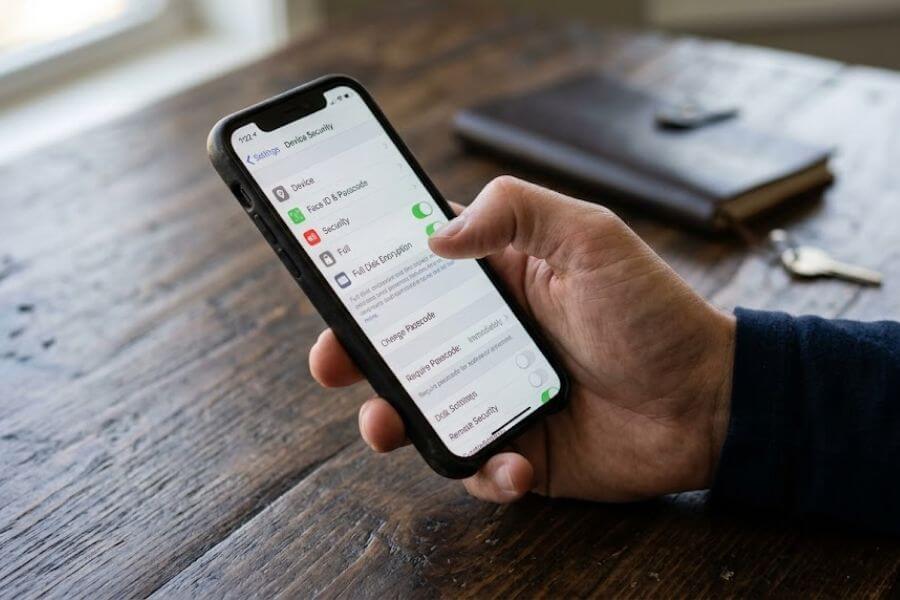
Every single time you open your phone, tap a screen, or type a search, you leave a trail. It is like walking through wet cement, except this cement never dries. Companies, tracking programs, and distant computers are constantly watching. They note what you buy, what you watch, who you talk to, and where you go. They build a giant puzzle out of your habits, and right now, that puzzle is wide open for anyone to see.
You can close the blinds. Cryptography is a fancy word for secret codes, and encryption is how we turn your readable information into a scrambled mess that only you can unlock. Think of it like a super-secure vault for your digital life.
This guide will show you how to lock down your data from top to bottom. You will learn how to protect your conversations, your search history, your files, and your physical devices. You do not need to be a computer wizard to do this. You just need to take it one step at a time.
Shifting Your Mindset From Open to Private
Before changing a single setting, you have to change how you look at your devices. Most gadgets are built to share data by default. They are designed to make things smooth and effortless, but that comfort usually costs you your privacy. When a service is completely free, you are usually the product being bought and sold.
Your digital footprint is spread across multiple areas:
- Your local hardware (your actual phone, tablet, and computer)
- Your network connections (the pathways your data takes through the internet)
- Your accounts and cloud storage (where your data sits on distant servers)
- Your communication channels (your texts, emails, and video calls)
To build a true fortress, you must tackle each of these layers. If you encrypt your messages but leave your phone unlocked without a passcode, your privacy wall still has a massive hole in it. True privacy is a habit, not a one-time button you press.
Layer One: Locking Down the Physical Device
The best place to start is right in your hands. If someone physically steals your phone or laptop, you do not want them reading your journal entries, looking at your family photos, or accessing your bank accounts. Local encryption ensures that if your device is turned off, the files inside look like total gibberish.
Protecting Your Smartphone
Most modern smartphones have built-in encryption, but it only works if you turn on the right security settings. If you use a simple four-digit code like 1-2-3-4 or your birth year, an automated guessing program can break into your device in seconds.
For both Apple and Android devices, you need a strong passcode. A strong passcode is at least six to eight characters long, mixing numbers and letters if possible. When your phone locks, the device uses that passcode to create a unique mathematical key. Without that key, the chip inside the phone cannot piece your files back together.
Go to your device security settings right now. Look for the screen lock options. Choose a custom alphanumeric code. This means you will use both letters and numbers. Also, make sure your phone is set to lock immediately after the screen turns off. If it waits ten minutes to lock, that leaves a wide window for someone to swipe it off a table and access everything.
Securing Your Desktop and Laptop
Computers do not always encrypt everything automatically. If you use a computer running Windows, you need to look for a tool called BitLocker or Device Encryption. If you use a Mac, the tool is called FileVault.
When you turn these features on, your computer will encrypt your entire solid-state drive or hard drive. This means if someone takes the computer apart and steals the storage drive, they cannot plug it into another computer to read your files.
Here is how you handle this process:
| Operating System | Tool Name | Where to Find It | What You Need |
| Windows Home / Pro | BitLocker or Device Encryption | System Settings under Update and Security or Control Panel | A Microsoft account or a safe place to print a recovery key |
| macOS | FileVault | System Settings under Privacy and Security | Your login password and a safe place to store the cloud recovery key |
| Linux | LUKS | Selected during the initial operating system installation | A strong passphrase that you enter every single time you boot up |
When you turn on full-disk encryption, your computer might take a while to scramble everything for the first time. Let it sit plugged into the power outlet until it finishes. Once it is done, you will not notice any slowdown, but your files will be totally safe whenever the computer is powered down.
The Importance of Recovery Keys
When you encrypt a hard drive, the computer creates a long backup code called a recovery key. If you forget your main password, this recovery key is the only thing that can save your data.
Do not save this recovery key in a text document on that same computer. That is like locking your house keys inside the house. Write it down on a piece of paper and hide it somewhere safe in your room, or store it in a secure password manager that you can access from a different device. If you lose both your password and your recovery key, your data is gone forever. Not even the manufacturer of the computer can get it back for you.
Layer Two: Scrambling Your Network Traffic
Once your physical device is safe, you need to look at what happens when your data leaves your machine. When you type a website address, that request travels from your device to your home router, then to your internet service provider, and finally across the world to the website server. Along that path, anyone sitting on the same network can see exactly what you are doing if you do not scramble the data.
Navigating the Virtual Private Network Landscape
A Virtual Private Network, usually called a VPN, creates an encrypted tunnel between your device and a secure server run by the VPN company. Instead of your internet provider seeing that you are visiting a specific website, they only see a stream of unreadable code moving toward the VPN server.
When choosing a VPN, you must avoid free services. Running a network of fast computers across the globe costs a massive amount of money. If a company does not charge you a monthly fee, they are likely making money by collecting your browsing habits and selling them to advertising companies.
Look for a provider with a strict no-logs policy. This means they do not keep track of what websites you visit or what files you download. If a government or an outsider asks the VPN company for your data, the company has nothing to hand over because their systems delete the information immediately.
Understanding Secure Web Browsing
Most websites today use a security system called HTTPS. You can tell a site uses this because a little padlock icon appears next to the website address in your browser bar. This system scrambles the data traveling between your browser and that specific website.
However, standard HTTPS does not hide the name of the website you are visiting from your internet service provider. To fix this, you need to use a private web browser and change your Domain Name System settings. Your browser uses this system to turn website names into numbers that computers understand.
By default, your internet provider manages this system and tracks every site you look up. You can switch to an encrypted alternative inside your browser settings, often listed as Secure DNS or DNS over HTTPS. This hides your specific web requests from local network snoopers.
The World of Darknets and Deep Privacy
If you want the highest level of network privacy, standard browsers and VPNs are sometimes not enough. There are advanced networks designed to bounce your traffic through three different encrypted computers around the world. This makes it almost impossible for anyone to trace the data back to your home.
The most common tool for this is the Tor Browser. It looks like a normal web browser, but it runs on a specialized network. It strips away your location, your device details, and your internet provider information.
The downside is that routing your data through three different countries takes time, so your internet speed will feel much slower. It is a tool to use when you are dealing with deeply sensitive information or when you want to look up things without a single corporate entity tracking your steps.
Layer Three: Securing Your Words and Conversations
We talk to our friends, family, and classmates all day long through messages, emails, and video calls. Most standard texting systems and social media chats save your messages in plain text on their company computers. That means employees, automated ad-scrapers, and hackers can potentially read your private notes.
Switching to End-to-End Encrypted Messaging
The gold standard for communication is end-to-end encryption. This means your message is scrambled on your phone before it ever leaves, stays scrambled while it travels across the internet, and is only unscrambled when it reaches your friend’s phone. The company running the app cannot read the message even if they wanted to.
[Your Phone] ---> (Scrambled Code) ---> [App Server] ---> (Scrambled Code) ---> [Friend's Phone]
   (Unlocks)                                                                        (Unlocks)
Many popular apps claim to be secure, but they only encrypt the message while it travels to their servers, where they decrypt it and read it to target ads at you. You want apps that use open-source encryption protocols. Open-source means independent security experts can look at the computer code to verify that the locks are truly secure and have no hidden trapdoors.
Auditing Your Chat Settings
Even when you use a secure app, you need to check your settings to ensure your data stays private over time. Many apps have a feature that creates backups of your chat history to cloud storage. If those cloud backups are not encrypted, then your secure messages are sitting unprotected on another company’s server.
Look through your messaging app settings for these specific adjustments:
- Turn off standard cloud backups, or turn on encrypted cloud backups if the app offers them.
- Enable disappearing messages for casual conversations so your older chats delete themselves automatically after a week or a day.
- Turn on registration locks, which require a PIN code if someone tries to move your phone number to a new device to steal your account.
- Block previews from showing up on your phone lock screen so people walking past your desk cannot read incoming texts.
Rethinking Your Email Habits
Standard email is like a postcard. Anyone who handles it along the way can read what is written on it. If you use a free email service provided by a massive search engine company, computer programs are actively scanning your emails to figure out what products you might want to buy.
To protect your written correspondence, you can migrate to an encrypted email provider. These services automatically encrypt your inbox. If you send an email to another person using the same private provider, the message stays completely sealed from end to end.
If you send an email to a traditional address, the provider allows you to lock the email with a password. The recipient receives a link, enters the password you gave them through a separate text message, and reads the message inside a secure portal.
Layer Four: Securing Your Vault of Passwords
You cannot have real privacy if you use the same password for your school account, your video game profiles, and your personal email. If a hacker steals your password from a weak video game website, they will immediately try that exact same combination on your email and bank accounts.
Breaking the Bad Password Habit
A secure password is not something like your dog’s name followed by an exclamation point. True security requires passwords that are completely random and incredibly long. You should never know your own passwords. They should look like a chaotic string of random letters, numbers, and symbols.
Because human brains cannot remember dozens of forty-character codes, you need a password manager. This is an encrypted digital vault that holds all your credentials. You only have to remember one single, highly complex master passphrase to unlock the entire vault.
Selecting a Trustworthy Password Vault
There are two main types of password managers: those that store your vault on your local computer and those that sync your vault across the cloud using zero-knowledge encryption. Zero-knowledge means the company hosts your encrypted file, but they do not hold the key to open it. If they suffer a data breach, the hackers only get an unreadable pile of data.
When setting up your password manager, make sure you choose an independent, well-reviewed service that focuses solely on security. Avoid saving your passwords directly inside your web browser. Web browsers are often targeted by malicious software, and if someone gains access to your logged-in computer profile, they can easily export every single password saved in the browser settings.
Implementing Multi-Factor Authentication
Even with a perfect password, an extra layer of defense is necessary. Multi-factor authentication means that to log into an account, you need two things: something you know (your password) and something you have (like a physical phone or a security key).
Avoid using your SMS phone number for these security codes. Hackers can trick phone companies into switching your phone number to a new SIM card that they control. This is called a SIM swap attack.
Instead, use an authenticator app installed on your device. These apps generate temporary, six-digit numbers that change every thirty seconds. These numbers are calculated locally on your device based on a secret seed key, meaning they cannot be intercepted through the cellular phone network.
Layer Five: Cloud Storage and Backup Encryption
We store our lives in the cloud. Our documents, school projects, family videos, and private notes sit on servers owned by giant technology corporations. Most of these companies hold the keys to those files, meaning they can scan your pictures and documents whenever they want.
The Zero-Knowledge Cloud Alternative
To keep your files private, you should move your data to a zero-knowledge cloud storage provider. These services encrypt your files on your local machine before uploading them to the internet. The server hosting your files sees nothing but scrambled digital noise.
If you do not want to switch away from your current cloud provider, you can use a separate encryption tool to build your own security wall. There are open-source programs that let you create an encrypted folder inside your current cloud drive. You drag your sensitive files into that special folder, the program scrambles them instantly, and your normal cloud provider uploads the scrambled versions without ever knowing what is inside.
Formatting External Backup Drives
Local backups are just as important as cloud backups. If your computer catches a virus or crashes, you need a copy of your files on an external USB drive. However, an external drive sitting on your desk or in your backpack is highly vulnerable to theft.
Whenever you plug a new external drive into your computer, use your operating system’s built-in disk tools to format and encrypt the drive before copying any data onto it.
On a Mac, you can choose the encrypted format option inside the Disk Utility application. On Windows, you can right-click the drive letter and select the option to turn on BitLocker. This ensures that your physical backup copies are just as secure as the main files on your laptop.
Layer Six: Cleaning Your Web Browsing Footprint
Your web browser is the window through which you view the internet, but it is also the door through which tracking companies view you. As you move from site to site, invisible trackers follow your mouse movements, note what links you click, and record how long you stay on a page.
Swapping Out Your Browser Engine
The most popular web browsers are built by advertising companies. Their primary goal is to collect your data to build an advertising profile. To protect your digital footprint, you should switch to a privacy-focused browser that blocks these trackers automatically.
Look for web browsers that include built-in tracking protection, fingerprinting resistance, and automatic ad blocking. Fingerprinting is an advanced tracking method where a website looks at your screen resolution, your installed fonts, your battery level, and your device model to create a unique identifier for your computer. A privacy-focused browser mixes these details up so you look exactly like thousands of other users, making you anonymous in the crowd.
Essential Privacy Add-Ons and Extensions
If you stick with a standard browser, you must install specialized extensions to clean up your web traffic. Be careful when installing extensions, because a malicious add-on can read everything you type on your screen. Stick to highly trusted, open-source tools.
| Extension Type | What It Does | Why You Need It |
| Advanced Content Blocker | Stops tracking scripts, advertising networks, and malware pop-ups from loading on a webpage | Saves internet bandwidth and stops companies from building a map of your browsing habits |
| Cookie Auto-Delete | Erases tracking data files from your computer storage the moment you close a web tab | Prevents websites from recognizing your device when you return later |
| Privacy Redirects | Automatically moves your request from tracking-heavy video and social sites to privacy-friendly alternative viewers | Allows you to view public content without logging into systems that track your identity |
Managing Your Digital Breadcrumbs
Every time you browse, your computer saves temporary files, history files, and site cookies. Cookies are small tokens that websites drop into your browser memory to remember who you are. While some cookies help keep you logged into your accounts, others exist solely to track you across different websites.
Configure your browser settings to automatically clear your browsing history, cookies, and temporary cache files every single time you close the application. This ensures that if someone else opens your computer or phone later, they cannot hit the back button or view your history log to see exactly what you were researching an hour ago.
Layer Seven: Anonymizing Your Identity and Accounts
Encryption protects the content of your data, but it does not always hide your identity. If you use your real name, your primary personal email, and your real phone number to sign up for every app and website, companies can link all your separate encrypted profiles back to your actual identity.
Utilizing Email Aliases
An email alias is a dummy email address that automatically forwards messages to your real, hidden inbox. Instead of giving your real email to a shopping site or a video game forum, you generate a unique random alias for that specific account.
If that company sells your data or suffers a security leak, you will know immediately because spam emails will start arriving at that specific alias. You can simply flick a switch inside your alias manager to delete that address forever, cutting off the spam without needing to change your primary email address. This keeps your true identity completely separate from casual websites.
Masking Your Phone Number
Many apps demand your phone number before letting you create an account. This is a massive privacy risk because your phone number is connected to your real-name cellular contract, your credit history, and your physical location.
You can use phone number masking services or virtual numbers to protect your privacy. These services provide a secondary, digital phone number that routes calls and text messages directly to an app on your smartphone. By using a virtual number for online registrations, you prevent data brokers from linking your online accounts to your real-world billing address and identity.
Disguising Your Payment Information
When you buy things online, your credit card number contains your name and billing address. This data is tracked by banks, credit card networks, and advertising companies to see exactly how you spend your allowance or salary.
To shield your financial history, look into masked payment cards or privacy cards. These services let you create temporary, digital debit cards that connect to your funding source. You can set a spending limit on a card, make it work for only one specific store, or set it to self-destruct immediately after a single purchase. If a website gets hacked, your real bank accounts remain completely hidden and safe.
Wrapping Up Your Security Transformation
Taking control of your digital footprint can feel like a massive chore when you look at everything all at once. The secret is not to do every single step in one afternoon. Privacy is a construction project where you lay one brick at a time.
Start today by changing your smartphone passcode and setting up a password manager. Next weekend, turn on full-disk encryption on your laptop and swap your web browser. A week later, look into an encrypted messaging app for your closest friends. By slowly building these layers, you will eventually reach a point where your digital footprint is entirely wrapped in unbreakable armor, keeping your thoughts, your words, and your movements completely yours.
Frequently Asked Questions
What actually happens to my files when I turn on full-disk encryption?
When you enable full-disk encryption, your computer scrambles every single file on your system using an advanced mathematical algorithm. The computer turns your clear documents, pictures, and operating system components into an unreadable string of random letters and numbers.
When you turn on your computer and type your password or passphrase, your computer uses that input to create a specific decryption key. This key unscrambles the data instantly in the background as the machine reads the files. When you shut down your computer or lock the screen, the key disappears from the active memory, and the files instantly go back to being a scrambled mess. If someone removes your storage drive and plugs it into another machine, they will see absolutely nothing but digital garbage.
Will encrypting my phone or my computer make it run slower?
On modern devices, you will not experience any noticeable slowdown or performance drop. Modern smartphone processors and computer chips include a dedicated hardware component built specifically to handle encryption math.
Because this hardware component does the heavy lifting, your main processor can focus on running your apps, games, and browser tabs. The only time you might notice your device working hard is during the very first setup process, when the computer has to encrypt your existing files all at once. Once that initial process finishes, the everyday work of encrypting and decrypting files happens instantly without lagging your machine.
If I lose my master password for my password manager can I reset it?
If you lose the master password to a true, zero-knowledge password manager, the company cannot reset it for you. This is because a zero-knowledge service never transmits your clear master password to their corporate servers. They have no record of your key, which means they have no way to unlock your vault or change your login details.
To protect yourself against total data loss, most secure password managers require you to create an emergency recovery kit during the setup phase. This kit usually consists of a long string of random words or a unique key file that you must print out or write down. If you forget your master password, you can use this physical piece of paper to regain access to your accounts. If you lose both your master password and your physical recovery sheet, your data is gone forever.
Can a hacker still spy on me if I use a premium VPN service?
A VPN only encrypts the tunnel between your device and the VPN server. It protects your data from being stolen by hackers on local public wireless networks, and it stops your internet service provider from tracking what websites you use.
However, a VPN cannot protect you if you actively download malicious files, click on phishing links, or log into websites using your real name and personal accounts. If you log into a social media account while connected to a VPN, that company still knows exactly who you are and can track what you do on their platform. A VPN is a tool to hide your location and network path, but it must be paired with smart browsing habits and private account settings to give you total security.
Why shouldn’t I just use the free built-in cloud backup systems on my phone?
Standard cloud backup systems are highly convenient, but they usually do not encrypt your data in a way that excludes the cloud provider. If you use standard settings, the company hosting the cloud can read your text backups, view your uploaded photos, and look at your location history logs. This means that if a bad actor hacks into your cloud account or if a government entity demands your records, the company can hand over all your personal data in plain text.
To maintain real privacy, you need to navigate deep into your phone settings to enable advanced data protection or zero-knowledge cloud backups. This changes the cloud system so that your phone encrypts the backup file before it gets sent to the server, ensuring that you are the absolute owner of the decryption key.