Imagine having every single movie, television show, song, and family photo you own stored in one central powerhouse that sits quietly in the corner of your room. No more juggling different streaming subscriptions, hunting for lost physical discs, or running out of storage space on your phone. A Network Attached Storage system, or NAS for short, is your personal cloud. It is a dedicated smart hard drive that connects to your home internet network, making your entire entertainment library available to your computer, television, smartphone, and tablet all at the same time. Let us walk through how you can build and configure an advanced home media server that will become the beating heart of your digital life.
Why Centralized Media Storage Changes Everything
Keeping your media files scattered across three different laptops, an old external hard drive, and various memory cards is a recipe for frustration. When you centralize everything onto a single network storage device, you create a unified library. This means you can start watching a documentary in your living room and finish it on your tablet in bed without moving files around.
An advanced media server does more than just hold files; it actively organizes them. It automatically searches the internet to find beautiful album art, movie posters, actor biographies, and plot summaries. It transforms a boring list of file names like Movie_Version_2_Final.mp4 into a gorgeous, interactive digital library that feels just like your favorite commercial streaming services.
The Power of Local Streaming Control
When you rely entirely on internet-based streaming services, you are at the mercy of their monthly price hikes, changing video libraries, and internet outages. If your neighborhood internet connection goes down, your entertainment stops. With a local network storage setup, your media streams directly from your device to your screen over your local home network. This means your movies will keep playing in crisp, pristine quality even if the outside internet is completely offline.
Furthermore, you retain total ownership of your media. No service can suddenly delete your favorite movie because a licensing contract expired. You are the boss of your own entertainment ecosystem, free from monthly fees and data limits.
Choosing the Perfect Hardware Blueprint
Before you can configure software, you need the physical machine that will store and serve your files. You have two main choices here: buying a prebuilt system from a trusted manufacturer or assembling your own custom computer from scratch. Both paths have distinct advantages depending on your budget, your technical confidence, and how much time you want to spend on the project.
Prebuilt Systems vs. Custom DIY Assemblies
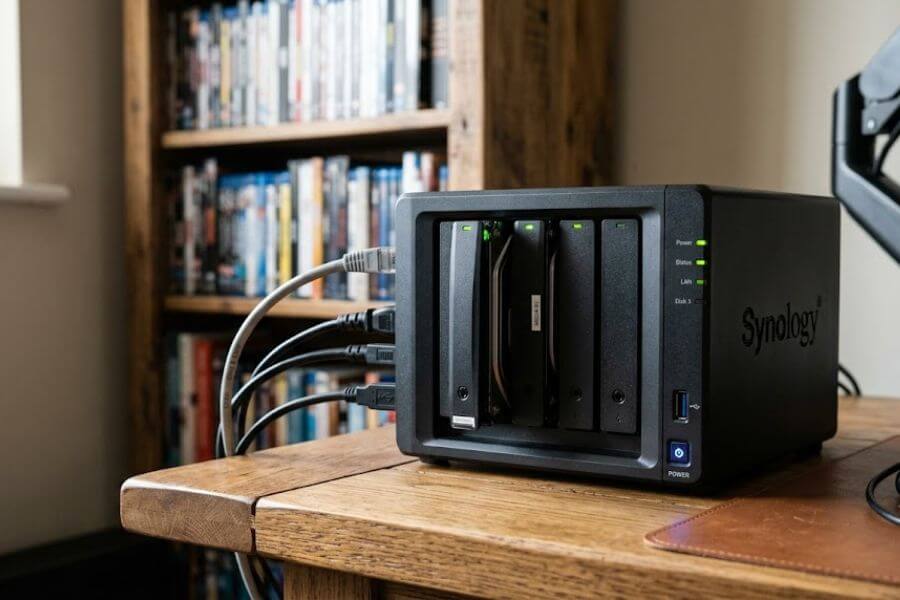
A prebuilt storage machine is like buying a sleek, ready-to-drive smartphone. Companies like Synology, QNAP, and Asustor make compact boxes that come with their own user-friendly operating systems. You simply slide in the hard drives, plug in the power cord, and follow a simple setup wizard. This route is fantastic if you want something that works right out of the box and occupies very little physical space.
Building your own system is just like building a custom gaming computer. You select the computer case, the processor, the motherboard, the memory, and the power supply yourself. While this takes more time and research, it gives you unmatched power and freedom. You can choose much faster processors, add more cooling fans, and upgrade individual parts over time as your media library expands.
Selecting the Right Processor and Memory
The processor, or CPU, is the brain of your storage system. For a basic file server, you do not need a lot of brainpower. However, a media server needs a capable processor because it handles a heavy task called transcoding. Transcoding is the process where the server translates a video file on the fly into a format that your specific playback device, like a smartphone or smart television, can understand. If you plan to stream high-definition videos to multiple screens at the same time, look for an Intel Core or AMD Ryzen processor that can handle heavy math without breaking a sweat.
Memory, or RAM, is the short-term workspace of your server. Think of it like the surface of a study desk. The larger the desk, the more books and papers you can have open at the same time. For a smooth home media experience, you should aim for a minimum of eight gigabytes of memory. If you plan to run advanced background applications or share your library with many family members, sixteen gigabytes or more will keep everything running smoothly without slowdowns.
Picking the Best Hard Drives for Continuous Duty
You cannot just use any standard desktop hard drive for a network storage system. Regular computer drives are designed to run for a few hours a day and then go to sleep. A media server, however, stays turned on twenty-four hours a day, seven days a week. It needs specialized hard drives often labeled as network-ready or red drives.
| Drive Characteristic | Standard Desktop Drive | Specialized Network Storage Drive |
| Designed Operational Hours | 5 to 8 hours per day | 24 hours per day, 7 days a week |
| Vibration Resistance | Low (designed for single-drive cases) | High (built to withstand multiple adjacent drives) |
| Warranty Length | Typically 1 to 2 years | Typically 3 to 5 years |
| Heat Management | Standard cooling required | Low-heat architecture for tight spaces |
These specialized drives are built with heavier components, better internal balance to reduce vibrations, and smart firmware that prevents data errors when multiple drives spin right next to each other in a small enclosure.
Understanding and Selecting the Ideal Operating System
Once your hardware is assembled and standing ready, you must choose the software system that will control the machine. The operating system determines how you interact with your files, how your data is protected, and what types of applications you can run.
User-Friendly Commercial Operating Systems
If you chose a prebuilt hardware unit, it will come preinstalled with a proprietary operating system, such as Synology DiskStation Manager or QNAP QTS. These interfaces look just like a traditional desktop computer screen inside your internet browser. They feature clickable icons, an application store where you can download media tools with one click, and automated alerts that send a text or email to your phone if a hard drive needs attention. This layout is excellent for younger tech enthusiasts or anyone who wants a straightforward setup without looking at lines of text code.
Open-Source Powerhouses for Advanced Customization
For those who build their own hardware, free open-source operating systems offer incredible depth and flexibility. The two most popular choices are TrueNAS and Unraid.
TrueNAS uses a highly secure enterprise file system that treats your data like precious treasure. It uses strict math formulas to ensure that not a single piece of your data becomes corrupted over time. Unraid operates a bit differently, allowing you to mix and match hard drives of completely different sizes, which is perfect if you want to start small and add whatever random drives you can find over the years. Both of these platforms require a bit of reading to master, but they give you total authority over every single setting in your system.
Mastering Hard Drive Redundancy and Data Protection
Hard drives are mechanical devices with tiny spinning platters and moving arms. Because they contain physical moving parts, they will eventually wear out and break down over time. If a drive breaks and you do not have a safety plan, you could lose your entire movie and music collection instantly. This is where drive redundancy comes into play.
The Magic of Redundant Arrays of Independent Disks
Redundant Arrays of Independent Disks, commonly shortened to RAID, is a technology that binds multiple hard drives together so they behave as one massive, ultra-secure storage pool. Instead of writing a file to just one disk, the system spreads the data across several drives along with special mathematical recovery data.
If one of your physical hard drives suddenly stops working with a loud click, your server will not crash, and your files will not disappear. The remaining healthy drives use that mathematical recovery data to fill in the missing pieces in real time. You can keep watching your favorite show without interruption while you order a replacement drive.
Choosing Your Safety Level
There are several different configurations of drive protection, each balancing safety, speed, and total available storage space.
- RAID One (Mirroring): This configuration requires at least two drives. Everything written to the first drive is instantly copied exactly to the second drive. If one drive dies, you have a perfect twin ready to go. The downside is that you lose half of your total potential storage capacity.
- RAID Five (Striping with Parity): This layout requires at least three drives. It distributes your data across all the drives but reserves one drive worth of space for parity data. This allows you to lose any single drive without losing data, giving you much more usable storage space than mirroring.
- RAID Six (Double Parity): This setup requires at least four drives and can survive the simultaneous failure of two drives at the exact same time. This is excellent for massive storage arrays where rebuilding a broken drive can take several days and put extra stress on the remaining hardware.
Setting Up Your Core Media Management Software
With your operating system active and your hard drives protected, it is time to install the software that turns raw files into a beautiful digital movie theater. There are three major kings in this space: Plex, Emby, and Jellyfin.
Comparing Plex, Emby, and Jellyfin
Plex is the most popular choice worldwide. It has a beautiful, polished interface that works on almost every smart television, game console, and smartphone in existence. It is incredibly simple to set up, but some of its advanced features require a paid subscription.
Emby is very similar to Plex, offering an elegant layout and great performance, with a strong focus on giving users more granular control over user permissions and interface customization. It also offers a mix of free and premium features.
Jellyfin is the newcomer that has taken the tech world by storm. It is completely free and open-source, meaning every single feature is unlocked from the very start. There are no corporate tracking elements, no advertisements, and no premium paywalls. It requires a slightly more hands-on setup, but it honors the true spirit of total user ownership.
Organizing Your Files for Perfect Scraping
Media software relies on clean organization to identify your files. If you name a file cool_movie_77.mp4, the system will have no idea what it is. You need to follow a strict naming structure so the server can scan the files and pull down the correct artwork and descriptions.
Create a main folder called Movies and another separate folder called TV Shows. Inside the movie folder, give each movie its own individual folder named exactly after the film, including the year it came out in parentheses. For example: Movies/The Secret Adventure (2024)/The Secret Adventure (2024).mp4.
For television series, organize them by seasons to keep things tidy. Use a structure like: TV Shows/Space Explorers/Season 01/Space Explorers - S01E01 - The Journey Begins.mkv. This consistent pattern guarantees your media player will never get confused and will always display the perfect information for your library.
Configuring Network Shares and User Accounts
Now that your media server is organized internally, you need to open up communication pathways so other computers and devices in your house can send files to it and read files from it.
Implementing Samba and Network File Systems
To move files from your everyday laptop onto your media server, you need to create a shared network folder. The most universal language for this is Server Message Block, which is commonly referred to as SMB or Samba. This protocol allows Windows, Mac, and Linux computers to see your media server as if it were a simple external drive plugged directly into the side of your laptop.
For advanced users who primarily use Linux computers or want maximum speed for high-resolution video streams, Network File System, or NFS, is another alternative. It has less decorative overhead than Samba, allowing files to move with maximum speed across your home network wires.
Creating Secure Profiles for Family Members
You do not want everyone in the household to have total control over the server settings. You can create separate user profiles for each person in your home.
Recommended User Access Permissions
- The Administrator Account: This is your primary account. It has complete control to delete files, change system settings, update software, and format drives. Keep this password safe and secure.
- The Content Creator Profile: This account can read existing files and write new files into the shared folders. This is perfect for teenagers or family members who want to upload new music or videos to the system but should not be allowed to tinker with system settings.
- The Viewer Profile: This is a read-only account. It can watch movies and stream music but cannot delete anything, rename folders, or add new content. This is ideal for younger children or guests, ensuring that your precious library can never be accidentally erased by a wrong button press.
Optimizing Network Performance for Smooth Streaming
There is nothing worse than a movie freezing right at the most exciting climax while a little loading circle spins in the center of your television screen. To avoid buffering issues, your home network environment must be tuned for high performance.
Choosing Wired Ethernet over Wireless Connections
While modern wireless internet is fast enough for scrolling through social media, it can struggle under the weight of massive uncompressed high-definition video files. Wireless signals can be easily disrupted by thick walls, microwave ovens, or competing signals from your neighbors.
Whenever possible, connect your media server directly to your main home internet router using a physical Ethernet cable. Look for cables labeled as Category Six, or Cat6 for short. A physical wired connection provides a steady, dedicated highway of data that never drops out, ensuring multiple people can watch massive files at the exact same time without a single stutter.
Tuning Quality of Service Router Settings
If someone in your house decides to download a giant video game update while you are trying to stream a movie, your video quality might suddenly plummet. You can fix this by logging into your main home router and enabling a feature called Quality of Service, or QoS.
This setting allows you to create traffic rules for your home internet. You can tell your router that media streaming data from your server should always take priority over large file downloads or background computer updates. The router will then intelligently manage its traffic lanes, ensuring your movie stream stays smooth while gently slowing down background downloads just enough to keep the peace.
Advanced Video Transcoding Secrets
We touched on transcoding earlier, but mastering this process is the true secret to an advanced, bulletproof media system that works perfectly inside and outside your house.
Embracing Hardware Acceleration
By default, a server will use its main processor to translate video files. This is called software transcoding, and it takes an incredible amount of processing energy. It can cause your server fans to spin at maximum speed, creating loud noise and generating substantial heat.
[Raw Media File] ──> [Intel Quick Sync / Nvidia NVENC] ──> [Smooth Optimized Stream]
                             (Hardware Engine)
To optimize this process, you want to enable hardware acceleration. This feature offloads the heavy translation math to a specialized, dedicated section of your processor or a separate graphics card. Intel processors feature a technology called Quick Sync, while Nvidia graphics cards utilize a system called NVENC. When enabled, these dedicated video engines can translate several high-definition video streams simultaneously without causing the main processor to sweat, keeping your entire system cool, quiet, and highly efficient.
Managing Different Screen Resolutions and Formats
Your media library will likely contain a mix of different file formats, ranging from old family videos recorded twenty years ago to modern high-resolution cinematic masterpieces. Different screens have different capabilities. An older tablet might only display standard definition, while a modern living room television can show stunning ultra-high-definition content.
Advanced media applications monitor these screen connections automatically. When you hit play on a device, the client application whispers to the server, telling it exactly what screen resolution and video language it can understand. The server then adjusts the stream in real time, matching the format perfectly to that specific device, so you never have to worry about whether a file is compatible with your playback screen.
Secure Remote Access and External Streaming
The ultimate test of an advanced home media setup is being able to access your entire library when you are away from home, whether you are sitting on a school bus, staying in a hotel room on vacation, or hanging out at a friend’s house.
Setting Up a Virtual Private Network for Safety
The most secure way to connect back to your home server from the outside world is by creating a Virtual Private Network, or VPN. Tools like WireGuard or Tailscale allow you to build an encrypted digital tunnel between your mobile device and your home network.
When you turn on your secure tunnel application while away from home, your smartphone behaves exactly as if it were plugged into your home router. This allows you to stream your media safely without exposing your server to malicious internet hackers who are constantly hunting for unprotected open entry points on the public internet.
Utilizing Reverse Proxies for Elegant Access
If you want a more seamless experience where you do not have to turn on a tunnel application every single time, you can set up a reverse proxy system using tools like Nginx Proxy Manager or Caddy. A reverse proxy acts like a polite security guard standing at the front door of your home internet connection.
You can buy a cheap, custom web address like mycoolmedia.com. When you type that address into any web browser, the request goes straight to your reverse proxy guard. The proxy verifies that the request is safe, applies an encryption security certificate, and then securely hands the stream off to your internal media software. This gives you a clean, professional web link that you can easily share with your close friends and family members.
Automated Media Acquisition and Library Growth
An advanced server should not require you to manually download, rename, and sort every single file you want to add to your collection. You can automate the entire workflow using intelligent companion software tools.
Integrating Automated Content Trackers
There is a brilliant suite of open-source automation applications designed to manage your media library seamlessly. These tools work tirelessly in the background, constantly checking calendars to see when your favorite shows or highly anticipated movies are scheduled for release.
- Radarr: This tool focuses entirely on movies. You give it a list of films you want to watch, and it monitors the internet for digital releases, handling everything until the movie is safely resting on your hard drives.
- Sonarr: This application does the exact same job but is specifically designed for television series, tracking season schedules, episodes, and air dates.
- Lidarr: This program monitors your favorite musical artists, automatically looking out for new album drops, singles, and remastered collections.
Implementing Smart Download Clients
Once an automation tracker discovers that a new episode of your favorite show has been released, it coordinates with a download client to bring the file home. Popular download applications include qBittorrent and SABnzbd.
These programs receive the encrypted download instructions from your trackers, pull down the files at maximum internet speed, check them for safety, and unpack them. Once the download finishes, the program alerts your automation tracker, which steps in to rename the file perfectly and slide it into the correct folder for your media player to discover.
Essential Long-Term Maintenance and Health Monitoring
Building a spectacular media engine is only the first half of the journey. To ensure your system runs smoothly for many years to come, you must perform regular maintenance checks and monitor its overall health status.
Tracking System Health with Analytical Dashboards
You do not want to wait until a hard drive completely breaks to find out that something is wrong. You can install comprehensive dashboard monitors like Netdata or Glances to keep a constant eye on your internal vitals.
These monitors act like a health dashboard in a high-tech car. They display real-time graphs showing how hot your processor is running, how much memory is currently being used, and how fast your internal cooling fans are spinning. You can configure these tools to send instant notifications to your smartphone via messaging applications like Discord or Telegram if your system heat spikes or a hard drive detects an internal error.
Implementing Automatic Software Updates
Software developers are constantly releasing updates that fix security flaws, speed up performance, and add exciting new features. However, updating advanced systems manually can feel like a chore. You can use an automation tool called Watchtower if you use container-based applications. Watchtower checks for updates in the background, safely shuts down your application for a brief moment, applies the fresh update, and turns it back on within seconds, keeping your entire media setup perpetually modern and safe while you sleep.
Frequently Asked Questions
What happens to my streaming movies if a hard drive completely breaks down?
If you have configured your storage array with a protective layout like RAID One, Five, or Six, your movies will continue to play perfectly without any interruption. The system uses the remaining healthy drives to recreate the missing data on the fly. You will simply need to identify the broken drive, slide it out of the enclosure, and replace it with a brand-new drive of the same size. The system will then automatically rebuild its safety shield in the background.
Can I mix different hard drive sizes inside my home network storage system?
If you use a traditional hardware configuration, you generally must use hard drives that are all the exact same size. However, if you choose a flexible operating system like Unraid or Synology Hybrid RAID, you are allowed to mix and match drives of completely different sizes and brands. This allows you to use older drives you might already have lying around the house and upgrade your system size gradually over time.
How many people can watch video streams from my server at the exact same time?
The number of simultaneous viewers depends directly on whether your system is using hardware acceleration and the resolution of the video files. If your server is playing videos directly without changing their format, even a modest server can easily support ten or more devices at once. If your server has to actively transcode and translate heavy high-definition videos, an entry-level processor might struggle with two or most streams, while a processor equipped with hardware acceleration can easily handle five to ten streams simultaneously.
Does a home media server consume a massive amount of electrical power?
Unlike large gaming computers that draw huge amounts of electricity, modern home network storage devices are engineered to be highly energy-efficient. They utilize low-power processors and feature smart energy settings that spin down the hard drives into a deep sleep state when nobody is watching a movie. A typical home storage system will only add a tiny fraction to your monthly household electricity bill, making it very affordable to leave running around the clock.