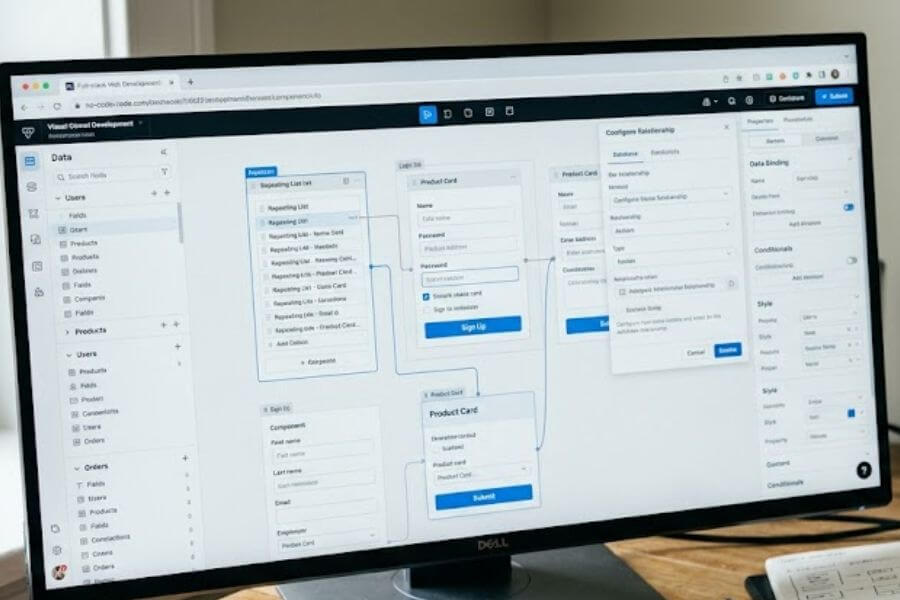
Imagine bringing your biggest digital ideas to life without writing a single line of computer code. Today, you can build powerful, professional web applications all by yourself using visual tools that handle the heavy lifting behind the scenes. This guide will walk you through the entire process of creating your own full-stack software from scratch.
Understanding the Power of Modern Web Development
Websites have changed a lot over the years. In the past, making something like a social network or an online store required teams of engineers spending months typing complex text into computers. Now, the landscape is completely different, allowing anyone with a computer and an internet connection to become a creator.
What Does Full-Stack Actually Mean
When people talk about a full-stack application, they are referring to a complete digital product that has two main parts working together. The first part is the frontend, which is everything you can see and interact with on your screen, like buttons, text, and images. The second part is the backend, which lives hidden away on powerful remote computers called servers. The backend handles the thinking, saves your information, and makes sure everything runs safely. Combining both parts gives you a full-stack application.
The Evolution of Building Without Code
In the early days of the internet, making a webpage without coding usually meant you could only create a simple, static page that sat there like a digital poster. You could read it, but you could not interact with it. Today, visual development platforms let you build dynamic software. This means your application can react to what users type, remember their preferences, process payments, and update itself instantly. It is just like playing with digital building blocks that possess real-world superpowers.
Why Visual Development Matters Today
The main benefit of this modern approach is speed. You can turn an idea in your head into a real application that people can use in a matter of days rather than months. It also opens the door for students, designers, and everyday inventors who have brilliant concepts but do not want to spend years studying computer programming languages. You get to focus entirely on how your application looks, how it feels, and how it helps the people using it.
Comparing Traditional Development and Visual Development
| Feature | Traditional Coding | Visual Development |
| Primary Skill Needed | Programming Languages (JavaScript, Python) | Logical Thinking and User Design |
| Creation Speed | Weeks to Months | Days to Weeks |
| How You Fix Mistakes | Searching through lines of text | Adjusting visual blocks and settings |
| Cost to Start | Often requires expensive specialist teams | Low-cost or free starter plans |
| Modifications | Rewriting backend and frontend connections | Dragging components to new positions |
Planning Your Application Before You Start
The most successful creators do not just jump straight into building. They take some time to plan out exactly what they want to make. Think of it like drawing a blueprint before you start building a house. Planning saves you from getting confused later on.
Defining Your Core Idea
Start by writing down a simple description of what your application will do. If you want to build a tool that helps students track their homework, focus on that main goal. Avoid the temptation to add fifty different features right at the look-off. Choose one single problem that your application solves perfectly, and make that your core focus.
Creating Simple Screen Sketches
You do not need to be a professional artist to sketch your application. Grab a piece of paper or a digital notebook and draw some basic boxes to represent the screens of your app.
- Draw a login page where users type their names.
- Sketch a main dashboard showing their saved items.
- Design a settings page where they can change their profile colors.
These quick drawings are called wireframes, and they act as your map while you build.
Mapping Out User Steps
Think about the journey a person takes when they open your application. What happens when they click the big blue button in the center of the screen? Does it open a new page, or does it save an item to their profile? Write down these steps in a simple sequence. For example: User logs in, user clicks create post, user types text, user clicks submit, post appears on the screen. Mapping this out prevents you from forgetting important steps when you begin building the actual logic.
Choosing Your Visual Development Stack
Just like a carpenter has a toolbox filled with different tools for different jobs, a visual developer uses a combination of platforms to form a stack. Different tools excel at different tasks, so you want to match them to your specific project goals.
Platforms Focused on Frontend Visuals
If your main goal is to make something that looks beautiful and responds smoothly on mobile phones and desktop computers, you want a frontend-heavy tool. FlutterFlow and WeWeb are fantastic examples. They give you a blank canvas where you can arrange elements exactly where you want them, customize colors, and build animations without restrictions. They focus heavily on the user-facing side of your application.
Platforms Focused on Data and Logic
Some applications do not need complex animations, but they do need to handle massive amounts of information. Think of things like a tracking system for a delivery company or a massive directory of local businesses. Tools like Bubble or Glide are designed to handle heavy amounts of information. They make it simple to store records, filter through thousands of items, and set up strict rules about who can see certain pieces of information.
Specialized Tools for Storing Information
Sometimes you want to keep your data completely separate from your visual design. This is where dedicated backend platforms come into play. Xano and Supabase act as super-powered digital filing cabinets. They sit quietly in the background, holding onto all your user records, photos, and files, waiting to send them to your frontend tool whenever a user requests them.
Quick Selection Matrix for Popular Tools
- Bubble: Best for all-in-one apps where you want data and visuals in the same platform.
- FlutterFlow: Best if you want your application to work flawlessly as a downloadable mobile phone app.
- WeWeb + Xano: Best for professional corporate applications that need high security and separate parts.
- Glide: Best for making simple, data-driven apps based on spreadsheets in a single afternoon.
Designing a User-Friendly Frontend
Now that you have chosen your tools, it is time to start building the parts that your users will see. Designing a clean, helpful interface is all about consistency and keeping things organized so people do not get confused.
Using Layout Containers Correctly
When you place elements on a screen, you should avoid throwing them down at random spots. Visual tools use layout containers, often called rows and columns, to keep things neat.
- Columns stack your elements vertically, from top to bottom.
- Rows place your elements horizontally, from left to right.
By placing your buttons, text blocks, and pictures inside these rows and columns, your application will automatically adjust its shape to look great on both giant computer monitors and tiny smartphone screens.
Picking a Clear Color Palette and Typography
Limiting your choices helps make your application look professional. Pick one main color for important things like buttons, one neutral color for backgrounds, and one dark color for text. When it comes to text styles, stick to two fonts at most. Use a bold, clean style for your big headings and a highly readable, simple style for your regular paragraphs. This keeps the screen clean and prevents your users from experiencing eye strain.
Building Interactive Elements
An application comes alive when things react to human touch. When designing buttons, give them clear states. This means a button should change its color slightly when a user hovers their mouse cursor over it, and it should shrink a tiny bit when clicked. These minor visual responses give users confidence that the application is working correctly and listening to their commands.
Key Principles of Great User Interfaces
- Whitespace: Leave plenty of empty area around your text and buttons so the design can breathe.
- Hierarchy: Make your most important buttons larger or brighter than the secondary options.
- Predictability: Put your navigation menu where people expect to find it, like across the top or down the left side.
- Clarity: Use labels on buttons that state exactly what they do, like Save Profile instead of just Submit.
Creating Your Digital Database
The database is the brain of your application. It is the place where everything is remembered, even after a user closes their internet browser or turns off their computer. Setting it up correctly makes the rest of your build much smoother.
Understanding Data Types
Think of your database as a collection of specialized tables, similar to school spreadsheets, but much smarter. Each piece of information you collect needs a specific data type so the computer knows how to handle it.
- Text: Used for names, descriptions, and messages.
- Number: Used for prices, ages, and scores so you can do math with them.
- Boolean: A simple true-or-false switch, used for things like checking if an account is active.
- Date: Used for birthdays, appointment times, and creation moments.
Setting Up Custom Tables
Let us look at a practical example. If you are building an application for a book club, you will need a table called Books. Inside that table, you will create specific fields for each entry.
Plaintext
Books Table
├── Title (Text data type)
├── Author (Text data type)
├── PageCount (Number data type)
└── Finished (Boolean data type)
Every time a user adds a book, a new row is created in this table matching that exact structure.
Connecting Tables Together
The real magic happens when you connect different tables to one another. This is called creating a relationship. In our book club app, you would also have a Users table. You can tell your database that one User can own many Books. By creating this link, your application can instantly show a personalized list of books belonging exclusively to the person who is logged in.
Connecting Frontend Visuals to Backend Data
With your visuals drawn and your database ready, you need to build the bridges that allow them to talk to each other. This process is called data binding, and it makes your pages dynamic.
Fetching Information to Show on Screen
Instead of typing text directly into your design canvas, you will tell your text boxes to look at your database. For instance, you can place a header text block on your screen and bind it to the Current User’s Name field. When Alex logs in, the screen says welcome, Alex. When Taylor logs in, the exact same text block automatically shifts to say welcome, Taylor.
Utilizing Repeating Lists for Grouped Data
When you want to display multiple items, you use a special layout element called a repeating list or collection list. You design just one single item box with a title, a picture, and a date. Then, you link that list container to your database table. The platform will automatically copy that design box over and over again for every single record found in your table, automatically filling in the correct details for each one.
Filtering and Sorting for Users
You do not always want to show every single piece of information at the same time. You can apply filter rules to your repeating lists. For example, you can add a search bar at the top of your screen and tell your database list to only display items where the title matches what the user is typing. You can also sort the list so that the newest items always appear at the very top.
Building Business Logic and Workflows
Logic is the set of rules that governs how your application behaves when events occur. It uses conditional thinking, which follows a basic pattern: when a specific action happens, perform this sequence of steps.
Creating Action Chains
Every visual tool has a workflow builder that lets you string actions together like a recipe. Let us look at what happens behind the screens when a user clicks a sign-up button.
Plaintext
[User Clicks Sign-Up]
         │
         ▼
[Step 1: Check if passwords match]
         │
         ▼
[Step 2: Create new user account in database]
         │
         ▼
[Step 3: Send a welcoming email automatically]
         │
         ▼
[Step 4: Move user to the main dashboard page]
By setting up these step-by-step chains, you control exactly how your software operates.
Using Conditional Logic for Custom Paths
Your application can make smart decisions on its own using conditional statements. These are basic if-then rules. For example, if a user tries to access a premium page without a subscription, then show them a payment screen. If they do have a subscription, then let them view the page. This keeps your application secure and guides users down the right paths based on their status.
Working with Input Validations
People make mistakes when typing into forms. Input validation is a logic step that checks data before it goes to your database. You can set rules that prevent a user from clicking a submit button if their email address is missing an @ symbol, or if their password is too short. This keeps your database clean and prevents your system from running into errors.
Connecting to the Outside World with Third-Party Tools
No application needs to live entirely on an island. You can connect your creation to other popular software tools across the internet to give it even more capabilities. This is achieved through integrations and system links.
Understanding Web Links and Connectors
Software platforms connect to each other using tools called application programming interfaces, which you can think of as digital plugs and sockets. Visual tools provide pre-made connectors so you do not have to build these plugs yourself. You can plug your application directly into external services with just a few clicks.
Automating Tasks with Workflow Tools
Platforms like Make and Zapier act as internet translators between different apps. If you want your application to send a notification message to your team workspace every time a new user registers, you can set up an automation pipeline. Your app tells Make that a registration occurred, and Make instantly passes that message along to your workspace app.
Popular Integrations to Enhance Your App
- Stripe: Allows you to safely accept credit card payments from customers worldwide.
- Resend or SendGrid: Automatically sends beautifully designed emails to your users.
- OpenAI: Connects your application to artificial intelligence models so it can summarize text or answer user questions.
- Google Maps: Displays interactive maps and addresses directly on your application screens.
Testing and Fixing Your Web Application
Before you share your creation with friends or customers, you need to test it thoroughly to ensure everything functions perfectly under different conditions.
The Art of Finding and Fixing Bugs
A bug is simply an error in your logic or design that causes the application to behave unexpectedly. To find them, you must become a digital detective. Most visual builders have a live debug mode. When you turn this mode on, you can watch your action chains run in slow motion, allowing you to see exactly which step is failing or where a database connection is breaking down.
Testing on Diverse Screen Dimensions
Just because your application looks flawless on your personal laptop computer does not mean it looks right on a mobile phone. Use your browser developer tools to simulate different screen sizes. Look for text elements that might overlap, buttons that grow too small to press with a thumb, or pictures that stretch awkwardly, and adjust your layout settings until they are resolved.
Conducting User Trials
Give your application to a friend or family member without explaining how it works. Sit back and watch them use it over their shoulder without saying a word. Take notes on where they get confused, what buttons they try to click that are not actually interactive, and when they hesitate. This real-world feedback is incredibly valuable for refining your user experience.
Launching and Maintaining Your Creation
Publishing your web application is an exciting milestone. Once your testing is complete, you are ready to push your project live so anyone around the globe can access it.
Setting Up a Custom Web Domain
When you first start building, your app will have a long, messy address provided by the building platform. For a professional look, purchase a custom domain name from a registrar. Connecting it is a straightforward process where you copy a few security keys from your domain provider and paste them into your visual builder settings. This gives your app a clean web link.
Launching with a Live Transition
Most platforms feature a simple, one-click deploy button. This takes all your visual designs, database tables, and logic workflows and packages them into a live website. The system splits your project into a development version for testing changes and a live version for actual customers, ensuring you never accidentally break things for active users while working on updates.
Monitoring Performance After Launch
Once your application is live, monitor how it performs. Keep an eye on your database storage levels and see how many people are visiting daily. If certain pages take a long time to load, check if your images are too large or if your database lists are fetching too much data at once. Continual adjustments keep your application running smoothly as your audience expands.
Frequently Asked Questions
Can a visual no-code application handle thousands of active users at the same time?
Yes. Modern visual platforms are built on top of major cloud computing networks. This means that as more people visit your web application, the underlying systems automatically scale up to handle the increased traffic. Many large businesses and thriving startups run their entire operations on visual development tools without experiencing slowdowns.
Am I locked into one platform forever once I build my web application there?
It depends on the specific tools you select. Some advanced platforms allow you to download the raw underlying code of your frontend or database whenever you want, giving you total ownership of your creation. Other all-in-one platforms require you to host your application on their servers. If you think you might want to move your app later, it is smart to build your database using a separate, independent tool.
Is it possible to build secure payment systems and protect user data without writing code?
Absolutely. Security is built directly into the foundations of top development tools. When you integrate payment processing tools like Stripe, sensitive credit card data never touches your personal system; it is handled securely by global payment experts. Visual tools also provide clear privacy rules tabs where you can restrict access so users can only view their own personal records.
How long does it typically take to learn these tools and build a complete app?
You can learn the basic layout and navigation principles of most visual tools in just a few days. Building a fully functional application with a working database and customized workflows generally takes between two to four weeks for a beginner. The timeframe depends entirely on the complexity of your features and how much planning you do before you start building.
Do I need a powerful computer to build full-stack web applications using these methods?
No. Because almost all modern visual development platforms operate entirely inside your internet browser, your personal computer does not have to do the heavy processing. As long as your laptop or desktop computer can browse regular websites and maintain a stable internet connection, you have all the computational power necessary to build advanced software.