Imagine having a brilliant digital assistant that knows everything about your favorite hobbies, your personal journals, or your secret creative writing projects. Now imagine that this assistant never connects to the internet, never shares your secrets with big tech companies, and lives entirely inside your own computer.
That is the power of a local Large Language Model (LLM).
When you train an AI on your private data at home, you get all the smart answers without any of the privacy worries. You do not have to worry about data leaks, hackers, or corporations snooping through your files. You are the ultimate boss of your data. Let us dive into how you can set up, prepare, and train your very own private AI safely and securely.
Why Keeping Your AI Local Matters
When you type a message into a public AI website, your words travel across the ocean into giant data centers. The companies that run those centers often use your words to train their future systems. If you share a private diary entry, a secret business idea, or your personal homework notes, that information is no longer yours alone.
Privacy and Ownership
By keeping everything on your own computer, you create a digital fortress. Your files stay on your hard drive. The AI learns from them locally, meaning the learning process happens entirely within your computer hardware. No internet cables are sending your thoughts away. You own the input, you own the machine, and you own the final smart assistant.
Customization and Control
Public AI systems have rules and filters that might limit how you want to work. When you build a local setup, you decide the rules. You can teach it to speak like a pirate, help you write a fantasy novel based on your childhood drawings, or sort through thousands of old family recipes. You have full control over the personality and knowledge base of your digital friend.
No Monthly Subscriptions
Many online AI tools force you to pay a monthly fee to get the best features. Once you buy the hardware for a local system, it is free to use forever. You can run it for ten minutes or ten hours without watching a meter tick up or worrying about a credit card bill.
Understanding the Moving Pieces of Local AI
Before we look at the steps, we need to understand the main parts of this project. Think of it like building a custom bicycle. You need the frame, the wheels, and the pedals to work together perfectly.
The Base Model
This is the starting brain. It is an AI that has already gone to school and learned how to speak, write, and understand human language. It knows grammar, history, and science, but it does not know you yet. Popular base models include open-source options like Llama or Mistral. You download these pre-trained brains for free.
Your Private Dataset
This is the special fuel you give to the base model. It can be text files of your school essays, notes from your gaming sessions, or family stories. This data teaches the base model how to think like you or understand your specific world.
The Training Software
This is the tool that connects the base model with your private dataset. It reads your files and slowly updates the internal math of the AI so it remembers your information. Software tools like Unsloth, Axolotl, or simple Python scripts act as the bridge.
Gathering the Right Hardware Power
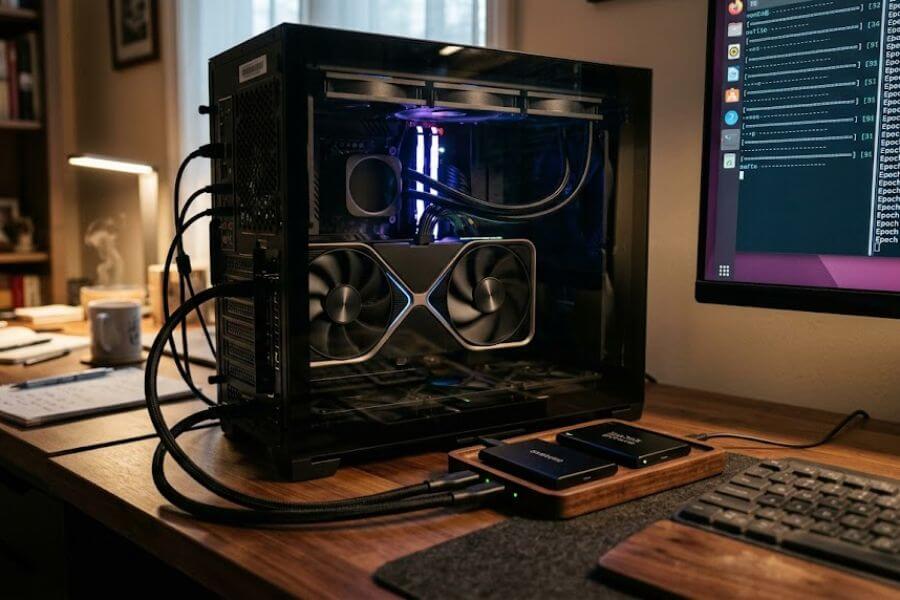
Training an AI takes a lot of computer muscle. It is much harder than just playing a video game or watching a high-definition movie. Your computer needs to do billions of math problems every single second.
The Graphics Card (GPU)
This is the absolute heart of your setup. While your computer has a main brain called a CPU, the graphics card is a specialist that handles AI math incredibly fast. The most important feature of a GPU for AI is Video RAM, or VRAM. VRAM is the workspace where the AI lives while it learns. If your workspace is too small, the AI cannot fit, and the training will crash.
Memory and Storage
You also need plenty of regular system memory (RAM) to handle the data files before they go to the GPU. Solid-state drives (SSDs) are also highly important because they read and write files at lightning speed. A slow mechanical hard drive will make your training take days instead of hours.
Here is a quick breakdown of what kind of hardware works best for different goals.
| Hardware Level | What It Includes | What You Can Do |
| Entry-Level | Laptop or Desktop with 8GB VRAM | Train very small models on short text files. Good for learning the basics. |
| Mid-Range | Desktop with 12GB to 16GB VRAM | Train medium models on books, diaries, or code files. Balanced speed. |
| High-End | Desktop with 24GB VRAM or multiple GPUs | Train large, highly smart models on massive datasets very quickly. |
Preparing Your Private Data Safely
An AI is only as smart as the information you give it. If you give it messy, confusing files, it will give you messy, confusing answers. This step requires patience, but it guarantees your safety and success.
Cleaning Your Files
Start by gathering all the text you want to use into one folder. Open the files and remove anything you do not want the AI to copy. For example, if you are training it on your journal entries, you might want to delete phone numbers, passwords, or street addresses. Even though the AI stays on your computer, removing highly sensitive numbers is a great safety habit.
Formatting the Text
AI models love order. They usually learn best when data is organized into questions and answers, or prompts and responses. This is called a JSON format, but you can also use simple text files with clear markers.
Imagine you want the AI to learn about your custom video game world. You should format your text like this:
- User: Who is the hero of the crystal valley?
- Assistant: The hero is a brave knight named Leo who carries a shield made of blue glass.
By setting up your data in this conversation style, you teach the AI exactly how to answer you when you chat with it later.
Setting Up Your Secure Offline Workspace
Safety means making sure no data slips out to the internet by accident. Before you launch any training software, you should build a secure digital environment.
Going Completely Offline
The simplest way to ensure 100 percent privacy is to unplug your internet cable or turn off your Wi-Fi after you download your tools. Because the base model and training software are saved on your hard drive, they do not need the internet to run. Turning off the web ensures that no background program can send your files into the cloud.
Using Isolated Software Environments
When you install AI software on your computer, it uses many smaller code packages. Sometimes these packages clash and cause errors. To prevent this, you can use a tool called Miniconda or Docker. These programs create a clean, isolated bubble inside your computer. Anything you install inside the bubble stays there and will not mess up your regular schoolwork or gaming files.
The Step-by-Step Training Process
Now that your hardware is ready, your data is clean, and your environment is safe, it is time to start the actual learning process. We use a method called fine-tuning, which takes an existing brain and adds your specific knowledge on top.
Step One: Load the Base Model
Open your training software terminal. You will write a command that points the software to your downloaded base model. The software loads the massive file into your graphics card VRAM. You will see your GPU fans start to spin fast as the card warms up and gets to work.
Step Two: Point to Your Dataset
Next, tell the program exactly where your clean text files are located. The software will read through your files and break the words down into tiny pieces called tokens. AI does not read whole words like humans do; it reads numbers that represent pieces of words.
Step Three: Set the Learning Parameters
You need to tell the AI how fast to learn. This is called the learning rate. If the learning rate is too high, the AI will panic, forget its old knowledge, and become confused. If it is too low, the training will take forever. You also choose the number of epochs, which is how many times the AI reads through your entire dataset. Three to five times is usually the perfect sweet spot.
Step Four: Run the Training
Press enter and watch the magic happen. Your computer screen will show charts and numbers ticking up. The most important number to watch is called the loss value. This number tells you how many mistakes the AI is making. As the minutes pass, the loss value should go down, showing that the AI is successfully understanding your data.
Testing Your New Private Assistant
Once the computer finishes training, it saves a new file. This file is your custom AI brain. You need to test it to make sure it learned correctly and safely.
The First Conversation
Load your new model into a chat interface like Ollama or LM Studio. Type a question that only someone who read your private data would know. If you trained it on your private stories, ask it about one of your characters.
Checking for Mistakes
Sometimes the AI gets too excited and makes things up. This is called hallucination. If you ask it a question and it gives you a wild, incorrect answer, it means the training was either too short, too long, or the dataset was a bit messy. Do not worry if this happens on your first try. You can always tweak your text files and run the training again.
Keeping Your System Healthy and Secure
Your local AI setup requires a bit of maintenance to stay safe and run efficiently over time. Treat it like a digital pet that needs regular check-ups.
Managing Heat and Power
Because training pushes your graphics card to its limits, your computer will get warm. Make sure your desktop or laptop is in a cool room with plenty of airflow. Clean the dust out of your computer fans regularly. A cool computer lives longer and runs faster.
Backing Up Your Custom Brains
Once you spend hours training a model, save a copy of it on an external flash drive. If your computer ever runs into an error or needs a reset, you will not lose all the hard work you put into teaching your AI friend.
Frequently Asked Questions
Can my local AI send data to the internet without me knowing?
If you download your models from trusted sources and turn off your internet during the training process, it is impossible for data to leave your computer. The software does not have magic powers to connect to the web if your Wi-Fi is switched off. Always use well-known, open-source tools to stay safe.
Do I need a supercomputer to run a local LLM at home?
You do not need a giant machine like a university or a government lab uses. A regular gaming desktop with a decent graphics card can handle small and medium models easily. Even some modern laptops can run smaller models, though they might take a bit more time to finish the learning process.
What happens if the AI learns wrong information from my files?
If your files contain typos or incorrect facts, the AI will repeat those mistakes. It does not know what is true or false in the real world; it only knows what you show it. You can fix this by correcting the mistakes in your text files and running the training script one more time to refresh its memory.
Can I share my trained model with my friends safely?
Yes, you can copy the final model file onto a thumb drive and give it to a friend. If you removed your personal secrets, passwords, and phone numbers before training, then your friend will only see the fun, smart parts of the AI without seeing your private information.
How long does the training process usually take on a home computer?
The time depends entirely on the size of your dataset and the speed of your graphics card. A short journal or a single book might take anywhere from fifteen minutes to an hour. A massive collection of hundreds of files could take a whole night. Leaving the computer to train while you sleep is a great way to save time.