You have accounts for everything. Games, school portals, streaming apps, and social media platforms all require passwords. If you are like most people, you might be reusing the exact same password everywhere, or maybe you let your web browser save them all.
But what happens if that browser company gets hacked? Or what if they suddenly change their terms and start charging you to access your credentials from your phone?
That is where a self-hosted password manager comes in. Instead of trusting a massive tech giant with the keys to your digital life, you can build your own private digital vault. You control the security, you own the data, and nobody else can peer inside. Moving your digital keys to a private setup sounds like a project meant only for tech geniuses, but anyone can do it with the right steps.
Let us walk through the entire process of moving your credentials safely to your very own self-hosted manager.
Why Choose a Self-Hosted Vault?
Before diving into the steps, it helps to understand why this move is worth your time. When you use a standard cloud-based service, your data sits on someone else’s computer. You trust their security team to keep hackers away. If they make a mistake, your private information could end up on the dark web.
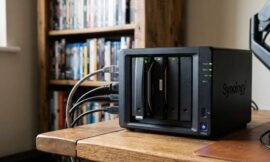
Self-hosting flips the script. You run the software on your own hardware, like an old computer at home, a tiny Raspberry Pi, or a private virtual server you rent online.
Total Privacy and Ownership
When you self-host, you are the absolute owner of your data. There are no third-party companies analyzing your usage habits or holding your data hostage behind a subscription paywall. Your vault is encrypted, meaning it is scrambled into a unreadable code that only your master key can unlock.
Better Security Control
You get to decide exactly how your vault connects to the internet. You can lock it down so it only synchronizes when you are connected to your home Wi-Fi network. This severely cuts down the chances of an outside attacker ever finding your login portal.
Cost Savings Over Time
Many commercial services restrict features unless you pay a monthly fee. They might limit the number of devices you can use or block you from sharing streaming logins with family members. Self-hosted options are almost always open-source, which means the software is free to use and modify.
Choosing Your Software and Hardware
To get started, you need to pick the tool you will use and the machine that will run it.
The Software Options
The most popular open-source tool for this job is Vaultwarden. It is a lightweight version of the famous Bitwarden service. It is designed to run smoothly on home equipment while using very little computer memory. It works perfectly with the official Bitwarden apps on your phone, tablet, and computer browser.
Another excellent option is Passbolt. This option focuses heavily on teams and families who need to share access frequently. It has a beautiful interface and strong security features built right in.
The Hardware Options
You do not need a giant, expensive server to run a password vault. The software is lightweight. Here are the best hardware choices for everyday users:
| Hardware Type | Best For | Pros | Cons |
| Raspberry Pi | Beginners and energy savers | Tiny size, uses very little power, quiet | Costs money to buy upfront |
| Old Laptop or PC | Reusing old electronics | Free if you already have one, built-in battery backup | Uses more electricity, takes up desk space |
| Cloud Virtual Server | Access from anywhere | Always online, fast internet speeds | Requires a small monthly rental fee |
For this guide, we will focus on setting up a home-based vault, as it gives you the absolute highest level of data ownership.
Setting Up Your Self-Hosted Server
Now it is time to build the foundation. We will use a tool called Docker to install your password manager. Think of Docker as a digital shipping container. It packages the software neatly so it can run on any computer without messing up your other files.
Installing Docker
First, you need to prepare your machine. If you are using a computer running Linux, you can open your terminal and type the commands to install Docker. If you are on Windows or Mac, you can simply download and install an application called Docker Desktop.
Once Docker is running, your computer is ready to host your new vault.
Launching the Vaultwarden Container
To launch your server, you will write a short configuration file called a Docker Compose file. This file tells your computer exactly how to run Vaultwarden.
You will open a text editor and create a file named docker-compose.yml. Inside this file, you will specify that you want to use the latest Vaultwarden image, set a folder on your computer to save your encrypted logins safely, and pick a network port for the server to listen to.
After saving the file, you open your terminal, navigate to the folder with your file, and type a command to start the container. Within seconds, your private server will be up and running in the background.
Securing Your Server Connection
Right now, your server is running, but it is only accessible inside your house. More importantly, it might not be using a secure connection yet. You should never type secrets into a website that does not have the little padlock icon in the address bar. That padlock means the connection uses HTTPS encryption.
The Role of a Reverse Proxy
To get that secure padlock icon, you need a helper program called a reverse proxy. The most beginner-friendly tool for this is Caddy or Nginx Proxy Manager.
This helper program sits in front of your password vault. When you try to connect, the proxy grabs a free security certificate from a service called Let’s Encrypt. It automatically scrambles the traffic moving between your phone and your server, making it impossible for anyone snooping on your internet connection to see your secrets.
Setting Up a Local Domain
You do not want to type a long string of numbers every time you want to log in. You can register a real web domain name, or you can set up a local domain name that only works inside your house, like myvault.local.
By configuring your reverse proxy to look out for this domain, you can type a clean web address into your browser to access your creation instantly.
Exporting Data From Your Old Manager
With your new, secure vault waiting for data, it is time to say goodbye to your old storage system. Whether you are moving away from Google Chrome, Apple iCloud Keychain, or a paid app like 1Password, the moving process follows a very specific order.
Step 1: Clean Up Your Current Logins
Before you export anything, take ten minutes to scroll through your current list. Delete old accounts for games you no longer play, websites that no longer exist, and duplicate entries. There is no reason to move old digital clutter into your beautiful new home.
Step 2: Perform the Export
Open your old manager on a desktop computer. Look for the settings menu and find the option that says “Export Data.”
The app will ask you to choose a file format. You should choose the CSV format, which stands for Comma-Separated Values. This file type is a simple spreadsheet text file that almost every database tool can understand.
Crucial Safety Warning: The CSV file you just downloaded contains every single one of your usernames and passwords in plain text. Anyone who opens this file can read everything instantly. Do not upload it to the cloud, do not email it to yourself, and do not leave it sitting in your computer’s Downloads folder. Treat it like a live explosive device until the move is finished.
Preparing and Cleaning Your Password Data
Different companies arrange their spreadsheets in different ways. Google Chrome might put the website address in the first column, while 1Password might put it in the third column. If you try to upload a Chrome spreadsheet directly into Vaultwarden, the information might end up in the wrong spots.
Reviewing the Spreadsheet
Open your exported CSV file using a spreadsheet editor like LibreOffice Calc or Microsoft Excel. Look at the top row, which contains the column headers. You will usually see labels like:
- Title
- Username
- Password
- URL
Matching the Templates
Look at the import documentation for Vaultwarden. It expects columns to match its own specific format. If your old manager labeled the website column as “Site Address” and Vaultwarden wants it to say “Login URL”, you simply click on that top cell and type the correct header label.
Make sure there are no blank lines or broken characters in your text. Once everything matches perfectly, click save, making sure to keep the file in the CSV format.
Importing Data Into Your New Self-Hosted Vault
The big moment has arrived. You are about to populate your private server with your digital keys.
Accessing the Web Interface
Open your web browser and type in your secure local address. The login screen for your self-hosted manager will appear. Since this is your first visit, click the button to create a new account.
Creating a Master Password
This is the single most important step of the whole project. Your master password is the only barrier protecting your data. If someone guesses it, they get everything. If you forget it, you are permanently locked out of your own server, because your data is encrypted so deeply that nobody can reset it for you.
Create a long phrase using multiple random words. Do not use your birthday, your pet’s name, or your favorite sports team. Combine uppercase letters, lowercase letters, numbers, and special symbols. Write this phrase down on a physical piece of paper and hide it safely in your home.
Running the Import
Once you are logged into your new web dashboard:
- Navigate to the tools or settings menu.
- Click on the section labeled “Import Data.”
- Select the format that matches the spreadsheet you prepared.
- Click the browse button, select your CSV file, and hit the import button.
Within a single heartbeat, your entire history of digital logins will populate the screen, organized beautifully and encrypted safely on your own hardware.
Destroying the Digital Footprints
Now that your logins are safe inside your new vault, you must destroy the temporary files you created during the move. Leaving an unencrypted text file on your computer is an invitation for disaster.
Shredding the CSV File
Simply dragging your CSV file to the Recycle Bin or Trash Can does not actually erase it from your hard drive. It just tells your computer that the space is available to be written over later. A hacker could easily recover that file using free software.
To destroy it properly, use a permanent deletion tool. On Windows, you can use a free tool like BleachBit to shred the file. On a Mac or Linux computer, you can use the terminal command line to securely wipe the space where the file lived.
Clearing Your Web Browsers
Go back into the settings of Google Chrome, Edge, or Safari. Turn off the feature that offers to save your credentials automatically. Finally, clear out the browser’s memory entirely so it no longer holds any remnants of your secret keys.
Setting Up Your Devices
Your vault is filled, but it is not very useful if you can only access it from one specific browser tab on your computer. You need to connect your other gadgets.
Installing the Applications
Go to the official app store on your phone or tablet and download the Bitwarden application. Do the same for the browser extensions on your laptop.
Changing the Server URL
Before you type your username and password into the app, look for a small gear icon or a setting labeled “Region” or “Self-Hosted.” Click it.
By default, the apps try to connect to the official commercial servers. You need to delete their address and type in your own custom server address. Once you save this change, the app will point directly to your home server. Type in your master credentials, and your mobile device will sync instantly.
Creating a Bulletproof Backup Strategy
Since you are now the boss of your own data, you are also the head of the security department. If your home server breaks down or your house loses power, you could lose access to your accounts. You must set up an automated backup plan.
Backing Up the Database Folder
When you set up Vaultwarden with Docker, you created a data folder. Inside that folder lies a file containing your encrypted database. You should write a simple script that copies this folder automatically to an external hard drive or a secure cloud backup location every single night.
Testing Your Backups
A backup is only good if it actually works. Once a month, try setting up a temporary test vault on a separate computer using your backup files. If your logins appear correctly, you know your backup system is working perfectly.
Setting Up Two-Factor Authentication
To make your vault truly secure, you must turn on two-factor authentication, often abbreviated as 2FA. This adds a secondary defense line. Even if an attacker somehow guesses your long master phrase, they still cannot get in without a temporary code generated by your physical phone.
Setting Up Your Authenticator App
Install a security app like Aegis or Ente Auth on your smartphone. Go to your self-hosted manager’s security settings and turn on 2FA. The screen will display a square barcode called a QR code. Scan this code with your phone app, and it will begin generating a new six-digit code every thirty seconds.
Saving Recovery Codes
Your manager will also show you a list of one-time recovery codes. If you ever lose your phone or break it, these codes are the only way to bypass the secondary defense line. Print them out and store them next to your written master phrase.
Troubleshooting Common Setup Issues
Sometimes things do not work perfectly on the first try. Here is how to fix the most common issues beginners encounter.
Connection Timed Out Errors
If your phone app says it cannot connect to your server, check your Wi-Fi settings. Your phone must be on the exact same home network as your server. If you are away from home, you will need to look into setting up a private home network tool like Tailscale to connect back to your house safely.
Security Certificate Warnings
If your browser warns you that the connection is unsafe, your reverse proxy is not doing its job correctly. Double-check that your web port configurations match perfectly and that your domain name is pointed to the correct internal computer number.
Frequently Asked Questions
What happens to my credentials if my home server loses power?
If your home server turns off due to a power outage, your phone and computer extensions will continue to work using a temporary copy stored in their local memory. You will still be able to read your current passwords and log into your favorite websites. However, you will not be able to save new credentials or synchronize changes across devices until your home server powers back on.
Is a self-hosted manager safer than a commercial option?
Yes, provided you configure it properly. Large commercial systems are giant targets for professional cybercriminals because they hold millions of vaults in one place. By hosting your own vault, you become an incredibly small target. An attacker would have to specifically target your home network, which is rare unless you leave your server exposed with weak master keys.
Can I share specific credentials with my family members on a self-hosted system?
Absolutely. Options like Vaultwarden allow you to create organizations within your private server. You can invite your family members to create their own accounts on your machine. Once they join, you can build shared collections for shared household accounts like internet bills or streaming services while keeping your personal accounts completely hidden from them.
Do I need an active internet connection to read my credentials?
No. The apps on your smartphone and computer browser keep an encrypted local copy of your database. If you are on an airplane or camping in the woods with zero cellular service, you can still open your app, type in your master phrase, and look up any information you need. You only need a network connection when you want to sync new changes back to your central server.