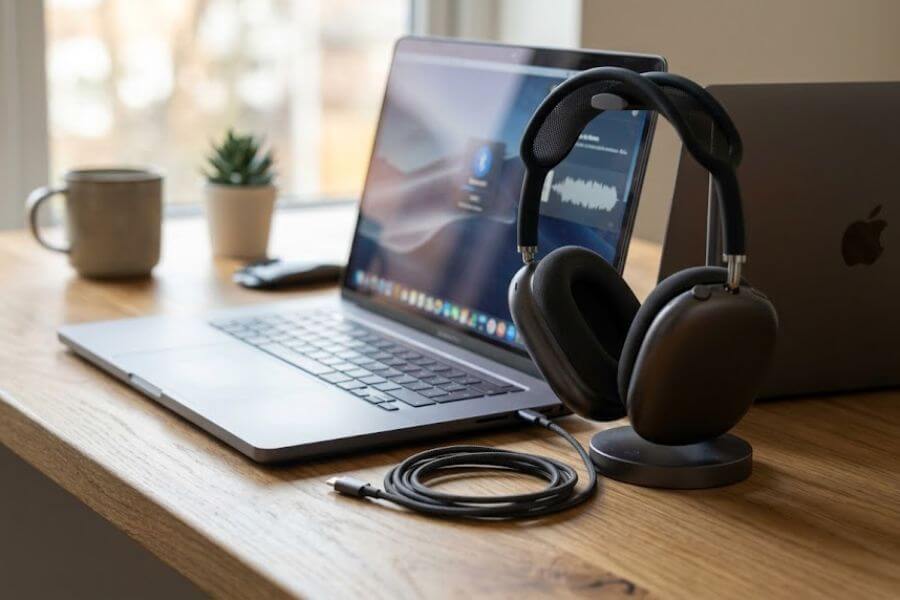
You are right in the middle of your favorite song, or maybe you are about to win an intense online match with your friends, and suddenly everything goes silent. Your wireless headphones disconnect out of nowhere. Or worse, the sound starts lagging behind the video, making your favorite movie look like a poorly dubbed old film. Bluetooth trouble on your Mac can turn a fun afternoon into a frustrating guessing game. You do not have to throw your hands up in defeat or accept a glitchy experience. This guide will walk you through every step to clear up those choppy signals, get your sound back in perfect sync, and make sure your wireless gear stays locked in and working perfectly.
Understanding the Wireless Magic and Why It Fails
To solve a problem, it helps to understand what is happening behind the screen. Bluetooth feels like magic because it connects your mouse, keyboard, and headphones to your computer without a single cord. But beneath that magic is a system of radio waves that can get crowded, confused, or blocked.
How Bluetooth Travels Through the Air
Bluetooth works by sending and receiving data over short distances using low-power radio waves. It operates on a specific frequency band called 2.4 gigahertz. Think of this frequency band as a invisible highway in your room. When you click your mouse or listen to a lyric, that information is chopped up into tiny packets and sent flying through the air from your device to your Mac.
Your Mac has an internal antenna designed to catch these packets instantly. Because the highway is narrow and the power is low, the connection relies on a clear path and a clean environment. When everything works well, the data packets move so quickly that you never notice the gap between your physical movement and the action on your screen.
The Common Culprits Behind the Chaos
When your connection drops or your audio starts to drift, it means those tiny data packets are getting delayed, damaged, or lost entirely. Several main culprits usually cause this headache on your Mac.
- Radio Crowding: Too many devices trying to use the same invisible highway at the exact same time.
- Physical Blocks: Solid objects like thick wooden desks, metal stands, or walls cutting off the signal.
- Software Glitches: The background code on your Mac getting tangled up or confused about which device is which.
- Power Shortages: Low batteries in your accessories causing them to broadcast a weak, stuttering signal.
- Outdated Systems: Older software trying to speak a newer digital language without the right translation.
Understanding these causes helps you realize that your hardware is probably not broken. Most of the time, the system just needs a bit of guidance to find its path again.
First Steps and Quick Refreshes
Before you dive into deep system changes, it is smart to start with simple actions that refresh your system. These actions clear away minor digital cobwebs and give your Mac a clean slate to look for your accessories.
Flipping the Digital Switch
The quickest way to jumpstart a stalled connection is to cycle the radio power on your Mac. This forces the internal wireless card to stop what it is doing, shut down for a brief second, and boot back up fresh.
To do this, look at the top right corner of your Mac screen. Click the icon that looks like two small control sliders, which opens your Control Center. Click on the Bluetooth icon to turn it off. The icon will change from bright blue to gray, showing that the radio is asleep. Wait at least ten full seconds to let the system fully clear its memory cache. Click the icon again to turn it back on. Your Mac will immediately start scanning the room for your saved devices, often picking them up with a much stronger grip than before.
Disconnecting and Reconnecting Your Devices
Sometimes, the bond between your Mac and a specific device gets weak or corrupted while other devices work just fine. In this case, you want to tell your Mac to completely forget that specific device exists so they can meet again for the first time.
Open your System Settings by clicking the Apple logo in the top left corner of your screen and choosing System Settings from the drop-down menu. Scroll down the left sidebar until you see Bluetooth and click it. Look at the list of My Devices on the right side. Find the specific accessory that is causing you trouble. Move your mouse over its name and click the small “i” icon inside a circle next to it. A small window will pop up. Click the button that says Forget This Device and confirm your choice. Your device is now wiped from your Mac memory. Put your headphones or mouse into its pairing mode, which usually involves holding down a button until a light flashes, and select it from the Nearby Devices list to build a brand-new connection.
Giving Your Mac a Fresh Start
It sounds old-fashioned, but restarting your computer is an incredibly effective troubleshooting step. When your Mac stays turned on for days or weeks at a time, temporary files and background processes pile up. Some of these background tasks belong to your wireless system, and they can get stuck in an endless loop trying to process an error.
Save any open schoolwork or projects you are building, click the Apple logo in the upper-left corner, and select Restart. When the screen goes black, all the temporary memory inside your Mac is wiped clean. As your Mac chugs back to life, it launches fresh versions of every single background service, including the core wireless controllers. Turn on your headphones or mouse and see if the fresh start cleared up the stuttering.
Banishing Wireless Interference from Your Space
Wireless interference is one of the biggest reasons why audio lags or connections drop unexpectedly. Because radio waves are completely invisible, your desk might look neat and tidy while your airwaves are actually a chaotic, noisy mess.
The Battle of the Waves Wi-Fi vs Bluetooth
As mentioned earlier, Bluetooth lives on the 2.4 gigahertz radio frequency. The trouble is, many older or standard Wi-Fi routers use this exact same frequency to send internet data to your computer, phone, and gaming consoles. If your Mac is connected to a 2.4 gigahertz Wi-Fi network, your internet traffic and your headphone audio are fighting for the exact same space.
To solve this clash, look at your home internet router. Most modern routers broadcast two different networks at the same time: a 2.4 gigahertz network and a 5 gigahertz network. Whenever possible, click the Wi-Fi icon on your Mac and connect to the 5 gigahertz version of your home network. The 5 gigahertz highway is much wider and lives far away from your Bluetooth signals. By moving your internet traffic to this higher highway, you instantly clear up the airwaves, giving your wireless accessories a quiet space to talk to your Mac without interruption.
The Hidden Danger of Unshielded USB Cables
An unexpected source of wireless trouble comes from the cables plugged into the sides of your Mac. Certain high-speed USB-3.0 and USB-C cables, along with poorly shielded hard drives or USB hubs, emit a small amount of radio frequency radiation when they transfer data. This radiation leaks out of the cables and lands directly on the 2.4 gigahertz band, acting like a jamming device right next to your Mac internal wireless antenna.
If you notice that your audio starts lagging right when you plug in an external hard drive, a second monitor, or a USB hub, you have found your culprit. You can fix this by swapping out cheap, thin cables for high-quality, thickly shielded cables. You can also move your external hard drives and hubs as far away from your Mac as their cords allow. Never rest a portable hard drive directly on top of your Mac chassis or right next to the screen hinge, because that is exactly where your internal wireless antenna lives.
Rearranging Your Desk for Clear Sightlines
Radio waves can pass through many materials, but every object they pass through weakens their strength. Metal is the absolute enemy of a good wireless connection. If you have your Mac tucked away inside a metal desk organizer, or if your wireless keyboard sits behind a giant metal desktop microphone stand, your signal strength takes a massive hit.
Take a look at your setup and try to create a clear, unobstructed path between your accessories and your Mac. If you use a laptop closed up and connected to a big monitor, try opening the laptop screen slightly or changing its position on your desk. The internal antenna needs to peek out to see the room. Even large water bottles, thick stacks of textbooks, or large desktop speakers can muffle a weak signal, so keeping the space between your hands, ears, and computer open will drastically reduce audio drops.
Digging into Your Mac Technical Settings
When changing your physical space does not do the trick, it is time to look at the internal settings of macOS. Sometimes, the files that store your system preferences get corrupted, causing your computer to send broken commands to your wireless card.
Tearing Down and Rebuilding Your Bluetooth Preferences
Your Mac remembers every single device you have ever connected to by saving their specific details in a small preference file hidden deep within your system directories. If this file gets damaged during a software update or a sudden power outage, your Mac will struggle to maintain a stable link. You can force your Mac to delete this file and build a perfect new one from scratch.
First, you need to open Finder. Click on your desktop to make sure Finder is active, then look at the menu bar at the very top of your screen. Click on Go, and then select Go to Folder from the list. A small text box will appear. Type or paste the following path into that box exactly as it appears here:
/Library/Preferences/
Press the Return key on your keyboard. A Finder window will open showing a long list of configuration files. Look through this list for a specific file named:
com.apple.Bluetooth.plist
When you find it, click it and drag it directly into your Trash. Your Mac might ask you to type in your computer password or use your fingerprint to confirm this action, because you are modifying a system file. Once the file is in the Trash, do not open any other apps. Immediately click the Apple logo and restart your Mac. When the computer boots back up, it will notice that the preference file is missing and will instantly create a brand-new, uncorrupted version, clearing away any deep-seated glitches.
Trashing the Corrupted Plist Files
In addition to the main system preference file, your specific user account keeps its own set of wireless rules. If the main system reset did not fix your audio lag, you can target these user-level files next.
Open Finder again, click Go in the top menu bar, and hold down the Option key on your keyboard. You will notice a hidden option named Library suddenly appears in the menu while you hold the key. Click on Library, then double-click the Preferences folder inside it. Once inside, look for files that start with com.apple.Bluetooth again, or files like:
com.apple.BluetoothAudioAgent.plist
Drag these files to your Trash as well. Restart your Mac once more. This ensures that both the global system rules and your personal user rules are completely clean, leaving no room for old, broken settings to interfere with your sound quality or mouse tracking.
Using the Terminal to Force a Reset
If you are comfortable using advanced tools, the Terminal app gives you direct control over the inner workings of your Mac. You can use it to issue a direct command to the core wireless controller, telling it to reset itself completely without having to hunt through folders.
Open your Applications folder, double-click the Utilities folder, and launch the Terminal app. You will see a small window with a text prompt. Type the following command into the window exactly, paying close attention to the spaces:
sudo pkill bluetoothd
Press the Return key. The Terminal will show a small key icon and ask for your Mac administrator password. Type your password carefully. You will not see any characters or dots appear on the screen as you type, which is a safety feature of the Terminal. Just type the letters and press Return when you are done. This command instantly stops the core background controller process dead in its tracks. Your Mac will immediately notice the process stopped and launch a fresh version within a couple of seconds. Your connected devices will briefly drop offline and then pop back on with a refreshed connection.
Solving the Annoying Audio Lag and Sound Delays
Audio lag is a unique type of nightmare. Your mouse works fine, your keyboard types perfectly, but the words people speak on screen do not match the sound hitting your ears. This usually happens because your Mac and your headphones are confused about how fast they should be sharing audio data.
Fixing Sound Sync in the Audio MIDI Setup
Your Mac has an advanced built-in app called Audio MIDI Setup that manages how sound is processed across all your connected speakers, microphones, and headsets. Most people do not know it exists, but it is incredibly useful for fixing sound delays.
Open your Applications folder, look inside the Utilities folder, and open Audio MIDI Setup. On the left side of the app window, you will see a list of all your sound sources. Click on your wireless headphones or speaker from that list. On the right side, you will see details about the Format, which includes numbers like 44,100 hertz or 48,000 hertz. These numbers represent how many times per second your Mac samples the audio to send to your ears. If this number does not match what your headphones expect, your Mac has to spend extra processing time converting the sound, causing a noticeable delay.
Matching Your Bit Rates for Smooth Sound
While looking at your device in the Audio MIDI Setup window, click the drop-down menu next to Format. Try changing the rate. If it is set to 44,100 hertz, try switching it to 48,000 hertz, or vice versa.
+---------------------------+------------------------+--------------------------+
| Audio Sample Rate Setting | Best Used For          | Impact on Processing     |
+---------------------------+------------------------+--------------------------+
| 44,100 Hz (44.1 kHz)      | Standard music, CDs    | Lowest system stress     |
| 48,000 Hz (48.0 kHz)      | Movies, video streaming| Prevents video sync lag  |
+---------------------------+------------------------+--------------------------+
After changing this setting, close the app and open a video to test the synchronization. Matching the native sample rate of your video file with the output rate of your headphones removes the conversion step, letting the sound flow directly to your ears without getting bogged down in background calculations.
Adjusting App Specific Audio Settings
Sometimes, the lag does not belong to your Mac as a whole, but rather to the specific application you are using to watch content. Video apps like VLC Player, QuickTime, or web browsers like Safari and Chrome handle audio synchronization differently.
If you are using a dedicated video player like VLC, you can actually adjust the audio timing manually to fix a permanent lag. While your movie is playing, you can press the G or H keys on your keyboard to shift the audio backward or forward by milliseconds until the actor lips move in perfect sync with the dialogue. If you are experiencing lag inside a web browser while watching streaming sites, try closing all other open tabs. Having thirty open tabs running heavy websites in the background drains your Mac processing power, leaving less energy for the browser to sync up wireless audio packets smoothly.
Resetting Your Mac Deepest Systems
When standard resets and file deletions do not bring relief, you have to go a layer deeper. Your Mac has specialized hardware controllers that handle basic operations like power supply, sleep modes, and low-level wireless communication. Resetting these chips can fix lingering bugs that software fixes cannot touch.
Clearing the NVRAM or PRAM
The NVRAM, which stands for Non-Volatile Random-Access Memory, is a tiny amount of memory that your Mac uses to store settings it needs access to instantly, such as sound volume, display resolution, startup disk selection, and recent hardware panics. If your wireless controller is acting up at a hardware level, clearing this memory resets the foundational state of your wireless card.
If you own an older Mac with an Intel processor, you can perform this reset manually. Shut down your Mac completely. Locate the following four keys on your keyboard: Option, Command, P, and R. Turn your Mac back on, and immediately press and hold those four keys down at the same time. Keep holding them down for about twenty seconds. During this time, your Mac might look like it is restarting, and you might hear the startup chime a second time or see the Apple logo blink. After twenty seconds have passed, let go of the keys and let your Mac boot up normally. Check your settings to see if your wireless connection is now rock solid.
Resetting the System Management Controller
The System Management Controller, or SMC, is another critical chip found in Intel-based Mac computers. It controls how power flows through the logic board, manages the cooling fans, handles the sleep-and-wake cycles, and regulates power to the internal ports and wireless cards. If your wireless drops happen when your computer goes to sleep or wakes up, the SMC is often to blame.
To reset the SMC on a portable Mac laptop that does not have a removable battery, shut down the computer completely and plug in your charging cable. On the left side of your built-in keyboard, press and hold the Shift, Control, and Option keys. While holding those three keys down, press and hold the Power button as well. Keep all four keys held down for ten full seconds, then release them all at the exact same time. Plug your charger back in if you removed it, and press the power button normally to turn your Mac back on. This resets the power distribution to your wireless card, ensuring it gets a steady stream of electricity to keep your accessories connected.
What to Do on Apple Silicon Macs
If you own a newer Mac that runs on Apple own chips, such as an M1, M2, or M3 processor, the process for resetting these deep systems is quite different. Apple built these modern computers so that you do not need to hold down complex key combinations at startup.
On an Apple Silicon Mac, the functions of the NVRAM and SMC are monitored and maintained automatically by the main processor. If the system detects that something is wrong with the wireless card power or settings, it runs an automatic check and clears out bad data during a normal reboot. To trigger this automatic deep reset, simply click the Apple logo, choose Shut Down, and leave the computer completely turned off for at least thirty seconds. This gives the internal capacitors time to drain completely, forcing the M-series chip to re-examine all connected hardware components when you press the power button to turn it back on.
Keeping Your Hardware and Software in Harmony
A huge part of preventing wireless drops in the future is making sure all your devices are updated and running efficient code. When hardware components speak the same software language version, errors are far less likely to crop up.
Checking for Hidden macOS Updates
Apple frequently discovers bugs related to wireless connectivity and quietly rolls out fixes inside their standard system updates. If you have been ignoring that little red notification bubble on your System Settings icon, you might be missing the exact cure for your wireless troubles.
Click the Apple logo in the top left, select System Settings, and click General in the sidebar. From there, click on Software Update on the right side. Your Mac will check with Apple servers to see if a new version of macOS is available. If an update is waiting, click the Update Now button. These updates often rewrite core wireless frameworks, optimizing how the system processes audio data and fixes dropouts caused by system bugs.
Updating Device Firmware
It is easy to forget that your wireless headphones, gaming mouse, and mechanical keyboard are actually tiny computers themselves. They run their own internal software called firmware, which controls how they package and transmit data packets through the air to your Mac.
If you are using premium headphones like AirPods, Apple updates their firmware automatically behind the scenes whenever they are charging near your iPhone or Mac. However, if you use third-party gear from brands like Sony, Bose, Logitech, or Razer, you often need to download a dedicated app from their official website onto your Mac. Open their app, connect your accessory with a charging cable, and check for any firmware updates. Manufacturers regularly release these updates specifically to fix connection issues and audio lag with newer computer models.
Battery Power and Bluetooth Performance
When a battery inside a wireless mouse or headset drops below a certain power level, the device goes into an automatic power-saving mode to stay alive as long as possible. To save energy, the accessory drops the strength of its internal radio transmitter, meaning the signal it broadcasts becomes much weaker and shorter.
+----------------------+--------------------------+----------------------------+
| Battery Percentage   | Transmitter Power Level  | Common Connection Symptoms |
+----------------------+--------------------------+----------------------------+
| 50% to 100%          | Full Power               | Strong link, no audio lag  |
| 20% to 49%           | Balanced Power           | Stable, vulnerable to walls|
| 1% to 19%            | Low Power Mode           | Frequent drops, audio lag  |
+----------------------+--------------------------+----------------------------+
As you can see, keeping your gear charged up is vital for a smooth experience. If you notice your audio stuttering every time your headphones drop to a low battery percentage, make it a habit to plug them in for a quick charge before your session to keep the signal at full power.
Comparison and Troubleshooting Cheat Sheets
When you are trying to find out exactly why your setup is acting up, it helps to have a quick reference guide to see which fix matches your specific problem. Use these summaries to guide your troubleshooting path.
Quick Fix Matrix for Common Symptoms
Use this reference table to match what you are experiencing with the most likely solution.
+-----------------------------------+--------------------------------------------+
| If You Are Experiencing This...   | Try Running This Fix First...              |
+-----------------------------------+--------------------------------------------+
| Audio cuts out every few minutes  | Move Wi-Fi network to 5 GHz bandwidth      |
| Sound lags behind video screens   | Match audio format rates in MIDI Setup     |
| Mouse cursor jumps and stutters   | Move unshielded USB cables away from Mac   |
| Device disconnects entirely       | Delete the com.apple.Bluetooth.plist file  |
+-----------------------------------+--------------------------------------------+
Choosing the Right Audio Format for Your Needs
When adjusting your sound settings in the Audio MIDI Setup utility, matching your current activity to the right frequency settings helps reduce processing delay.
- Watching YouTube, Movies, or TV Shows: Set your format to 2-channel 24-bit Integer 48.0 kHz. This aligns perfectly with modern video streaming codecs, allowing the audio to sync up instantly without any processing lag.
- Listening to High-Quality Music Apps: Set your format to 2-channel 24-bit Integer 44.1 kHz. This matches the standard recording studio output for music albums, saving system resources and delivering clean sound.
- Playing Fast-Paced Video Games: Use the 48.0 kHz setting and close down any background downloads or browsers. This keeps the path completely clear for instant directional audio cues while you play.
Frequently Asked Questions
Why does my Bluetooth audio skip only when I open a specific web browser?
Web browsers like Google Chrome or Mozilla Firefox can be incredibly heavy on system resources. When you open a website with lots of moving ads, video players, or complex code, your Mac processor has to work overtime to load everything. If your system resources spike suddenly, your Mac might briefly pause background audio processing to focus on loading the webpage. To prevent this, try clearing your browser extensions, using a lighter browser like Safari which is heavily optimized for Mac hardware, or closing down tabs you are not actively using to free up processing power for your sound stream.
Can a microwave oven really break my wireless connection?
Yes, it absolutely can. Many household appliances, especially microwave ovens, operate on the exact same 2.4 gigahertz radio frequency band used by your wireless accessories. If your kitchen microwave has an older or slightly worn seal, it can leak a harmless amount of radio wave energy into the air while it heats up food. This leaked energy is strong enough to completely drown out the low-power signals traveling between your Mac and your headphones. If you notice your audio dropping out every time someone makes popcorn or heats up leftovers, moving your desk further away from the kitchen or switching your Mac Wi-Fi network over to the 5 gigahertz band will shield your system from the disruption.
Why do my AirPods work perfectly on my iPhone but lag on my Mac?
Your iPhone and your Mac handle wireless connections using different system priorities. iPhones are designed from the ground up to manage a single user moving in close proximity to the screen, and they use highly integrated, locked-down software profiles to keep your AirPods perfectly in sync. Your Mac, on the other hand, is a multi-tasking computer that has to handle many different connections at once, including external displays, keyboards, network routers, and storage drives. Because the Mac system environment is much busier, it is more vulnerable to background software bugs and radio crowding. Resetting your Mac Bluetooth preference files as detailed in this guide will bring its connection quality back on par with your phone.
Will upgrading to the latest version of macOS fix my wireless drops permanently?
Upgrading your operating system is an excellent way to clear out known code bugs, but it might not be a permanent fix if your problems are caused by things in your room, like wireless interference or low device batteries. Operating system updates focus on perfecting the software side of the equation. If your drops are caused by unshielded USB cables or a desk made of solid metal, software updates cannot change those physical roadblocks. It is always best to combine software updates with good desk organization and interference management for the best long-term results.
Is it bad to leave my Mac Bluetooth turned on all the time?
Leaving it turned on is completely fine and safe. Modern Mac computers use an advanced standard called Bluetooth Low Energy, which consumes an incredibly tiny amount of battery power when it is not actively transmitting data. Leaving it active allows you to use convenient Apple features like Handoff, AirDrop, and proximity unlocking with an Apple Watch. You only need to turn it off and on when you are actively troubleshooting a frozen connection or trying to clear out a sudden audio lag glitch.
Can using a wireless mouse and wireless headphones at the same time cause audio lag?
Your Mac internal wireless card is built to handle multiple connections at the same time, but it does have its limits. If you connect a wireless mouse, a wireless keyboard, a trackpad, and high-definition headphones all at once, you are pushing a massive amount of data through a single internal antenna. If you start to experience audio lag while using all your gear, try temporarily turning off your wireless mouse and using the built-in laptop trackpad for a few minutes. If the audio lag immediately disappears, it means your airwaves are overcrowded. You can fix this by moving some of your accessories to a wired connection or clearing out nearby radio interference.