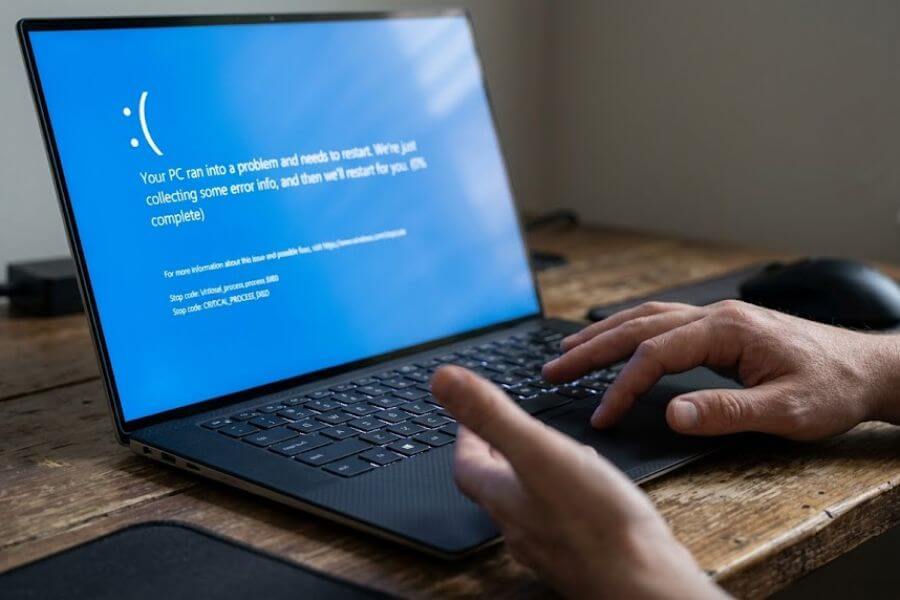
You are in the middle of a massive gaming win, finishing a school project, or watching your favorite video creator when your screen turns bright blue. Your computer freezes, displays a sad face emoticon, and spits out a strange combination of capitalized words and numbers before restarting. This is the infamous Windows 11 Blue Screen of Death, and it can feel like your computer just passed away. Do not panic because your computer is not ruined, and you can get everything back up and running right now.
What is the Blue Screen of Death Anyway?
The Crash Safety Valve
Think of this bright blue screen as a safety feature rather than a system failure. When something goes horribly wrong deep inside your operating system, Windows 11 faces a choice. It can either keep running with corrupted data, which might permanently ruin your hardware or delete your precious files, or it can pull the emergency brake. The blue screen is that emergency brake. It stops everything instantly to shield your computer components from actual harm.
Why Windows 11 Pulls the Emergency Brake
Your computer is a complex web of parts working together every single millisecond. You have physical parts like your graphics card, processor, and memory chips, and you have software parts like games, web browsers, and background programs. Connecting these two worlds are special translation programs called drivers. If a driver tells your graphics card to do something impossible, or if a memory chip drops an important piece of information, Windows 11 loses its footing. When the operating system gets confused or can no longer guarantee that your data is safe, it triggers a system crash to protect itself.
Decoding the Clues on Your Screen
When the blue screen arrives, it does not just show a sad face to ruin your afternoon. It also gives you a specific clue called a stop code or error code. This code is written in capital letters with underscores between the words, or it might look like a string of letters and numbers starting with a zero and an x. This text is a direct message from your computer explaining exactly what went wrong right before the lights went out. Writing this code down or snapping a quick picture of it with your smartphone is your secret weapon for fixing the problem.
Common Windows 11 BSOD Error Codes Explained
CRITICAL_PROCESS_DIED
This error code pops up when a background program that Windows 11 absolutely requires to stay awake suddenly stops working. Think of it like a game shutting down when a crucial background character vanishes. If a core system file gets corrupted by a sudden power loss or a bad software installation, Windows cannot continue running without it, resulting in an immediate system shutdown.
IRQL_NOT_LESS_OR_EQUAL
This is one of the most common error messages you will ever see on a computer screen. It usually points to a communication breakdown involving your device drivers. A piece of software tried to access a neighborhood in your computer memory that it did not have permission to visit. This happens frequently after you update a piece of hardware, like a brand-new webcam or a gaming mouse, using old or incorrect software files.
PAGE_FAULT_IN_NONPAGED_AREA
Your computer keeps track of all active tasks using a system called virtual memory. If Windows looks for a specific file or instruction inside a section of memory where it expects the data to live, but finds absolutely nothing there, you get this specific message. The cause is almost always a faulty stick of system memory or a driver that is looking for information in the wrong place.
SYSTEM_THREAD_EXCEPTION_NOT_HANDLED
This error is closely linked to your graphics card or your network adapter. It means a driver file generated an exception error but failed to catch or handle the problem properly. Imagine a baseball player dropping a ball and then standing completely still instead of running after it. Windows gets tired of waiting for the software to fix its own mistake, so it resets the whole machine.
WHEA_UNCORRECTABLE_ERROR
When you see this message, your physical hardware is usually calling out for help. Your processor, your motherboard, or your storage drive might be experiencing physical trouble. This can happen if you are trying to overclock your computer to get higher frame rates in video games, forcing your parts to run faster than they were designed to handle, or if dust is trapping heat inside your computer case.
KERNEL_SECURITY_CHECK_FAILURE
The kernel is the literal brain of the Windows 11 operating system. It controls how software talks to your physical hardware. If the kernel detects that important internal files have been modified, shifted, or corrupted, it triggers this alarm. It can be caused by a recent system update that did not install correctly, a failing memory stick, or an aggressive computer virus trying to dig its way into your private files.
INACCESSIBLE_BOOT_DEVICE
Your computer cannot start up if it cannot find the hard drive where Windows 11 lives. This error code means your computer turned on, checked its parts, but could not read the data on your storage drive. This happens if a data cable inside your desktop computer wiggles loose, if your solid-state drive is starting to wear out from years of heavy use, or if the boot files were scrambled during a sudden power outage.
BAD_SYSTEM_CONFIG_INFO
Every single setting on your machine is saved in a massive database known as the Windows Registry. If something alters or breaks this database, your computer will forget how to start up properly. This error code usually points to a problem within the registry files, often caused by sketchy third-party cleanup software or a system crash that happened right while your computer was saving its configuration data.
DPC_WATCHDOG_VIOLATION
Windows has an internal security guard known as a watchdog that monitors your hardware drivers to make sure they do not get stuck in an endless loop. If a specific driver takes way too long to respond to a basic command, the watchdog throws its hands up and restarts the system. This is highly common with solid-state drive software or outdated wireless internet card drivers.
VIDEO_TDR_FAILURE
The letters TDR stand for Timeout, Detection, and Recovery. If you are playing an intense video game and your graphics card freezes for more than a few seconds, Windows will try to reset the graphics software to save your session. If that reset attempt fails completely, the operating system gives up and displays this blue screen. It usually means your graphics drivers are out of date, or your graphics card is getting way too hot under heavy loads.
Immediate First-Aid Steps When Your Computer Crashes
Let the System Breathe and Restart
The very first time your screen goes blue, do not panic. Sometimes, a bizarre combination of background tasks causes a single, random mistake that will never happen again. Let your computer finish its automatic diagnostic scan, count to one hundred, and allow it to reboot normally. If your computer boots back up to your regular desktop and stays stable while you play games or do schoolwork, you can breathe a sigh of relief. Keep an eye on it, but you might not need to dive into advanced technical fixes just yet.
Unplug Every Non-Essential Device
If your computer restarts but immediately plunges back into a blue screen, your external gear might be causing a fight behind the scenes. Turn off your machine completely. Unplug your virtual reality headset, your external backup hard drives, your secondary webcams, your microphone mixers, and your game controllers. Leave only your main computer monitor, your keyboard, and your mouse plugged into the machine. Turn the power back on. If the blue screen vanishes, you know that one of those external devices has a broken wire or needs a critical software update.
Check for Extreme Heat and Suffocating Airflow
Computers generate massive amounts of heat when they are running complex apps or rendering high-definition video games. If the vents on your laptop are covered by a thick blanket, or if your desktop computer is shoved into a tight cabinet under your desk, the air inside cannot circulate. When internal parts get too hot, they start making math errors to prevent themselves from melting. Make sure your computer is sitting on a flat, hard surface with plenty of open space around its fans. If you have a can of compressed air, blow the accumulated dust bunnies out of the cooling vents while the machine is completely turned off.
Step-by-Step Troubleshooting Guides for a Permanent Fix
Method 1: Journey Into Safe Mode
When your computer is stuck in a loop where it keeps crashing before you can even type in your password, you need to use a special troubleshooting environment called Safe Mode. This mode tells Windows 11 to ignore all flashy graphics settings, non-essential background programs, and extra hardware drivers. It launches your computer with only the bare minimum files required to run, giving you a stable space to fix things.
To reach Safe Mode when Windows refuses to start up normally, turn your computer on. The moment you see the manufacturer logo on your screen, hold down the physical power button for ten seconds until the machine shuts down completely. Repeat this process two more times. On the third attempt, Windows 11 will realize something is wrong and will automatically launch a special menu called the Automatic Repair screen.
From this screen, click on the button labeled Troubleshoot. Next, click on Advanced Options, and then select Startup Settings. Click the Restart button located in the corner of your screen. Your computer will reboot and present you with a list of options numbered one through nine. Press the number four key or the F4 key on your keyboard to launch your computer into Safe Mode. If you need to access the internet to download a new driver while troubleshooting, press the number five key instead to launch Safe Mode with Networking.
Method 2: Banishing Bad System Updates
Microsoft releases software updates for Windows 11 regularly to add fresh features and keep your system secure. However, because there are billions of different computer configurations out there, an update can occasionally clash with your specific hardware, causing your machine to crash. If your blue screens started happening right after a recent system update finished installing, removing that specific update can fix the problem.
If you are stuck on the blue screen loops, navigate to the Automatic Repair menu using the power-button trick mentioned in the Safe Mode section. Click on Troubleshoot, select Advanced Options, and then click on the button that says Uninstall Updates. You will be given two choices: remove a quality update or remove a feature update. Quality updates are the smaller, routine patches that roll out monthly, while feature updates are the massive, system-wide transformations that arrive once or twice a year. Start by clicking Uninstall Latest Quality Update, type in your account information, and let the computer remove the recent files. If the blue screens continue after that, return to this menu and select the feature update option to roll back your machine to its previous configuration.
Method 3: Repairing Broken Operating System Files
Sometimes, a sudden power failure, a hard drive glitch, or an aggressive app can damage the core files that hold Windows 11 together. When these files go missing or become corrupted, the operating system will stumble and fall into a blue screen crash. Windows includes two built-in command-line tools designed to scan your entire storage drive, find these broken files, and replace them with fresh copies automatically.
To use these tools, type the letters cmd into the search bar located on your Windows taskbar. Do not just hit enter. Right-click on the application icon named Command Prompt and select the option that says Run as Administrator. A dark window will appear on your screen, ready for your commands.
Type the following text exactly as it appears, making sure to include the space before the forward slash:
Plaintext
DISM.exe /Online /Cleanup-image /Restorehealth
Press the Enter key on your keyboard. This tool will connect directly to the official Microsoft update servers via the internet to fetch clean copies of any core files that might be damaged on your machine. This process can take several minutes to complete, and it might look like it is stuck at a specific percentage point. Leave it alone until the text says it has finished successfully.
Once that tool completes its job, type this second command into the same window:
Plaintext
sfc /scannow
Press Enter again. This tool is the System File Checker. It inspects every single corner of your local operating system files to ensure they are healthy. If it discovers any damaged data, it will fix the errors using the fresh files that the previous command retrieved for you. Once the scan hits one hundred percent, restart your computer normally to see if your system crashes have stopped.
Method 4: Fixing Your Memory and Testing RAM Stability
Random Access Memory, or RAM, is the lightning-fast short-term memory that your computer uses to hold data for games and apps you are using right this second. If your RAM sticks get loose in their physical motherboard slots, or if the internal circuitry begins to degrade, they will feed garbage data to your processor. This triggers instant blue screen crashes, often with random, changing error codes every single time.
Windows 11 includes a built-in diagnostic tool to test your RAM chips for physical defects. Click on your Start menu, type the words Windows Memory Diagnostic into the search bar, and launch the application. You will see a prompt asking if you want to restart your computer right now to check for problems or if you want to schedule the test for the next time you turn your computer on manually. Save any open schoolwork or games, and select the option to restart immediately.
Your computer will reboot into a basic, grey text screen and begin running a series of complex mathematical tests on your memory chips. This process can take anywhere from fifteen minutes to over an hour depending on how much RAM you have inside your system. Do not interrupt this test. If the tool finds errors, it will print out a warning on your screen. If you see error messages here, it means one of your physical RAM sticks is broken and needs to be replaced, or you need to open your computer case and push the sticks firmly back into their slots until they click.
Method 5: Hunting Down Problematic Storage Drives
If your hard drive or solid-state drive develops physical problems or file system glitches, Windows 11 will eventually crash because it cannot read or write data fast enough. This can happen if your computer loses power suddenly while saving a game, causing the file architecture to become unreadable.
To check your storage drive for errors, open your Command Prompt as an administrator again by searching for cmd, right-clicking the icon, and choosing Run as Administrator. Type the following command into the black window:
Plaintext
chkdsk C: /f /r
Press Enter. This command tells the system to check disk drive C, which is where your Windows 11 installation usually lives. The letter f tells the tool to fix any file structural errors it finds, and the letter r tells it to search for bad physical locations on the drive and rescue any readable information.
Because your computer is currently using your C drive to keep the operating system running, the tool will display a message stating that it cannot lock the drive right now. It will ask if you want to schedule this volume to be checked the next time the system restarts. Type the letter Y on your keyboard and hit Enter. Close all your open windows and restart your computer. As your machine boots up, it will run a thorough disk check before loading the desktop, correcting any drive errors it encounters along the way.
Method 6: Reverting Time with System Restore Points
Imagine if your computer had a time machine that could take its system settings back to a day when everything worked perfectly, without touching your personal photos, game saves, or school documents. Windows 11 actually has this feature, and it is called System Restore. It takes periodic snapshots of your system settings, drivers, and registry configurations.
To use this feature, click on your taskbar search bar, type the words Create a restore point, and select the top result. A small window titled System Properties will open up. Click on the button labeled System Restore.
A wizard will guide you through the process. Click Next, and you will see a list of dates and times when your computer took a snapshot of itself. Look for a date before your blue screen crashes started happening. If you do not see many options, check the little box at the bottom of the window that says Show more restore points. Select the stable date you want to use, click Next, and then click Finish. Your computer will restart and spend some time rewriting its system settings back to that older date, clearing away any recent driver glitches or software conflicts that were making your life miserable.
Method 7: Updating or Rolling Back Device Drivers
Your hardware parts cannot talk to Windows 11 without drivers. If a driver is old, buggy, or corrupted, your components will stop communicating, leading to an immediate crash. Graphics drivers, audio drivers, and network card drivers are the most frequent troublemakers.
To manage your drivers, right-click on the Start button in the corner of your screen and select Device Manager from the menu that pops up. This window lists every single piece of hardware tucked inside your computer case or plugged into your ports.
Look through the list for any category that has a tiny yellow exclamation mark next to it. This mark means Windows knows the device is having a rough time. To update a piece of hardware, click the small arrow next to its category to expand the list. For example, expand Display Adapters to find your graphics card. Right-click on your graphics card and select Update Driver. Choose the option to search automatically for drivers. Windows will scan your system and the internet for the newest software.
If your blue screens started happening right after you updated a driver, you need to do the exact opposite. Right-click on the device, select Properties, and click on the tab labeled Driver at the top of the new window. If it is available, click the button that says Roll Back Driver. This will instantly discard the glitchy new update and restore the previous version that was working properly.
Method 8: Cleaning Out Third-Party Software and Startup Clutter
Sometimes the problem is not Windows 11 or your physical hardware chips. Aggressive third-party programs can conflict with each other or try to modify system resources they should leave alone. This includes third-party antivirus software, computer speed-boosting programs, and cheat-detection systems built into popular online multiplayer video games.
To see if a recently installed app is causing your system to crash, press the Windows Key and the letter I at the same time to open your primary Settings menu. Click on Apps on the left side of the window, and then select Installed Apps. Scroll down through this list and look for anything you installed right before the blue screens started. Click the three dots next to the problematic software and select Uninstall to clear it away from your storage drive.
Additionally, you can stop applications from launching the moment your computer turns on, which keeps them from causing trouble in the background. Right-click on an empty space on your taskbar and select Task Manager. Click on the icon that looks like a little speedometer or says Startup Apps on the left sidebar. Look at the list of applications that launch automatically when your machine boots. Select any program that you do not need open every single day, like game launchers or chat apps, and click the Disable button in the upper right corner. This keeps your system lean and reduces the chances of software fights triggering a crash.
Method 9: Resetting Your Core Computer Settings to Default
If you love tweaking your computer settings to get every single ounce of performance out of it, you might have adjusted options inside your computer BIOS or UEFI menu. This is the menu that loads before Windows even starts up. Changing voltage settings, memory speeds, or processor clocks can make your system unstable, leading to frequent blue screens like the WHEA_UNCORRECTABLE_ERROR.
To fix this, you need to set your hardware settings back to their factory baselines. Turn your computer off entirely. Turn it back on and immediately start tapping a specific key on your keyboard repeatedly before the Windows logo shows up. This key is usually Delete, F2, F10, or F12 depending on who manufactured your computer motherboard.
Once you enter this technical menu, do not feel overwhelmed by all the strange numbers and text. Look along the bottom or right side of your screen for a shortcut key labeled Load Setup Defaults, Safe Defaults, or Factory Reset. It is usually the F9 or F5 key. Press that key to wipe out any unstable changes you made to your memory or processor speeds. Navigate to the Exit tab, select Save Changes and Exit, and let your computer restart. Running your hardware at its official factory speeds is a brilliant way to eliminate persistent stability problems.
Comparing Windows 11 Crash Fixes at a Glance
| Error Code Observed | Most Likely Problem Area | Quickest Tool to Use | Uncomplicated Fix Action |
| CRITICAL_PROCESS_DIED | Damaged core Windows files | Command Prompt (Admin) | Run the DISM and SFC commands |
| IRQL_NOT_LESS_OR_EQUAL | Bad or outdated device driver | Device Manager menu | Update or roll back the driver |
| PAGE_FAULT_IN_NONPAGED_AREA | Physical memory or storage issue | Memory Diagnostic Tool | Run a full RAM diagnostic scan |
| WHEA_UNCORRECTABLE_ERROR | Overheated parts or overclocking | Motherboard BIOS menu | Load factory default settings |
| INACCESSIBLE_BOOT_DEVICE | Loose drive cable or corrupted boot sector | Command Prompt via Repair | Run a full disk check command |
| VIDEO_TDR_FAILURE | Frozen or overloaded graphics card | Device Manager or clean install | Update your official graphics drivers |
Frequently Asked Questions
What causes a blue screen of death out of nowhere?
A blue screen happens out of nowhere because your computer hardware or operating system ran into an error that it could not safely navigate. This can be caused by a driver file failing in the background, a sudden surge or drop in electricity, an overheated processor chip, or a system file that went corrupt while loading an application. It is your computer pulling its own emergency brake to shield your data from corruption.
Can a virus trigger a blue screen on Windows 11?
Yes, a computer virus can trigger a blue screen crash. Malicious software often attempts to dig deep into your operating system to hijack core files or change how your memory functions. When the Windows 11 internal security systems notice that important files are being modified or moved by an unrecognized program, it triggers a system crash to halt the infection and protect your personal files from being stolen or ruined. Running a full system scan with Microsoft Defender can help hunt down these threats.
Is my computer permanently broken if I see a stop code?
Absolutely not. Seeing a blue screen does not mean your computer is ruined or broken forever. In the vast majority of cases, the issue is purely a software mistake, a bad update, or an outdated driver file that can be corrected using the built-in Windows troubleshooting tools. Even if the issue is related to your physical hardware, it usually means just one single part, like a stick of RAM or an old data cable, needs to be adjusted or swapped out. Your computer as a whole is perfectly fine.
Why does my computer keep restarting before I can read the error?
Windows 11 is configured by default to reboot immediately after a crash happens so that servers and computers can get back to work without human interaction. If your computer reboots too quickly for you to read the text on the blue screen, you can turn this automatic restart feature off. Search for Advanced System Settings in your Start menu, open the properties window, click on the Settings button under the Startup and Recovery section, and uncheck the box that says Automatically restart. This will force your computer to stay on the blue screen until you manually press the power button, giving you all the time you need to write down the code.
Will fixing a blue screen wipe out my saved personal files?
Almost all the troubleshooting steps used to fix a blue screen will leave your personal files, games, photos, and documents completely untouched. Tools like the System File Checker, Device Manager updates, and System Restore points are designed to only modify behind-the-scenes system files and driver instructions. Your personal data remains safe. The only time your files are at risk is if your primary storage drive is physically failing, or if you choose to perform a full, clean reinstallation of the Windows 11 operating system without backing up your data first.
What should I do if Safe Mode also crashes with a blue screen?
If your computer cannot even stay stable inside Safe Mode, it strongly indicates that you are dealing with a physical hardware failure rather than a minor software glitch. Since Safe Mode turns off all extra drivers and programs, a crash here means a core component like your motherboard, processor, or power supply is struggling. Try opening your computer case to clear out any dust bunnies, make sure your memory sticks are plugged securely into their slots, and double-check all internal cable connections. If you are using a laptop, you might need to take it to a professional technician to test the motherboard components.
How does overheating link to sudden computer crashes?
When your processor or graphics card is working hard on high-end video games or video editing tasks, it generates a massive amount of heat. Computer parts have built-in thermal sensors to track this temperature. If your cooling fans are filled with dust, or if the ventilation holes are blocked, that heat gets trapped. To save itself from melting, a component will start slowing down or making mathematical calculation errors. When Windows 11 notices that the processor is feeding it corrupted data due to extreme temperatures, it shuts down instantly and displays a blue screen to cool the hardware down before permanent physical damage occurs.