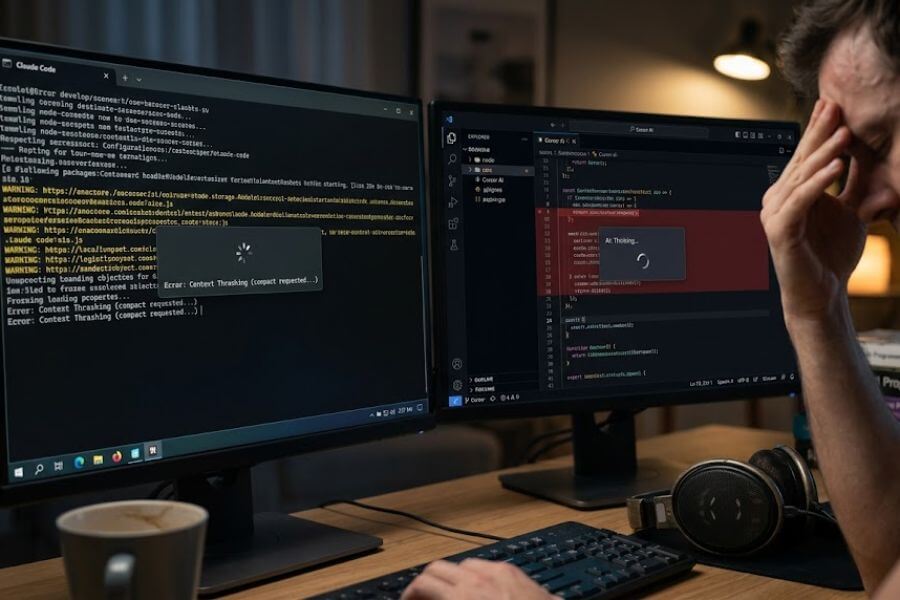
When AI tools help you write and fix code, it feels like having a superpower. You type a prompt, watch the screen fly, and suddenly your software works. However, this helper can sometimes get stuck. Claude Code and Cursor AI are two of the absolute best tools for writing software, but their automated systems can crash into a wall. You might watch your editor plunge into an endless loop, waste your API tokens on the same incorrect fix, or simply freeze up and refuse to answer.
This guide will show you how to break those frustrating loops, resolve context bloat, and get your digital assistants back to work.
The Anatomy of Auto-Debugging and Why It Breaks
To fix these problems, you need to know how these systems work under the hood. Automated debugging is not magic; it is a rapid cycle of reading files, checking for mistakes, guessing the cause, changing code, and checking the result. When you use the advanced modes in these applications, the assistant is allowed to execute terminal commands, run tests, and read its own output.
This process breaks down when the assistant lacks clear guideposts. An AI does not experience frustration, so it will happily try the exact same broken solution fifty times in a row unless you step in. The root causes usually come down to broken test environments, giant files that overwhelm the memory, or corrupted local storage databases.
Troubleshooting Claude Code Automated Errors
Claude Code is an absolute beast when it comes to terminal-based development. It can build, test, and refactor code directly from your command line. But when its automated loops go wrong, it can feel like your terminal has been hijacked.
Breaking the Context Thrashing Loop
One of the most common issues you will encounter in Claude Code is an error message that says something like, “Autocompact is thrashing.” This means the assistant is caught in an internal cycle. It fills up its memory window, tries to shrink its past conversation to save space, but then immediately reads a massive file or command output that fills the memory window right back up. To prevent wasting your money and API limits, Claude Code will shut down the loop.
To fix context thrashing, you must manually shrink what the assistant is looking at. First, use the clear command to reset the chat history. If you are in the middle of a complex task and do not want to lose your progress, use the compact command instead. You can instruct the tool to keep only your current blueprint and the specific file differences while throwing away long, historical terminal printouts. Another great trick is to instruct the tool to read a specific line range of a massive file rather than opening the whole thing at once.
Fixing Permission and Command Blockages
Because Claude Code runs terminal commands directly on your computer, it has safety protocols built into its system. If it tries to run a command that looks dangerous, or if it encounters a file it does not have permission to open, it will freeze or show a safety blocker message.
You can troubleshoot your entire setup instantly by running the doctor command inside the interface. If the application will not even start up, run the command directly from your regular terminal line. This diagnostic check will scanner your settings, check your Node version, and find any broken configuration keys. If a tool like ripgrep is failing to find your files, you can install your system’s native version and update your settings file to point directly to it.
Resolving Local Setting Ignorance
Sometimes you write custom rules or change your settings, but the assistant acts like they do not exist. This happens because of a mix-up in where your settings are saved on your computer.
Claude Code uses multiple configuration files. The file named .claude.json in your home folder only handles basic visual toggles and application states. Your actual permissions, tools, and custom environment rules must live inside a different folder entirely, under .claude/settings.json. If you have conflicting rules between your main settings and local project settings, remember that local files will always win.
~/.claude.json               <-- Basic UI settings only (No tools/rules)
~/.claude/settings.json      <-- Global user settings and permissions
./.claude/settings.json      <-- Project-specific overrides (Wins conflicts)
Mastering Cursor AI Debugging Failures
Cursor AI brings automated debugging into a beautiful visual editor. Its specialized features can automatically add logs to your code, run your application, and study the output to find bugs. However, this complex system can easily get stuck in a circle of endless thinking.
Resolving the Endless Reviewing and Thinking Spinners
You open your project, ask the editor to make a change, and suddenly the assistant enters a state where it outputs the same “Examining” or “Reviewing” thoughts over and over without ever writing a single line of code. This infinite loop makes the editor completely unusable.
This issue is almost always caused by a corrupted local workspace database. As you work on large projects, Cursor tracks thousands of lines of code changes and background details. Over time, this file can swell to an unhealthy size or get corrupted.
To fix this, you must clear out the hidden storage folders. Close the application completely. If you are on a Windows computer, navigate to your AppData folder, open Roaming, then Cursor, then User, and look for a folder named workspaceStorage. Delete everything inside it. If you are on a Mac, you can wipe out the global storage database files located in your Application Support path. When you reopen the editor, a fresh, clean database will be built, and the thinking loop will disappear.
Taming the High CPU and App Freezing Issues
When Cursor is analyzing a huge code repository, your computer fans might start spinning at maximum speed, and the user interface might stop responding. This usually happens because the AI is trying to read your entire project at once, including massive folders that do not contain actual code.
You can stop this heavy processor strain by setting up proper boundaries. Make sure your project has a .gitignore file that clearly lists massive folders like your node modules, build outputs, and local history caches. You can also turn off the deep background thinking feature in your editor settings if your computer is struggling to keep up with the real-time file scanning.
Navigating the Costly Log and Restart Loop
Cursor’s advanced debugging mode works by injecting temporary log statements into your code, asking you to run the app, and reading the resulting log file. If the assistant guesses the wrong location for the bug, it will keep adding more logs, asking you to rebuild, and forcing you to repeat the cycle over and over.
You can save your sanity and your API costs by taking control of the process. Do not let the assistant blind-guess where a bug is hiding. Use the explicit mention symbol to target the specific files you know are involved. If the assistant adds logs and asks you to test, make sure you reproduce the exact bug path. If it gets confused, use the cancel button, clean up the temporary log statements, and give a more specific text hint to point it in the right direction.
Strategies to Stop AI Debugging Failures Before They Start
The best way to handle automated debugging errors is to prevent your assistants from falling into loops in the first place. By adopting a few clean habits, you can keep both applications running fast and accurately.
Keep Your Code Environment Predictable
AI assistants rely heavily on the success of your local tools. If your terminal cannot compile your project because of a missing dependency or a broken environment variable, the AI will get stuck trying to fix a code bug that does not actually exist.
Before you let an AI attempt an automated fix, make sure your project can build successfully on its own. If you use TypeScript, run your type compiler manually. If you are using Python, ensure your virtual environment is active and healthy. When the AI can trust your underlying system tools, it can find and fix real code errors in a fraction of the time.
Break Big Tasks into Tiny Steps
When you give an AI assistant a massive, open-ended instruction like “fix all the bugs in this folder,” you are asking for trouble. The assistant will open dozens of files, lose its place, overwhelm its memory window, and start making messy, low-quality changes.
Instead, treat the assistant like a helpful peer who needs clear directions. Ask it to find a single bug first. Once it identifies the problem, ask it to write a plan. Review that plan, then tell it to execute the fix. Wiping your chat history clean with a reset command between major tasks ensures that old, irrelevant details do not clog up the assistant’s memory.
Comparison of Common Assistant Failures
When your development workflow stalls, it helps to identify exactly which failure pattern you are facing so you can deploy the right countermeasure.
| Assistant Tool | Visible Symptom | Deep Root Cause | Immediate Solution |
| Claude Code | Autocompact Thrashing Error | Large terminal printouts or giant files filling the context window | Run the compact or clear command; target smaller file line ranges |
| Claude Code | Global settings or custom hooks are ignored completely | Rules placed in the wrong configuration file path | Move settings out of the root app file and into the proper folder path |
| Cursor AI | Endless thinking spinner or repetitive reviewing messages | Corrupted workspace storage database or internal state cache | Close the app and delete the contents of the hidden storage folder |
| Cursor AI | Intense computer lag and frozen editor windows | AI scanning unindexed build files or massive dependency directories | Update your ignore file to block massive non-code folders |
| Cursor AI | Endless loop of adding logs and restarting | Assistant guessing random files for a hard-to-reproduce bug | Cancel the session, manually clean the code, and use targeted mentions |
Frequently Asked Questions
What should I do if Claude Code completely freezes my terminal line?
If Claude Code stops responding to your keyboard inputs entirely, you can attempt to cancel the current automated operation by pressing Control and C at the same time. If the entire terminal window is frozen solid, you can safely force close that specific terminal tab or application window. You will not lose your place in the conversation. Simply open a fresh terminal window, navigate back into your project folder, and run the resume command. The assistant will pick up the conversation exactly where you left off.
Why does Cursor AI keep telling me it can not find files that I can see clearly in my sidebar?
This problem usually happens because the background indexing service has crashed or has not completed its scan of your folder. Cursor creates a local index of your project files so the AI can find things instantly. If you recently added a lot of files or switched branches, the index might be out of date. You can force a manual rebuild of your project map by opening your core settings, navigating to the features tab, finding the indexing section, and clicking the button to wipe and rebuild the index.
Is it safe to delete the workspace storage folder in Cursor AI?
Yes, it is entirely safe to empty this folder. The workspace storage path only holds temporary background caches, UI window layouts, and recent chat histories for your local projects. Deleting this data will not alter, damage, or delete your actual source code files in any way. It simply forces the editor to drop any stale, bloated, or corrupted data caches that might be triggering endless thinking loops. The next time you open your project, the editor will automatically build a brand-new, clean storage folder.
How do I prevent an AI assistant from altering code files that it should not touch?
The absolute safest way to protect specific parts of your project is by using a specialized instruction file. In Claude Code, you can place a file named CLAUDE.md in your project folder to outline strict rules, build commands, and file boundaries. For Cursor, you can use a .cursorrules file at the root of your project. In these files, write explicit instructions telling the assistant which directories are completely off-limits for automated modifications.
Why does the automated debugger keep trying the exact same broken code fix over and over?
This loop occurs because the assistant receives the exact same error message from your terminal or compiler after every single attempt. Because the AI views each attempt as a fresh puzzle step, it can easily fall into a trap where it believes a tiny variation of the same code will magically work. When you see this happen twice, do not let it try a third time. Hit the cancel button, read the error message yourself, and type a clear hint explaining why that specific approach is failing.
Can a slow internet connection trigger auto-debugging loops and errors?
A weak or dropping network connection can absolutely cause major issues with automated assistants. When these tools run an automated step, they must send your code changes and the resulting errors back to cloud servers for analysis. If your internet connection drops mid-transfer, the application might time out, fail to register that a step was completed, or trigger a generic server error that throws the assistant completely off course. If your network is acting up, it is always best to pause automated modes and stick to basic code generation until your connection stabilizes.