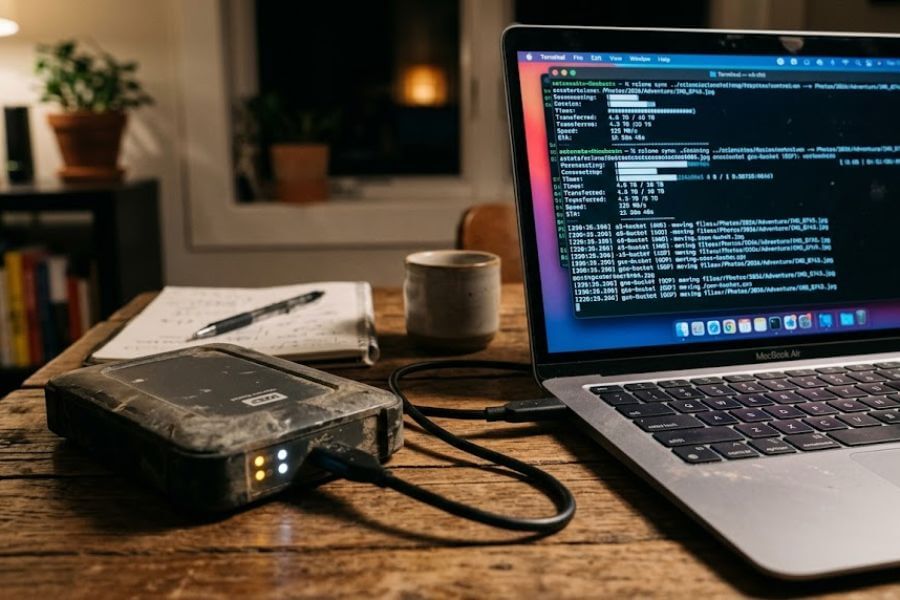
Imagine putting all your favorite video game saves, family photos, and school projects on a single thumb drive. If that drive slips out of your pocket or gets washed in your jeans, everything vanishes. In the tech world, keeping all your digital treasures in just one place is a massive gamble. That is why smart creators, tech-savvy students, and global companies use a strategy called multi-cloud backups. By splitting your data between two giant internet networks, Amazon Web Services (AWS) and Google Cloud Storage (GCS), you create a safety net that is nearly impossible to break.
When you store files on the internet, you are using the cloud. The cloud is just a collection of powerful computers, called servers, located in secure buildings around the world. AWS and Google Cloud are two of the biggest networks on the planet. If one network experiences a temporary hiccup or a power outage, the other network keeps running smoothly. Setting up this dual-system backup means your important work is always safe, always online, and completely protected from unexpected accidents.
Getting to Know Your Digital Toolbelt
Before pushing any buttons, you need to understand the tools you are going to use. Think of this as getting familiar with the controls of a new game before starting the first mission. Both AWS and Google Cloud have specific names for their storage areas, and knowing the vocabulary makes the entire setup process much smoother.
Amazon Web Services and Simple Storage Service
Amazon is not just a place to buy books and shoes. They also run AWS, which powers a huge portion of the internet. The main tool we will use here is called Amazon Simple Storage Service, or Amazon S3 for short.
Inside Amazon S3, you store your files in giant digital containers called buckets. You can name these buckets whatever you want, as long as the name is unique across the entire internet. You can think of an S3 bucket as a highly secure, smart folder that expands automatically to fit as much data as you want to throw inside it.
Google Cloud Storage
Google Cloud is Google’s version of the digital sky. Their tool is simply called Google Cloud Storage. Just like Amazon, Google uses the word bucket to describe its storage containers.
While the underlying technology is slightly different, Google Cloud Storage does the exact same job as Amazon S3. It holds your files, protects them with passwords and codes, and lets you access them from anywhere in the world. By using both at the same time, you get the best features of both tech giants.
The Command Line Interface
To make these two clouds talk to each other, you will use a tool called a Command Line Interface, or CLI. Instead of clicking buttons on a colorful website, the CLI lets you type text commands directly into your computer to move files around. It might look like a secret hacker screen from a movie, but it is actually the fastest and most reliable way to manage your multi-cloud setup.
Setting Up Your Amazon Web Services Foundation
Your first major task is to prepare your AWS account. If you do not have one yet, creating an account requires an email address and a way to verify who you are. Once you log into the main dashboard, known as the AWS Management Console, you are ready to build your first storage bucket.
Creating Your First Amazon S3 Bucket
Look for the search bar at the top of the AWS screen and type S3. Click on the first result to open the S3 control panel. From here, you will see a bright button that says Create bucket.
Plaintext
Step 1: Click the Create Bucket button.
Step 2: Type a unique name, like my-super-secure-backup-bucket-2026.
Step 3: Choose a region close to your actual home.
Step 4: Keep the standard settings and click create.
When naming your bucket, use only lowercase letters, numbers, and hyphens. Avoid spaces or fancy symbols. Choosing a region close to your physical home helps your files upload and download much faster, as the data does not have to travel as far through the underwater internet cables.
Keeping Your Bucket Safe from the Public
By default, AWS turns on a feature called Block Public Access. Keep this turned on. If you turn it off, anyone on the internet could potentially find your bucket and look at your private files. Leaving this shield active ensures that only you and your trusted programs can see what is inside.
Setting Up a Special User Account
You should never use your main AWS account password to connect outside tools. Instead, you will create a limited user assistant through a tool called IAM, which stands for Identity and Access Management. Think of this as creating a spare key for a house guest that only unlocks the garage, not the whole house.
Search for IAM in the top bar, click Users, and then click Create user. Give this user a clear name, such as backup-helper. When the system asks about permissions, choose the option to attach policies directly, and search for a permission called AmazonS3FullAccess. This gives your new helper user the exact power it needs to manage your files without letting it touch the rest of your AWS account.
Saving Your Secret Access Keys
Once the user is created, click on its name, go to the Security credentials tab, and look for Access keys. Click Create access key and select Command Line Interface. The system will show you two long strings of random letters and numbers:
- Access Key ID: This is like your helper user username.
- Secret Access Key: This is like your helper user password.
Copy both of these keys into a secret text file or write them down on a piece of paper. This is the only time AWS will ever show you the Secret Access Key. If you lose it, you will have to delete the key and make a new one.
Setting Up Your Google Cloud Storage Foundation
With your AWS side completely ready, it is time to leap across the internet to Google Cloud. The layout looks a bit different, but the core goals are exactly the same. You need a bucket to hold your files and a secure way for your computer to talk to Google.
Starting a Project and Making a Bucket
Google Cloud organizes everything into projects. Think of a project as a big school binder where you keep all the assignments for one specific class. Create a new project and give it a fun name, like Project Cloud Shield.
Once your project is ready, open the left side menu, scroll down to Cloud Storage, and click Buckets. Click the Create button at the top of the screen to start the bucket construction wizard.
Plaintext
1. Name your bucket using lowercase letters and hyphens.
2. Choose where to store your data (Region is best for single locations).
3. Pick the Standard storage class for files you use often.
4. Set Access Control to Uniform to keep permissions simple.
Choosing the Right Storage Class
Google offers a few different tiers for storing data. For a reliable backup system, Standard is usually your best choice. If you plan to store files that you absolutely never look at unless an emergency happens, you can look into Archive or Coldline storage, which cost less per month but take longer to wake up when you need them. For this setup, stick with Standard to keep things running fast.
Creating a Google Service Account
Just like we created a helper user in AWS, we need to create a special assistant account in Google Cloud. Google calls this a Service Account.
Go to the IAM and Admin menu in your Google Cloud console, click Service Accounts, and click Create Service Account. Name it google-backup-robot. When it asks for roles, give it the Storage Object Admin role. This allows your digital robot to read, write, and delete files inside your Google storage buckets.
Downloading Your JSON Secret Key
After creating the service account, click on the three little dots next to its name and select Manage keys. Click Add key, then choose Create new key. Make sure the format is set to JSON, which stands for JavaScript Object Notation.
Your web browser will automatically download a small text file filled with complex code. Treat this file like a real gold coin. Anyone who gets their hands on this file can access your Google Cloud bucket. Save it in a secure folder on your computer and never share it online.
Comparing the Two Storage Giants
To help you see how these two systems compare, let us look at their main features side by side. Even though they use different labels, they are doing parallel jobs to keep your data intact.
| Feature Type | Amazon Web Services (AWS) | Google Cloud Storage (GCS) |
| Storage Container | S3 Bucket | Cloud Storage Bucket |
| Helper Account | IAM User | Service Account |
| Security Key Type | Access Key ID & Secret Key | JSON Credential File |
| File Object Limit | 5 Terabytes per single file | 5 Terabytes per single file |
| Default Security | Block Public Access Enabled | Uniform Access Control Enabled |
Installing Your Bridge Software: Rclone
Now that you have buckets waiting on both sides of the digital canyon, you need a bridge to connect them. The ultimate tool for this job is a free, open-source program called Rclone. It is often described as a Swiss Army knife for cloud storage. It acts as an intermediary that can log into AWS and Google Cloud simultaneously, allowing you to copy files back and forth with simple text commands.
Downloading Rclone on Your Computer
To get started, you need to install Rclone on your machine. The steps vary depending on what kind of computer you use every day.
Windows Computers
If you use a Windows computer, download the Rclone zip file from the official website. Unzip the folder and move the rclone.exe file into a permanent spot, like a folder named tools on your main storage drive.
Mac Computers
If you use an Apple computer, the easiest route is opening your Terminal application and typing a single command using a tool manager called Homebrew. The command looks like this: brew install rclone. If you do not use Homebrew, you can download the Mac installer pack directly from the Rclone download page.
Linux Computers
For Linux users, installing Rclone takes just one line of text pasted into your command window. Run the command curl https://rclone.org/install.sh | sudo bash. This script automatically downloads the correct version and sets it up on your system.
Configuring Rclone for AWS and Google Cloud
With Rclone installed, it is time to introduce it to your cloud accounts using the keys you saved earlier. Open your computer command prompt or terminal window and type rclone config. This will launch an interactive text setup wizard.
Connecting to Your Amazon S3 Bucket
When you first type rclone config, you will see a small menu. Type n to create a new remote connection. Name this connection my-amazon-cloud.
Plaintext
1. When asked for storage type, look through the list and type "s3".
2. When asked for the provider, choose "Amazon Web Services".
3. Choose "false" when asked if you want to enter AWS credentials manually.
4. Paste your Access Key ID when prompted.
5. Paste your Secret Access Key when prompted.
The setup wizard will ask you about regions and locations. Choose the same region code you selected when making your S3 bucket, such as us-east-1 or us-west-2. Leave the rest of the advanced options on their default settings by hitting your enter key until the system returns you to the main menu.
Connecting to Your Google Cloud Bucket
Now, let us create the second connection. Type n again to make another new remote connection. Name this one my-google-cloud.
Plaintext
1. Scroll through the storage list and find "google cloud storage".
2. Paste the exact file path to the JSON secret key you downloaded earlier.
3. Leave the project number blank, as the key handles that automatically.
4. Choose the primary storage access level (choose full access option).
When the configuration script asks for your service account credentials, typing the exact path to your JSON file tells Rclone exactly where to look on your computer. For instance, on a Windows computer, it might look like C:\Users\YourName\Documents\google-key.json. Review your choices and save the configuration.
Testing Your Connections
To make sure Rclone can actually see your digital buckets, clear your command screen and type rclone lsd my-amazon-cloud:. This command tells Rclone to list all the directories inside your Amazon storage. If everything is configured correctly, your bucket name will pop up on the screen.
Next, run the exact same test for your Google account by typing rclone lsd my-google-cloud:. If both bucket names display without throwing any red errors, your bridge is officially open for business.
Writing Your First Automation Script
Manually typing commands every time you want to back up your computer files is exhausting. Instead, you can write a small recipe script that instructs your computer to do this chore automatically while you sleep or play games.
Creating a Simple Windows Batch File
If you use a Windows machine, open the Notepad program and type the following lines of text. Make sure to replace the placeholder names with your actual Rclone remote names and bucket names.
Plaintext
@echo off
echo Starting Multi-Cloud Backup...
rclone sync C:\Users\YourName\Documents my-amazon-cloud:my-aws-bucket-name
rclone sync C:\Users\YourName\Documents my-google-cloud:my-gcs-bucket-name
echo Backup Complete!
pause
Save this text file on your desktop, but change the file extension from .txt to .bat. This turns the file into an executable batch script. Whenever you double-click this new icon, your computer will scan your Documents folder and upload any new or modified files directly to both AWS and Google Cloud simultaneously.
Understanding the Magic of Sync vs Copy
In the script above, we used the word sync instead of copy. This distinction is incredibly important:
- Rclone Copy: This action takes files from your source folder and places them into your cloud bucket. If a file already exists in the cloud, it leaves it alone. It never deletes files from your cloud buckets.
- Rclone Sync: This action makes the cloud bucket look exactly like your local computer folder. If you delete an old photo on your computer, the next time you run a sync, Rclone will delete that same photo from your cloud bucket to keep things identical.
Be very careful when using the sync command. If you accidentally wipe out a folder on your laptop, running a sync command immediately afterward could wipe out your cloud backup copies as well.
Automating the Process to Run While You Sleep
Double-clicking a script icon is fast, but true data safety means setting things up so you never have to think about them again. Both Windows and Mac computers have built-in alarm clocks that can trigger your backup script automatically.
Using Windows Task Scheduler
Windows includes a utility called Task Scheduler that can run programs based on a time calendar. Search for Task Scheduler in your start menu and open the application.
Plaintext
1. Click Create Basic Task on the right side of the window.
2. Name your task Daily Cloud Backup.
3. Set the trigger to Daily and pick a time, like 2:00 AM.
4. Set the action to Start a program.
5. Browse for the .bat script file you created earlier.
Click finish to activate the task. Now, as long as your computer is turned on and plugged into the wall at 2:00 AM, your system will securely send your latest files up to your AWS and Google Cloud accounts without disturbing you.
Using Mac and Linux Cron Jobs
If you use a Mac or a Linux computer, you can schedule your background tasks using an internal system calendar called crontab. Open your Terminal program and type crontab -e to edit your scheduled task sheet.
Add a new line at the very bottom of the document that looks like this:
Plaintext
0 2 * * * rclone sync /Users/YourName/Documents my-amazon-cloud:my-aws-bucket && rclone sync /Users/YourName/Documents my-google-cloud:my-gcs-bucket
The numbers 0 2 * * * represent a time stamp that translates to 2:00 AM every single day. The text following those numbers tells your computer to sync your documents folder to Amazon first, and if that succeeds, sync it to Google Cloud immediately afterward.
Monitoring Costs and Saving Money
Storing files on premium enterprise servers is incredibly safe, but it is not completely free. Both Amazon and Google charge small fees based on how much data you upload and how often you download it. Fortunately, both companies offer free tiers that allow you to practice without spending any money.
Staying Within the Free Limits
When you first open a brand new AWS account, you get a special trial period called the Free Tier. This gives you 5 Gigabytes of free standard S3 storage space every month for your first full year.
Google Cloud offers an ongoing Always Free program. They give you 5 Gigabytes of regional storage every single month that never expires, even after your first year is up. If you keep your experimental backup files under 5 Gigabytes total, you can run this entire multi-cloud setup for a long time without seeing a bill.
Watching Out for Network Exit Fees
Uploading files into the cloud is almost always completely free. Tech companies love it when you send data to their servers. However, pulling files back out of the cloud to your local computer costs money. These fees are known as egress or network exit fees.
Because of this structure, try to avoid downloading giant backup files unless you are dealing with a real data emergency. Testing your backups with tiny text files ensures you keep your network exit costs as low as possible.
Frequently Asked Questions
What happens if Amazon Web Services goes offline completely?
If AWS suffers a massive power outage or its network drops offline, your backup routine will temporarily fail to connect to your Amazon bucket. However, because you set up a multi-cloud system, your backup script will still successfully send your data to your Google Cloud Storage bucket. Your files remain completely safe and accessible on Google platform until Amazon engineers resolve their network issues.
Can I use this setup to back up my smartphone files?
Yes, you can absolutely use this strategy for mobile data, though the process looks slightly different. While Rclone runs best on desktop computers, there are several mobile applications available for Android and iOS that can connect directly to AWS S3 and Google Cloud Storage using the exact same access keys you generated during this tutorial.
Is it safe to store my passwords in the backup script?
No, it is not safe to write your master account passwords inside any plain text script file. The method outlined in this guide uses specialized helper accounts with restricted access keys instead of your primary password. To increase security even further, Rclone allows you to encrypt its internal configuration file with a master password, keeping your cloud access keys hidden from anyone else who uses your computer.
How long do files stay in the cloud buckets if I do nothing?
Your files will stay inside your AWS and Google Cloud buckets forever until you manually delete them or delete your accounts. The cloud networks do not have an automated expiration date for standard storage unless you specifically create a rule telling the system to clear out old files after a set number of days.
Will running this backup slow down my home internet connection?
Uploading large files like video projects or game files requires a lot of network power. If you run your backup script while trying to stream video games or join a video call, you might notice some network lag. To prevent this issue, schedule your automated script to run in the middle of the night when nobody in your house is actively using the internet router.
Do I need a credit card to set up these cloud accounts?
Yes, both Amazon and Google require you to link a valid payment card to your account when signing up, even if you only plan to stay within their free usage tiers. This card is used to verify that you are a real person rather than an automated internet robot, and you will not be charged anything as long as your data footprint stays below their free monthly limits.