Your home is your castle, but your Wi-Fi network is the open drawbridge. Right now, sophisticated digital burglars are scanning neighborhoods looking for weak wireless signals to hijack. If your home network relies on factory settings or basic passwords, you are leaving your personal data, smart devices, and private conversations completely exposed. Securing your network is no longer just about stopping neighbors from stealing your internet bandwidth; it is about building an unbreachable digital fortress around your family.
The Invisible Dangers Hiding in Your Airwaves
Wireless signals are completely invisible, which makes it easy to forget that they travel far beyond the walls of your house. Every single byte of data you send over the airwaves can be intercepted if you do not protect it properly. In the modern digital world, threat actors do not need to sit outside your house in a dark van to hack your network. They can use automated software programs from blocks away to probe your router for weaknesses.
When a bad actor gains access to your wireless network, they gain a foothold into your entire digital life. They can monitor your web traffic, steal your passwords, redirect you to fake bank websites, and even spy on you through connected home cameras. Understanding that your Wi-Fi signal is a public broadcast is the first step toward taking control of your digital privacy.
The Problem with Smart Home Gadgets
Most modern households are filled with smart televisions, connected light bulbs, voice assistants, and smart refrigerators. While these gadgets make life highly convenient, they are notorious for having terrible security protocols. Many of these smart devices lack the processing power to run advanced security software, making them the perfect targets for cybercriminals.
If a hacker compromises a single smart light bulb, they can use that compromised device as a stepping stone to reach your main computer or smartphone. This technique is known as lateral movement. By treating every smart gadget as a potential security risk, you can design a network layout that keeps your most sensitive data completely isolated from vulnerable electronics.
Why Default Settings Are a Nightmare
When you first unbox a brand-new wireless router, it is configured for maximum convenience rather than maximum protection. Manufacturers want the setup process to be as smooth as possible, so they ship devices with generic usernames and passwords like admin and password. Cybercriminals keep massive databases of these factory-default credentials.
Leaving your router on its default settings is equivalent to buying a high-tech security door but leaving the key sitting in the lock. Anyone within range of your Wi-Fi signal can log into your router administration panel, change the settings, lock you out of your own network, and watch everything you do online. Changing these default settings immediately is a non-negotiable step in network safety.
Upgrading to Modern Encryption Standards
Wireless encryption scrambles your data so that anyone who intercepts it only sees a jumbled mess of random characters. Over the years, wireless security protocols have evolved to counter increasingly sophisticated hacking tools. If you are still using outdated encryption methods, your data can be cracked in a matter of minutes using free software available online.
| Encryption Standard | Security Level | Recommendation |
| WEP | Extremely Weak | Never use this under any circumstances |
| WPA | Outdated | Vulnerable to modern hacking tools |
| WPA2 | Moderate | The absolute minimum standard for older devices |
| WPA3 | Maximum | The current gold standard for home security |
Transitioning to WPA3
The absolute best way to shield your wireless traffic is by enabling WPA3 encryption in your router settings. This modern protocol offers robust protection against offline dictionary attacks, which are a common method hackers use to guess your password by trying millions of combinations per second. WPA3 ensures that even if someone captures your wireless traffic, they cannot decode it without knowing the secret key.
Additionally, WPA3 introduces a feature called Forward Secrecy. This means that even if an attacker somehow manages to discover your Wi-Fi password in the future, they still cannot decrypt any older wireless traffic they recorded in the past. If you have older devices that do not support WPA3, you can use a transitional mode called WPA2-WPA3 Mixed, though you should strive to upgrade to pure WPA3 as soon as possible.
Disabling Dangerous Legacy Features
Many routers come with legacy features enabled that prioritize ease of use over safety. The most dangerous of these features is Wi-Fi Protected Setup, commonly known as WPS. This system allows you to connect new devices by simply pressing a physical button on the router or entering a short eight-digit identification pin.
The problem with the WPS pin system is that it is highly vulnerable to brute-force attacks. A basic hacking program can guess every single possible pin combination in just a few hours. Once the program guesses the pin, it reveals your main Wi-Fi password to the attacker. You must go into your wireless settings page and completely turn off WPS to close this massive security loophole.
Creating an Uncrackable Router Password Strategy
Your wireless password is the primary gatekeeper of your digital home. A weak password makes all other security measures completely useless. Many people make the mistake of choosing passwords that are easy for them to remember, such as pet names, birth dates, or local sports teams. Unfortunately, these are the exact types of passwords that automated hacking tools guess first.
To build a genuinely resilient password, you need to think about length rather than complexity. A long passphrase made of several random words mashed together is significantly harder for a computer to crack than a short password packed with confusing symbols.
The Mechanics of a Strong Passphrase
When creating a new password for your wireless network, aim for a length of at least twenty characters. Instead of using a single word with numbers swapped in for letters, choose a unique sequence of unrelated words.
- Weak Password Example: P@ssword123!
- Strong Passphrase Example: Purple-Submarine-Gravity-Popcorn-Window
This method creates a massive amount of cryptographic entropy, making it mathematically impossible for a hacker to crack your password within a normal human lifespan. Avoid using famous movie quotes, song lyrics, or well-known phrases, as hackers use specialized dictionaries that contain millions of popular culture references.
Managing and Updating Your Network Credentials
Once you establish a powerful passphrase, you must ensure it remains confidential. Never write your password on a sticky note attached to the bottom of the router itself. Instead, store your network credentials inside a secure, encrypted password manager program.
- Change your primary Wi-Fi passphrase at least once a year.
- Update the password immediately if you suspect an unauthorized person gained access.
- Never share your main passphrase with temporary visitors or service workers.
- Avoid using the same passphrase for your Wi-Fi network and your personal online accounts.
Segmenting Your Network for Ultimate Isolation
Imagine your home network as a giant apartment building. If every device lives in the exact same hallway, a fire in one apartment will quickly spread to every other unit. Network segmentation is the practice of building fireproof walls between different groups of devices so that an infection in one area cannot spread to your critical systems.
Modern routers allow you to create multiple virtual wireless networks that run on the same physical hardware. By dividing your devices into separate zones based on their purpose and security risk, you can neutralize the threat of lateral movement entirely.
Setting Up a Dedicated Smart Home Network
Your main computer, smartphone, and network storage drives contain your financial records, personal photos, and sensitive login data. These devices must be kept completely separate from your smart televisions, connected thermostats, and smart kitchen appliances.
Create a secondary wireless network specifically for your smart devices. Most routers refer to this as a secondary Service Set Identifier. By placing all your smart gadgets on this isolated secondary network, you ensure that if a hacker compromises your smart thermostat, they are trapped inside that specific segment and cannot access the computer where you do your online banking.
Implementing a Strict Guest Wi-Fi System
When friends, family members, or repair workers visit your house, they will inevitably ask for your Wi-Fi password. Allowing guests onto your primary network is a major security risk, not because you do not trust your friends, but because you do not know where their devices have been. A guest’s smartphone might be infected with malware that automatically scans your home network the moment they connect.
[Internet] ---> [Home Router]
                    |
                    +---> [Primary Wi-Fi Network] ---> (Main Computers, Smartphones, NAS)
                    |
                    +---> [IoT Guest Network]     ---> (Smart TVs, Thermostats, Smart Bulbs)
                    |
                    +---> [Visitor Guest Network] ---> (Friends' Phones, Temporary Devices)
Activate the built-in Guest Network feature on your router to handle these situations. This creates a third isolated wireless zone specifically for visitors. Configure the guest network settings to block device-to-device communication. This ensures that guests can access the internet to check their email, but their devices remain completely blind to every other computer and smart gadget inside your home.
Hardening the Router Administration Panel
The administration panel is the steering wheel of your wireless router. If an attacker manages to log into this control interface, they can rewrite your DNS settings, disable your firewall, and completely control your digital environment. Hardening this specific interface is one of the most critical steps in defending your home against advanced cyber threats.
Most people never look at their router administration page after the initial setup process. This neglect is exactly what hackers count on. Taking fifteen minutes to lock down the management panel will drastically elevate your overall security posture.
Replacing Factory Administration Credentials
As mentioned earlier, generic factory usernames and passwords are public knowledge. The very first thing you must do when configuring a router is change the administrative login information. This login is entirely separate from the password you use to connect your laptop to the Wi-Fi signal.
Choose a highly complex password for the administrator account that is different from your wireless passphrase. If your router allows you to change the administrative username from admin to a custom name, do so immediately. This forces a hacker to guess both a unique username and a powerful password, doubling the difficulty of a brute-force attack.
Disabling Remote Management Protocols
Many modern routers feature an option called Remote Management or Web Access from WAN. This feature allows you to log into your router configuration page from anywhere in the world via the internet. While this might sound useful if you need to fix a network issue while away from home, it exposes your administration panel to the entire global internet.
Automated bots constantly scan the public internet for routers with open management ports. You must disable remote management entirely within your settings. This ensures that the administration panel can only be accessed by a device that is physically connected to your home network via an ethernet cable or authorized Wi-Fi signal, cutting off millions of global hackers instantly.
Mastering Firmware Management and Updates
Every router runs on an internal operating system called firmware. This software controls everything from data routing to security protocols. Just like Windows, macOS, or iOS, router firmware contains coding flaws and security vulnerabilities that programmers discover over time. When a vulnerability is found, the manufacturer releases a firmware update to patch the hole.
If you fail to update your firmware, your router remains vulnerable to known security flaws that hackers can exploit using automated exploit kits. Many high-profile cyberattacks target home routers that have not been updated in years.
Enabling Automated Update Cycles
The most effective way to handle firmware maintenance is to log into your router administration page and turn on automatic updates. Many modern routers offer this feature, allowing the device to check for patches, download them, and install them silently in the middle of the night when no one is using the internet.
If your router does not support automatic updates, you must schedule a manual check once a month. Visit the manufacturer website, navigate to the support page for your specific router model, and check if a new firmware version is available. Download the file directly from the official source and upload it through your router management panel.
Understanding End-of-Life Hardware Limitations
Every electronic device eventually reaches a point where the manufacturer stops supporting it. This milestone is known as End of Life or End of Service. Once a router hits this phase, the manufacturer will no longer release security patches, even if a massive, critical vulnerability is discovered in the device code.
Running an end-of-life router is incredibly dangerous. If your router is more than five or six years old, check the manufacturer website to ensure it is still receiving active security support. If your device has been abandoned by the manufacturer, you should replace it immediately with a modern, supported model to avoid leaving a permanent, unpatchable hole in your home defenses.
Utilizing Advanced Network Security Features
Basic wireless protection keeps casual snoopers away, but stopping advanced, targeted cyber threats requires deploying sophisticated defense tools. Modern routers come equipped with powerful security features that were once only available to massive corporate enterprises. Activating these tools provides an extra layer of real-time monitoring and threat mitigation.
By taking advantage of these built-in utilities, you can actively inspect the data passing through your network and block malicious activities before they ever reach your individual personal computers or mobile screens.
Implementing Custom Secure DNS Providers
When you type a website name into your browser, your computer uses a Domain Name System server to translate those human words into an IP address that computers understand. By default, your network uses the DNS servers provided by your Internet Service Provider. These standard servers are often slow and offer zero protection against malicious websites.
[Your Device] ---> [Secure DNS Provider] ---> (Blocks Known Malware & Phishing Sites)
                          |
                  (If Site is Safe)
                          |
                          v
                 [Requested Website]
You can massively boost your security by changing your router DNS settings to use a specialized, security-focused provider such as Cloudflare, Quad9, or Cisco Umbrella. These services maintain massive, real-time databases of known malware distribution points, phishing sites, and scam networks. If a device in your home accidentally tries to connect to a dangerous server, the secure DNS provider will instantly block the connection at the router level.
Activating Built-in Firewalls and Inspection Tools
Your router features a built-in firewall that acts as a digital border guard, monitoring all incoming and outgoing data traffic. Ensure that the Stateful Packet Inspection firewall is fully enabled in your settings. This system examines the context of data packets to ensure they are part of an authorized, established conversation rather than an unexpected external attack.
Many high-end routers also feature integrated intrusion detection and prevention systems. These utilities scan network traffic for recognizable patterns associated with hacking tools, malware communication, and denial-of-service attacks. Turning on these features adds a small amount of processing overhead to your router, but the massive boost in security is well worth the minor trade-off.
Physical Security and Infrastructure Layout
Digital security measures are completely useless if an attacker can walk right up to your hardware and reset it. A physical breach bypasses every single digital defense you have put in place. If an unauthorized person gains physical access to your router, they can hold down the hard-reset button for ten seconds to restore factory defaults, wiping out all your custom passphrases and security configurations instantly.
Therefore, protecting the physical space around your networking equipment is just as critical as choosing a strong wireless password. You must think about where your equipment is located and who can access it.
Optimal Router Placement Guidelines
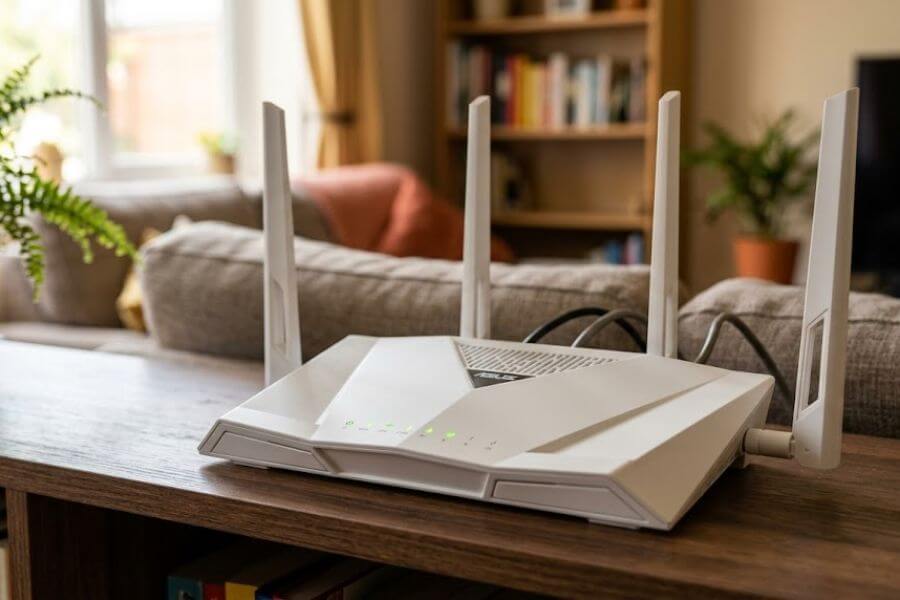
When positioning your wireless router, you want to maximize coverage inside your home while minimizing the amount of signal that bleeds out into the street or neighboring properties. Placing your router on a window sill or right against an exterior wall broadcasts your network signal far out into the public sphere, giving hackers a stronger connection to work with from afar.
- Position the router in the absolute center of your home.
- Keep the device away from windows and exterior facing walls.
- Elevate the router on a shelf or upper floor to optimize the signal distribution.
- Store the physical router inside a secure cabinet or locked room if you frequently host guests.
Securing Ethernet Ports and Cables
Many homes feature built-in ethernet ports in the walls of various rooms, allowing devices to connect to the router via physical cables. While wired connections are faster and more secure than wireless signals, unused ethernet jacks can be a hidden vulnerability. If you have an active ethernet port located in an accessible area outside your home, such as a garage, porch, or unsecured basement, a tech-savvy intruder could plug in a laptop and connect directly to your primary network zone.
Regularly audit the physical wiring in your home. Disconnect any unused ethernet cables from the back of your central router or network switch. If a port in a specific room does not need active internet access right now, keep it unplugged at the source until you actually need it.
Monitoring and Auditing Your Home Network
Securing your network is not a one-time project that you can finish and forget about forever. Digital security is an ongoing process of monitoring, adjusting, and auditing. New devices join your household regularly, settings accidentally get reverted during power outages, and new threats emerge constantly.
Developing a habit of checking in on your network health will help you spot anomalies before they turn into full-blown data breaches. You do not need to be a computer scientist to run a basic network audit; you just need to know what normal behavior looks like.
Reviewing the Connected Device Roster
At least once a month, log into your router administration dashboard and navigate to the client list or attached devices page. This panel shows every single smartphone, computer, television, and smart gadget currently connected to your network. Each device is identified by its IP address, MAC address, and hostname.
+------------------------------------------------------------+
|                    ROUTER CLIENT LIST                      |
+------------------+-------------------+---------------------+
| Device Name      | IP Address        | Connection Type     |
+------------------+-------------------+---------------------+
| Laptop-Main      | 192.168.1.10      | Wired Ethernet      |
| Phone-User       | 192.168.1.15      | Wi-Fi (Primary)     |
| Smart-TV-Living  | 192.168.2.40      | Wi-Fi (IoT Segment) |
| UNKNOWN-DEVICE   | 192.168.1.99      | Wi-Fi (ALERT!)      |
+------------------+-------------------+---------------------+
If you spot an unfamiliar device name on the list, do not panic immediately. Many smart gadgets show up under cryptic names or the name of the chip manufacturer rather than the brand name of the product. Turn off the Wi-Fi on your devices one by one to see which name disappears from the list. If you find a device that absolutely does not belong to your household, block its MAC address immediately and change your primary Wi-Fi passphrase.
Interpreting Router System Logs
Your router maintains a continuous running diary of its activities, known as the system log. This log records when devices connect and disconnect, when administration login attempts occur, and when the firewall blocks suspicious traffic. Reviewing these logs can give you early warning signs of an ongoing attack.
Look for patterns of repeated, failed login attempts to the administration panel, which indicates someone is trying to brute-force your password. Keep an eye out for unexpected mid-night reboots or sudden configuration changes that you did not authorize. If you notice strange entries that look suspicious, a quick internet search of the specific error code can help you determine if you are facing a technical glitch or an active security threat.
Frequently Asked Questions
Can someone hack my Wi-Fi network even if I have a powerful password?
Yes, a strong password is only one layer of a multi-tiered security defense. Even if your password is uncrackable, cybercriminals can exploit software vulnerabilities in your router firmware or utilize legacy features like WPS to bypass the password screen entirely. Additionally, if a hacker compromises an unpatched smart device on your network, they can use that compromised gadget to gain access to the rest of your system from the inside, completely bypassing the initial password prompt.
Is hiding my Wi-Fi network name an effective way to stay safe?
No, hiding your wireless network name, also known as disabling SSID broadcasting, provides zero actual security and can actually make your personal devices less secure. Hiding the name does not make the signal disappear; it simply removes the name tag from the broadcast packet. Free network scanning tools can easily detect hidden networks in seconds. Furthermore, when you hide your network name, your smartphones and laptops are forced to constantly broadcast search signals asking if your hidden network is nearby, which drains their battery life and leaks your home network name to every location you visit.
What should I do if I think my wireless router has been hacked?
If you suspect your router has been compromised, you must take immediate action to reclaim control of your network. First, disconnect the router from the internet modem to stop the attacker from communicating with your network remotely. Next, look for the small physical reset hole on the back of the device, insert a paperclip, and hold the button down to perform a complete factory reset. This wipes out all malware and malicious configurations. Once the device reboots, log into the default administration panel immediately to update the firmware, change the administrator credentials, set a powerful new WPA3 passphrase, and re-establish your isolated network segments.
Why should I choose WPA3 encryption over WPA2 if all my devices support WPA2?
You should upgrade to WPA3 because WPA2 has a well-known architectural vulnerability called the KRACK exploit, which allows sophisticated attackers to intercept and decrypt wireless traffic without knowing your password. WPA3 completely eliminates this vulnerability through a superior cryptographic handshake process. WPA3 also protects your network against offline dictionary attacks, meaning that even if an attacker intercepts your wireless signal, they cannot use specialized computer setups to guess your password rapidly behind the scenes.
Does using a VPN on my computer protect my entire home Wi-Fi network?
A Virtual Private Network installed on an individual computer or smartphone only protects the data traveling to and from that specific device. It does not secure the other devices on your network, such as your smart television or gaming consoles, nor does it prevent an attacker from hacking into your router administration panel. To protect your entire household simultaneously, you can install a VPN directly onto a compatible home router, which automatically encrypts all incoming and outgoing internet traffic for every single device connected to your network.
How often should I reboot my wireless router for security purposes?
You should aim to reboot your wireless router at least once every week. Beyond clearing out temporary system memory glitches and improving overall performance speed, regular reboots are an excellent way to disrupt sophisticated, non-persistent malware strains. Many advanced router hacking tools run entirely within the temporary system memory of the router to avoid detection. When you cycle the power on your device, that volatile memory is completely erased, effectively killing any active malware infections that were hiding inside the system RAM.