Imagine someone trying to guess your favorite pet’s name to break into your online life. Now imagine a tiny, physical device sitting in your pocket that completely stops them in their tracks, even if they somehow figure out your password. That is the power of a hardware security key. It is the ultimate shield for your digital world.
While passwords can be stolen, guessed, or leaked in massive data breaches, a physical key requires an attacker to actually slide a piece of hardware into your device or tap it against your phone. If they do not have the physical key, they are locked out. It is that simple. This guide will walk you through exactly how these devices work, how to set them up, and how to make sure you never get locked out of your own profiles.
What is a Hardware Security Key and Why Do You Need One?
To understand why these little devices are so powerful, it helps to look at how traditional security falls short. Most people use passwords, which are just strings of text. If a bad actor creates a fake login page that looks exactly like your bank or your favorite social media site, you might accidentally type your password right into their hands. This is called phishing.
Even if you use two-factor authentication, which is when a site sends a text message code to your phone, you can still be tricked. If you type that texted code into a fake website, the bad actor steals the code and logs into your real account instantly.
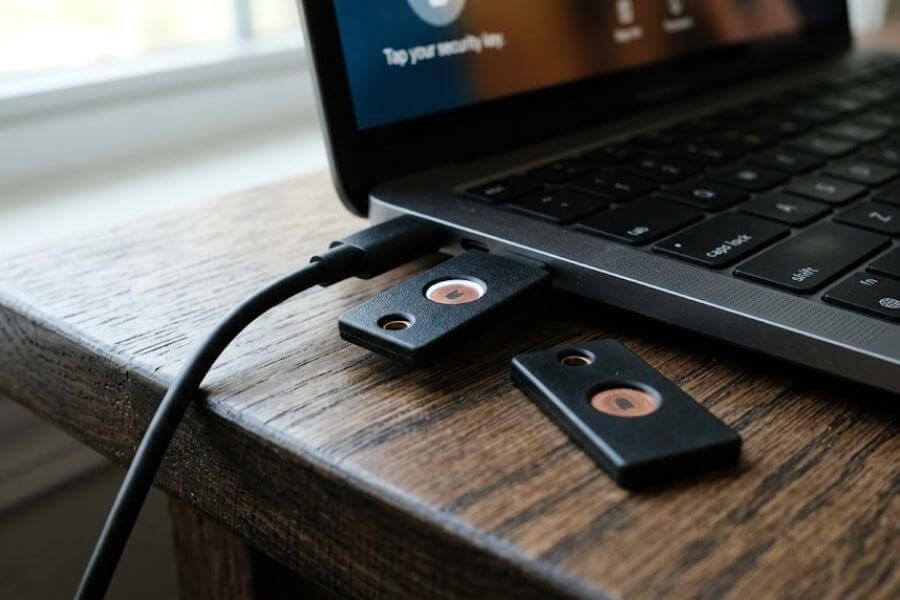
A hardware security key changes the entire game. These are small devices that look like a flash drive or a small key fob. They connect to your computer or phone using a physical plug like USB-A or USB-C, or through wireless tech like Near Field Communication.
When you log into a website, the site sends a challenge to your key. The key looks at the actual web address of the site. If the website is a fake phishing site, the key realizes it and refuses to unlock. It cannot be tricked by a website that looks real but has a slightly misspelled name. Because the key does the checking for you, your account stays safe even if you accidentally fall for a clever trick.
The Magic Inside the Key
Inside that plastic shell is a tiny, highly secure computer chip. This chip creates pairs of cryptographic keys. One key is public and goes to the website, while the private key never leaves your physical device. When you log in, the website sends a puzzle that only your private key can solve. You press a button on the key, it solves the puzzle, and you are logged in.
- Physical Presence: You must physically touch the key to make it work. A hacker across the world cannot push that button for you.
- No Code Copying: You never have to read a six-digit number and type it in. The key communicates directly with your browser.
- Built to Last: Most keys do not have batteries. They power up using the tiny bit of energy that flows out of your phone or computer port.
Choosing the Right Key for Your Devices
Before you buy a key, you need to look at the devices you use every day. If you only use an older laptop, your needs will be different from someone who does everything on a modern smartphone.
Matching the Plugs to Your Ports
Take a look at the sides of your computer and the bottom of your phone. You will likely see one of a few types of connections.
- USB-A: This is the classic, rectangular plug that has been around for decades. Many older desktop computers and laptops use this.
- USB-C: This is the smaller, oval-shaped plug found on modern Android phones, recent iPhones, and almost all new laptops. It works no matter which way you flip it.
- Lightning: This is the thin plug used on older Apple iPhones and iPads before they switched to USB-C.
- Near Field Communication: This is a wireless feature built into almost all modern smartphones. It allows you to just tap your key against the back of your phone to log in, without plugging anything in.
The Rule of Two
When you decide to switch to hardware keys, you should always buy at least two keys. Think of it exactly like your house keys. If you only have one key and you lose it on the bus, you are locked out of your house.
When you set up your online accounts, you will register your primary key, which stays on your keychain or desk. Then, you will register your backup key and hide it somewhere safe at home, like a lockbox or a secure drawer. If your main key goes missing, you simply grab your backup key, log into your accounts, and remove the lost key so nobody else can use it.
Comparing Popular Key Features
| Key Type | Best For | Connection Style | Portability |
| Standard USB-A | Older computers and school laptops | Physical rectangular plug | Medium size, fits on keychains |
| Slim USB-C | Modern laptops and new smartphones | Physical oval plug | Very small, can stay in laptop port |
| Wireless Key | Smartphones and mobile tablets | NFC wireless and USB plug | Excellent for moving around |
| Multi-port Key | People with both old and new devices | USB-C on one side, Lightning on other | Great for mixing Apple and PC |
Preparing Your Accounts Before Setup
You might want to instantly plug your new key in and start clicking buttons, but taking a few minutes to prepare will make the process much smoother.
Clean Up Your Account Information
First, log into the account you want to protect and check your recovery options. Make sure your current phone number is correct and that you have a secondary email address listed that you can actually access. If anything goes wrong during setup, these recovery options will be your safety net.
Update Your Software
Hardware keys rely on modern web browsers and operating systems to talk to your computer. Before you begin, update your computer operating system and your phone software to the latest versions. Open your web browser, go to the settings menu, and make sure it is updated too. Browsers like Chrome, Safari, Edge, and Firefox have built-in support for security keys, but older versions might confuse the key or refuse to talk to it.
Find Your Security Settings
Every website puts its security tools in a slightly different place. Usually, you will want to look for your profile picture in the top corner, click it, and look for words like Account Settings, Security, Privacy, or Two-Step Verification. Keep this tab open and get your physical keys ready on your desk next to you.
Step by Step Guide for Major Platforms
Let us look at exactly how to add your security key to the most popular services on the internet. The steps are very similar across most sites, but seeing the exact words will help you navigate the menus without getting confused.
Securing Your Google and YouTube Account
Google was one of the earliest companies to embrace hardware keys, and their system is incredibly reliable. Because your Google account often controls your email, your data, and your YouTube channel, this is the most critical place to start.
- Open your browser and go to your main Google Account dashboard.
- On the left side of the screen, click on the Security tab.
- Scroll down until you see the section labeled How you sign in to Google.
- Click on 2-Step Verification. You might be asked to type your password again to prove it is really you.
- Scroll past the text message options and look for Security keys. Click on Add security key.
- The website will show a prompt telling you to get your key ready. Click Physical key.
- A small window will pop up from your computer operating system asking for permission to speak to the key. Click ok.
- Plug your primary security key into an open USB port. If it is a wireless key and you are on a phone, hold it against the back of your device.
- Look at the key. You will see a small light flashing or a gold circle glowing. Gently touch that flashing light or metal contact with your finger. You do not need to press hard; it just needs to feel the warmth of your skin.
- Name the key something clear, like Main Blue Key.
- Immediately click Add security key again to register your backup key. Follow the exact same steps, tap the flashing light, and name it Backup Black Key. Store that backup key in a safe place.
Protecting Your Microsoft and Xbox Profile
Your Microsoft account controls your Windows computer, your Outlook email, and your Xbox gaming profile. Protecting this prevents bad actors from stealing your game saves or buying things on your digital store account.
- Go to the main Microsoft Account website and log in.
- Look at the top navigation bar and click on Security.
- Click on the box that says Advanced security options.
- Look for the heading that says Ways to prove who you are and click on Add a new way to sign in or verify.
- Choose the option labeled Use a security key.
- Microsoft will ask you what kind of key you have. Choose either USB device or NFC device depending on how you plan to connect it.
- Make sure your key is plugged in. Your computer will open a setup window. Click next.
- If your computer asks you to create a PIN for your key, type in a short number that you will remember. This adds an extra layer of protection so that even if someone steals your physical key, they cannot use it without knowing that PIN.
- Touch the flashing light or gold sensor on your key.
- Give your key a name so you can identify it later, then save the settings. Repeat the steps for your secondary backup key.
Guarding Apple ID and iCloud
Apple allows you to use hardware security keys to protect your Apple ID, which keeps your photos, messages, and device backups safe from outside eyes. For Apple devices, you must have at least two keys registered before the system will let you turn the feature on.
- Open the Settings app on your iPhone or iPad, or open System Settings on your Mac computer.
- Tap on your name at the very top of the screen to open your Apple ID settings.
- Click on Sign-In & Security.
- Scroll down and tap on Two-Factor Authentication.
- Look for the option called Security Keys and tap it.
- Tap the button that says Add Security Keys and read the on-screen warning. Apple will remind you that if you lose all your keys and your trusted devices, you could be locked out forever.
- Follow the prompts to plug in your first key, touch the activation button, and give it a name.
- The system will immediately ask for your second key. Plug your backup key into your device, touch the sensor, and name it.
- Review the list of devices currently logged into your Apple ID. If you see an old tablet or computer you do not use anymore, remove it to make sure your account is completely locked down.
Managing Your Keys on Daily Basis
Once your keys are set up, your day-to-day routine will barely change. You will not need to use the key every single time you open your laptop or check your phone.
When Will You Need to Touch the Key?
Websites are smart enough to remember the computers and phones you use every day. You will usually only need to pull out your physical key in a few specific situations.
- New Devices: When you buy a new phone or log into a computer at a library or school for the first time.
- Clearing History: If you clear your internet browser cookies and history, websites will forget who you are and will ask for the key again.
- Changing Secrets: If you try to change your account password, delete your account, or update your payment methods, the site will ask for a quick tap of your key to verify your identity.
Carrying Your Key Safely
Because these keys are small, they can easily get lost in cushions or dropped on the ground if you are not careful. The best approach is to attach your primary key to something you always carry, like your main keychain or the lanyard you use for school or work. Most keys have a sturdy hole built into the plastic specifically for this.
Do not worry about the key getting wet or dirty on your keychain. Most hardware keys are completely sealed pieces of plastic and metal. They can survive being dropped in a puddle, thrown into a dusty backpack, or stepped on. Just make sure the metal contacts are dry and free of dirt before you slide them into a computer port.
Understanding PINs and Biometrics
As you set up your keys, you might notice that some sites ask you to create a PIN or scan your fingerprint right on the key itself. This can feel confusing at first, but it is just an extra layer of defense.
What is a FIDO2 PIN?
When you set up a key on a modern website, the site might ask your operating system to set a PIN for the security key. This PIN lives completely inside the security key chip. It is never sent over the internet, and the website never sees it.
If you drop your key on the sidewalk and a stranger picks it up, they might try to figure out what accounts it belongs to. If they plug it in, the computer will demand the PIN. If they guess wrong too many times, the key will automatically lock itself down and erase its secrets. This ensures that the key is only useful to you.
Keys with Fingerprint Readers
Some high-end security keys have a tiny fingerprint scanner built right into the surface. Instead of just sensing the warmth of any finger, these keys will only activate if they recognize your specific fingerprint pattern. This merges the physical key security with biometric security, creating a wall that is incredibly difficult for anyone else to climb over.
What to Do If Things Go Wrong
Even with the best preparation, unexpected situations can happen. Knowing how to handle these moments ahead of time will prevent panic.
Losing Your Main Key
If you look down at your keychain and realize your primary security key is gone, do not panic. This is exactly why you set up a backup key.
- Go to your secure storage spot at home and grab your backup key.
- Log into your important accounts using your password and that backup key.
- Go straight to the security settings where you originally registered the keys.
- Look at the list of active keys, find the name of the key you lost, and click Delete or Remove.
- Once removed, that lost key is completely useless. If someone finds it on the street, it will no longer grant access to your accounts.
- Order a new key as soon as possible to become your new backup, ensuring you always maintain two active keys.
Travel and Remote Access
When you go on a trip or head to school, always think about how you will access your files. If you leave your security key plugged into your home computer, you might find yourself stuck when trying to log into your email from a hotel or friend’s house. Make a habit of checking your pockets for your key whenever you check for your phone and wallet before leaving the house.
Advanced Protection Programs
For users who face higher risks of targeted attacks, some platforms offer extreme security modes that change how your account behaves.
Google Advanced Protection
Google offers a free service called the Advanced Protection Program. This is designed for journalists, activists, business leaders, and anyone else who wants the highest level of security possible. When you enroll in this program, Google makes several strict changes to your account.
- Keys are Mandatory: You can no longer use text messages, app codes, or backup codes to log in. Physical security keys become the only allowed path into your account.
- Strict Downloads: Chrome will block files that look even slightly suspicious, protecting you from malicious software downloads.
- Blocked Apps: Outside apps that want to read your emails or access your Google Drive files will be blocked unless they are fully verified by Google.
This mode offers massive security improvements, but you must be fully committed to keeping your keys safe, because Google support will take several days to verify your identity if you lose them.
Frequently Asked Questions
Can a hacker copy the data inside my security key if they steal it?
No, the data inside the key cannot be copied or read. The cryptographic chips inside hardware security keys are designed to be tamper proof. There is no menu or command that can force the key to export your private keys. The chip only accepts a challenge puzzle, solves it internally, and spits out the answer. If someone steals your key, they cannot clone it to a second device or read your secrets.
Will my security key work if it gets wet or goes through the wash?
Most hardware keys are built without batteries and are completely sealed in solid plastic. This makes them highly resistant to water, dust, and physical crushing. If your key goes through the washing machine or drops in mud, wipe it off completely with a clean towel and let it dry out inside the ports for a few hours. As long as the metal contacts are clean and dry before you plug it into a powered computer, it should continue to work perfectly.
Can I use the exact same security key for multiple accounts at the same time?
Yes, a single security key can protect hundreds of different accounts simultaneously. You do not need a separate key for Google, another for Microsoft, and another for your gaming accounts. When you register the key on a website, that website records a specific public marker from your key. The key organizes these relationships internally without mixing them up, and none of the websites can see what other accounts you have linked to that key.
What happens if a website does not support physical security keys?
While major services support hardware keys, some smaller websites or older platforms still rely on passwords and text message codes. For those sites, you should use a reputable password manager to generate long, random passwords. You can often secure your password manager account itself with your hardware key. This protects your vault of passwords with your physical key, keeping everything safe even on sites that do not accept keys directly.
Do security keys track my location or store my personal name?
Security keys do not contain any location tracking technology, global positioning chips, or internal batteries to broadcast signals. They also do not store your name, email address, or personal data. A security key only knows how to answer mathematical puzzles. If you lose your key on the street, there is no data on it that could tell a stranger who owns it or what specific accounts it is linked to.