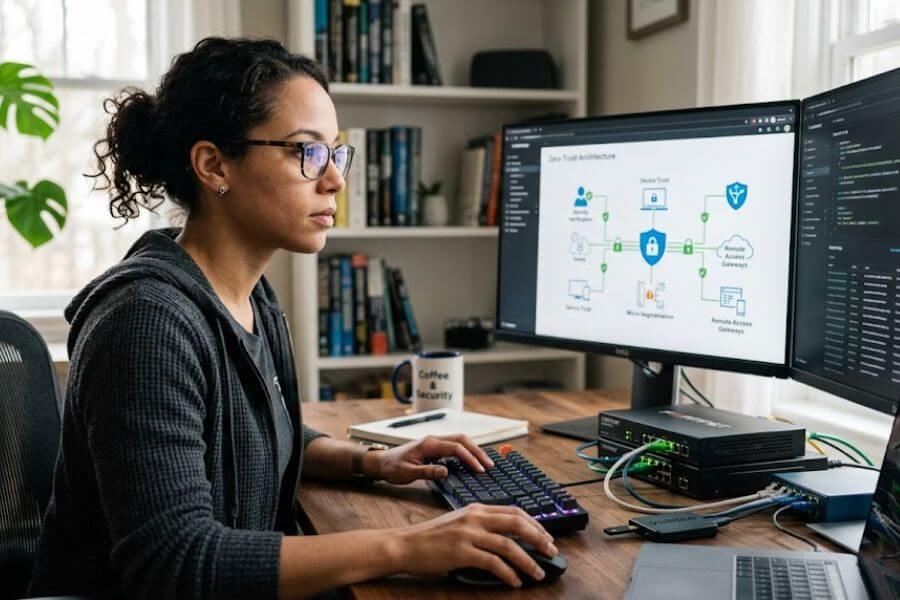
Imagine leaving your front door wide open while you sleep, trusting that a magical fence around your yard will keep you safe. That is how traditional computer networks work, and it is a massive problem for remote teams. In a world where your employees work from coffee shops, living rooms, and kitchen tables, that old fence is completely gone. You need a new way to protect your business data, and that solution is a zero-trust network.
What Exactly Is a Zero-Trust Network?
To build something strong, you must understand what it is. For decades, companies built their digital security like medieval castles. They dug a deep moat, built high walls, and put a guard at the drawbridge. If a user was outside the castle, the guard stopped them. But if a user managed to cross the drawbridge and get inside the walls, the castle assumed they were friendly. The system trusted them completely. They could walk into the kitchen, the treasury, or the king’s private bedroom without anyone questioning their presence.
The zero-trust model flips this old way of thinking completely upside down. It operates on a very simple, strict rule: never trust, always verify. Under this philosophy, it does not matter if a user is sitting in a corporate office or sitting at a beachside cafe. The network treats everyone and everything as a potential threat until they prove otherwise. Even after a user proves who they are and gains access to one file, they must prove who they are again to look at a different file. It turns your digital workspace into a collection of highly secure rooms, each with its own electronic keypad lock.
The Old Way vs. The New Way
Let us compare these two ideas so you can see why the old method fails remote teams. The traditional model relies on location. It believes that physical location equals safety. If you connect to the office Wi-Fi, you are considered safe. If you connect through a virtual private network, often called a VPN, the system treats you like you are physically in the office.
The new model ignores location entirely. It does not care where your laptop is plugged in. Instead, it looks at who you are, what device you are using, and whether your behavior looks normal.
Think of the old way like a traditional key to a building. If an item goes missing from an office, you might check who has a key to the front door, but that key does not tell you which specific rooms the person entered or what they touched. The new way is like a high-tech smart card. Every single door requires a scan, every movement is recorded in a digital logbook, and if you try to open a door you have no business opening, the system locks down immediately and alerts the security team.
The Core Pillars of Zero-Trust
Building this type of framework requires focusing on several foundational pillars. You cannot just buy a piece of software, click a few buttons, and declare your business safe. You must address identity, devices, networks, applications, and data.
First, you have identity. You must know exactly who is trying to enter your digital space. This means checking user names, passwords, and other secret tokens to confirm a person’s true identity.
Second, you have devices. You must look at the health of the phone, tablet, or laptop trying to connect. Is it infected with malware? Is its operating system updated?
Third, you have the network itself. You must split your digital highways into tiny, isolated segments so that a problem in one area cannot spread to another.
Fourth, you have applications. You must ensure that your team members can only see and use the specific software programs required for their daily tasks.
Fifth, and most important, you have data. You must protect the actual files, records, and numbers that make your business run, encrypting them so that even if a bad actor steals them, they cannot read them.
Why Your Remote Team Needs This Right Now
When your entire workforce stays inside a single physical office building, you can control the environment. You control the routers, the cables, the desks, and the locks on the doors. You can monitor the traffic moving through the office walls. But when your team goes remote, that control vanishes into thin air.
Your employees are now using home internet routers that might still have the factory-set passwords. They are working on public networks at local coffee shops where anyone sitting nearby could be snooping on the digital traffic. They might share their work laptops with their children to play video games or do homework. This creates a massive playground for cybercriminals who want to steal your company secrets, customer lists, and financial records.
The Disappearing Office Perimeter
The traditional boundary of your business no longer exists. Your perimeter is now scattered across dozens or hundreds of different locations worldwide. Every single home office is a new gateway into your central business systems. If a single employee makes a mistake, like clicking on a deceptive email link while connected to a standard corporate VPN, a hacker can slide right through that tunnel. Once inside, the hacker can explore your entire corporate environment, moving from the human resources files straight into the accounting system.
A zero-trust setup prevents this type of disaster. Because it assumes that threats are already inside the system, it blocks lateral movement. If a hacker manages to compromise a single laptop owned by a graphic designer, the zero-trust system ensures that the hacker can only see the graphic design tools. The accounting files, the customer databases, and the executive emails remain completely invisible and out of reach behind their own individual digital locks.
Protecting Smart Devices and Home Wi-Fi
Think about all the gadgets connected to a typical home internet network today. There are smart televisions, voice-controlled speakers, digital thermostats, and even smart refrigerators. Most of these consumer items have very weak security protections built into them. Hackers know this, and they frequently target these small household gadgets as a way to break into a home network.
If an employee connects their work laptop to the same home Wi-Fi network that runs an unsecure smart television, an attacker can use that television as a stepping stone to reach the work laptop. Without zero-trust rules, that compromised laptop becomes a weapon against your entire company. By implementing a zero-trust architecture, you isolate the work device from the rest of the messy home environment. You create a secure, private bubble around the work laptop, ensuring that a hack on a smart refrigerator does not turn into a data breach for your business.
Phase 1: Identifying Your Digital Crown Jewels
You cannot protect what you do not know you have. Before you start changing settings, downloading new tools, or writing new security rules, you must take a step back and look at your entire digital estate. This phase requires you to act like a detective, mapping out every piece of data, every software application, and every individual person who touches your business systems.
Many business owners skip this step because they want to jump straight to the high-tech tools, but skipping this part is like buying a massive collection of expensive padlocks without knowing how many doors are in your building or where your valuables are hidden. You will end up wasting time and money while leaving vital areas completely exposed.
Mapping Your Data and Assets
Start by creating a master inventory of all your digital valuables. Walk through your business operations and list where your most sensitive information lives. You need to know exactly where your customer payment details are stored, where your proprietary code or designs reside, and where your employee records are kept.
Create a detailed map that shows how this information flows through your organization. Ask yourself specific questions about the life of a piece of data:
- How does a new piece of customer information enter your system?
- Which cloud storage buckets or servers hold that information?
- Which software tools need to read that information to process an order or send an invoice?
- Where does that data go when it is old or no longer needed?
As you map these flows, you will likely discover hidden pockets of data that you forgot existed. Old spreadsheets saved on a manager’s personal computer, forgotten backup folders in a cloud account, and shared login credentials written down in a digital notepad are all common hiding spots for risk. Bring all of these items out into the open so you can include them in your security plan.
Cataloging User Roles and Access Needs
Once you know where your data lives, you must figure out who actually needs to touch it. Not every employee needs access to every piece of company information. A social media manager does not need to look at payroll data, and a software engineer does not need access to the marketing department’s billing platform.
Group your team members into clear roles based on their job duties. For each role, write down the absolute minimum level of access they require to do their work successfully. This concept is known as the principle of least privilege. You want to give people exactly what they need to do their jobs, and absolutely nothing more.
| Employee Role | Required Systems | Prohibited Systems |
| Customer Support Specialist | Help Desk Tickets, Customer Contact Database | Financial Ledgers, Source Code Repositories |
| Software Developer | Code Repositories, Testing Environments | Human Resources Records, Payroll Systems |
| Marketing Manager | Social Media Platforms, Analytics Tools | Customer Credit Card Details, Server Configurations |
| Human Resources Generalist | Employee Records, Payroll Systems | Production Code, Customer Support Tickets |
By creating a clear table or chart of these permissions, you establish a blueprint for your zero-trust rules. This prevents the common problem of privilege creep, which happens when an employee moves to a new position within the company but retains all the access rights from their old job, eventually accumulating a dangerous amount of administrative power.
Phase 2: Building Strong Identity and Access Controls
Now that you have your blueprint, it is time to build the digital checkpoints. The identity phase is the true centerpiece of the zero-trust philosophy. Because you can no longer rely on a safe office building to prove someone is a trusted employee, the digital identity of the worker becomes the new boundary line. You must make absolutely certain that when someone logs in as John from Accounting, that person is truly John and not an impostor sitting across the globe.
This requires upgrading your login processes from basic, single-factor entry points to multi-layered verification systems that analyze multiple clues before granting admission to your business data.
Moving Beyond Simple Passwords
Standard passwords are fundamentally broken. People choose words that are easy to guess, reuse the same passwords across dozens of different websites, and write them down on sticky notes. Even if your employees create complex passwords, cybercriminals use advanced techniques like credential stuffing, brute-force attacks, and sophisticated phishing campaigns to steal them.
In a zero-trust framework, a password is never enough on its own. In fact, many modern organizations are moving toward completely passwordless authentication systems. These advanced setups use hidden cryptographic keys stored on an employee’s physical device, combined with biometric markers like a fingerprint scan or facial recognition, to log the user in. This eliminates the human element of password management entirely, making it incredibly difficult for an outsider to intercept or mimic the login credentials.
Implementing Multi-Factor Authentication
If you are not ready to go entirely passwordless, you must implement strict, non-negotiable Multi-Factor Authentication, commonly known as MFA. This system forces users to provide at least two different types of proof before they can access any company account. These types of proof fall into three main categories:
- Something you know: A password, a personal identification number, or a secret answer.
- Something you have: A physical smartphone, a hardware security key, or a specialized smart card.
- Something you are: A fingerprint, a facial scan, or a voice pattern.
To make your zero-trust network truly secure, you must avoid weak forms of MFA. Sending a text message code to an employee’s phone is no longer considered safe, as hackers can trick phone companies into switching phone numbers to a new device through a technique called SIM-swapping. Instead, force your team to use authenticator smartphone apps that generate temporary codes locally, or better yet, require physical hardware keys that plug directly into the laptop’s USB port.
The Magic of Single Sign-On
Asking your remote employees to navigate dozens of different complex MFA prompts for every single app they use can lead to frustration and fatigue. When security becomes too annoying, workers find ways to bypass the rules, which creates new security holes. This is where a Single Sign-On, or SSO, platform becomes invaluable.
An SSO system acts as a centralized master checkpoint for your entire business. Your remote employee logs into the central SSO portal just once at the start of their workday, completing a rigorous identity check with strong MFA. Once inside the portal, the SSO system securely passes digital trust tokens to all the other software applications the worker needs, such as your email client, your project management tools, and your customer tracking database. This gives your team a smooth, unified login experience while allowing your security administrators to monitor every single application log from one central dashboard.
Phase 3: Securing the Endpoint Devices
Verifying the identity of the person is only half the battle. You also have to check the health and safety of the physical machine they are using to type their login details. A perfectly legitimate employee using a completely correct password and a physical MFA key can still compromise your network if their laptop is silently running malicious tracking software in the background.
Every laptop, desktop, smartphone, and tablet used by your remote team is called an endpoint. In a zero-trust model, these endpoints must be constantly inspected, managed, and verified before they are permitted to interact with company data.
Verifying Device Health Before Entry
Before your network lets a device connect to a sensitive application, an automated security check should run behind the scenes. This check looks at the current state of the device to ensure it meets your company’s safety standards. Think of it like a safety inspector checking a car before allowing it onto a high-speed racetrack.
The automated system checks several key settings on the device:
- Is the operating system fully updated with the latest security patches?
- Is the device’s built-in storage drive fully encrypted so data cannot be stolen if the laptop is physically lost?
- Is an approved, active anti-malware program running and using the most current threat definitions?
- Is the device’s local firewall turned on and configured properly?
If the laptop fails any of these checks, the zero-trust system immediately blocks access, even if the user typed their password perfectly. The system can then direct the employee to a safe web page with instructions on how to update their laptop or turn on their firewall, helping them fix the issue independently without creating a corporate security incident.
Mobile Device Management and Guardrails
To manage this process smoothly across a distributed team, you should use a Mobile Device Management, or MDM, platform. This specialized software allows your technology team to deploy, monitor, and update security settings across all remote devices from a single central console, no matter where those devices are located geographically.
With an MDM system, you can establish clear digital guardrails. You can automatically push out critical operating system updates in the middle of the night so employees do not have to remember to do it themselves. You can block the installation of dangerous or unapproved software applications that might contain hidden security vulnerabilities. Most importantly, if an employee leaves their laptop in a taxi or has their backpack stolen at an airport, your administration team can use the MDM console to remotely wipe every single byte of corporate data from that missing device in a matter of seconds, neutralizing the threat before anyone can exploit it.
Phase 4: Micro-Segmentation and Network Isolation
Traditional networks are built like a large open warehouse. Once you walk through the front door, you can walk around the entire floor space without encountering any inside walls. If a fire starts in the corner of an open warehouse, it spreads rapidly across the entire facility because there is nothing to stop it.
Zero-trust uses a technique called micro-segmentation to solve this vulnerability. Micro-segmentation takes your unified digital playground and chops it up into dozens of tiny, isolated rooms with thick fire walls between them. If a fire starts in one small room, it stays contained in that single room, protecting the rest of the building from damage.
Breaking the Network into Safe Zones
In practical terms, micro-segmentation means your servers, applications, and data storage environments are locked away in their own separate digital compartments. They are forbidden from talking to each other unless there is an explicit, pre-approved business reason to do so.
For example, your public-facing company website should live in a completely different zone than your internal customer database. There is no legitimate reason for a visitor browsing your public blog to ever communicate directly with the database holding your customers’ private home addresses. By placing a strict digital barrier between these two sections, you ensure that even if a clever attacker compromises your public website, they hit a dead end when they try to jump over to your private customer records.
Software-Defined Perimeters
To connect your remote workers to these isolated zones safely, you can use a technology called a Software-Defined Perimeter, or SDP. An SDP acts like an invisible cloak for your business infrastructure. Instead of having your application login pages sitting out on the open public internet where anyone can attempt to hack them, an SDP hides your applications from view.
When a remote employee wants to access a specific work tool, their device must first authenticate with the SDP controller. The controller verifies the user’s identity and checks the health of their laptop. If everything looks correct, the SDP dynamically creates a temporary, highly secure cryptographic tunnel that connects that specific laptop to that specific application, and nothing else. To the rest of the internet, your company applications look completely blank and non-existent, making it virtually impossible for malicious actors to locate, scan, or attack your infrastructure.
Phase 5: Continuous Monitoring and Automated Response
Setting up your identities, devices, and network segments is a fantastic achievement, but your work does not stop there. Security is not a one-time project that you finish and forget about. It is an ongoing process of watching, learning, and adapting. A true zero-trust network never drops its guard. It continuously monitors every single request, connection, and file movement in real time, looking for the tiny clues that indicate an attack might be happening.
Human beings cannot watch millions of digital events happening every second across a remote team. That is why you must pair continuous monitoring with smart automation to spot threats and react to them instantly, long before a human security guard could even open a notification email.
Keeping a Watchful Eye on Every Action
Continuous monitoring means the system checks the context of every user action throughout the entire duration of their working session. It does not just check their identity at 9:00 AM and then leave them alone for the rest of the day. It watches the context of their behavior.
The monitoring system constantly evaluates multiple contextual clues:
- Geographic location: Did the user log in from New York ten minutes ago, and are they now trying to download a file from an internet address in Tokyo? This is physically impossible and signals an immediate issue.
- Time of day: Is a customer service representative suddenly logging into the system at 3:00 AM on a Sunday when they normally work standard weekday hours?
- Device types: Is an employee who always uses a company-managed MacBook suddenly trying to access sensitive files using an unmanaged Windows desktop?
- Data volume: Is a user suddenly downloading thousands of customer files at once when their normal daily routine only involves looking at five or ten records?
By tracking these baseline habits, the system learns what normal behavior looks like for your specific team, making it simple to spot abnormal deviations that suggest an account has been compromised.
Setting Up Smart Alerts and Auto-Blockers
When the continuous monitoring system detects highly unusual behavior, it should not just send an alert to an IT inbox to sit there for hours. It needs to trigger an immediate, automated response to protect your business.
You can configure your zero-trust system to take automated escalations based on the perceived severity of the risk. If an employee tries to log in from a new state, the system might simply request an extra MFA prompt to confirm it is really them. But if the system detects an impossible travel event, like the New York to Tokyo example, it can automatically revoke the user’s login tokens, freeze the account, and isolate the laptop from the corporate network within milliseconds.
This instant containment prevents malware from spreading or data from being exported, giving your security team plenty of time to investigate the incident safely without the pressure of an active, unfolding breach.
Phase 6: Creating a Security-First Culture in Your Team
You can buy the most advanced security tools in the entire world, but your ultimate line of defense will always be your people. A remote team that does not understand or care about security will eventually find a way to work around your controls, creating new vulnerabilities in the process. True zero-trust requires a cultural shift where every single team member takes personal responsibility for protecting the digital workspace.
This means you must transform your security training from a boring, once-a-year lecture into an engaging, continuous conversation that helps your employees understand the reasons behind the rules.
Training Remote Employees Without Boredom
Most traditional security training is incredibly dry, filled with confusing technical jargon that sends people to sleep. To build a strong security culture, you must change how you talk about these topics. Use clear, everyday language and relatable stories to explain why these protections matter. Show your employees how these security habits can also protect their personal bank accounts, social media profiles, and family photos at home.
Break your training down into short, bite-sized lessons that take just a few minutes each week. You can share quick security tips in a dedicated chat channel, discuss recent cyber threats during regular team meetings, or use short, animated videos to illustrate key concepts. Focus on practical, real-world habits:
- How to spot a clever phishing email by carefully examining the sender’s address and the formatting of the text.
- Why you should never plug an unknown USB drive into a laptop, even if it looks like a harmless gift.
- How to use a personal password manager to create unique, strong passwords for every non-work website they use.
- What steps to take immediately if they suspect they have accidentally clicked a malicious link or lost a work device.
By keeping the conversation helpful, light, and regular, you reduce the fear around security and make your team feel like they are an active, vital part of the company’s defense system.
Simulating Phishing and Testing Your Defenses
The best way to see if your training is working is to test it in a controlled environment. You can use specialized software tools to send safe, simulated phishing emails to your own remote employees. These mock attacks look exactly like real threats a hacker would send, using common tricks like urgent requests from the chief executive officer, fake package delivery updates, or urgent password reset alerts.
If an employee spots the fake email and uses your reporting system to flag it, celebrate their vigilance. If an employee falls for the trick and clicks the link, do not punish or humiliate them. Instead, use that moment as a helpful learning opportunity. Immediately show them a friendly screen explaining the specific clues they missed, such as a slightly misspelled web domain or a suspiciously urgent tone.
Regular, constructive practice builds deep muscle memory across your workforce, turning your remote employees into a human firewall that can spot and stop threats before they ever touch your software-defined perimeters.
Step-by-Step Summary Table for Quick Reference
To help you visualize the entire journey you are about to take, here is a breakdown of the implementation process from start to finish, organizing your path toward a secure zero-trust environment.
| Phase Name | Primary Objective | Key Action Steps | Expected Outcome |
| Phase 1: Asset Inventory | Identify your data crown jewels and map user needs. | Locate sensitive files, trace data flows, and define roles based on least privilege. | A clear master blueprint of your digital assets and user permissions. |
| Phase 2: Identity Protection | Implement bulletproof access controls for all users. | Turn off basic passwords, mandate strong MFA apps or hardware keys, and set up SSO. | Certainty that every user logging into your network is exactly who they claim to be. |
| Phase 3: Device Health | Secure and monitor all physical endpoint machines. | Deploy an MDM system, enforce storage drive encryption, and verify local firewall settings. | Complete control over the security posture of every remote work device. |
| Phase 4: Isolation | Separate your network into small, secure compartments. | Divide applications into micro-segments and use an SDP to hide systems from the public web. | Containment of any potential breach, preventing hackers from moving sideways. |
| Phase 5: Monitoring | Watch your systems continuously and automate your defense. | Track context clues like location and data volume, and set up automatic account blockers. | Immediate detection and instant neutralization of suspicious user behavior. |
| Phase 6: Human Defense | Build a security-first mindset within your remote workforce. | Deliver short, engaging training lessons and run regular, friendly phishing simulations. | An alert, educated team that actively protects company data from deception. |
Frequently Asked Questions
What is the difference between a zero-trust network and a standard corporate VPN?
A traditional virtual private network, or VPN, works like a bridge over a castle moat. Once a remote worker logs into the VPN, they are granted full access to the internal network. The system assumes that because the worker cleared the front gate, everything they do inside is perfectly safe. If a hacker steals those VPN credentials, they gain complete access to everything inside the company network.
A zero-trust network does not use this outdated concept of a single front gate. Instead, it continuously verifies your identity, your device health, and your context every single time you try to access a specific application or file. It never gives you open access to the entire network, keeping all other areas hidden and locked down.
Will switching to a zero-trust architecture slow down my remote team’s daily productivity?
When set up correctly, a zero-trust framework can actually improve your team’s daily experience. By utilizing a Single Sign-On portal, your remote workers only need to complete a single, comprehensive login verification at the start of their day. Once inside, they can move smoothly between all their authorized work applications without constantly re-entering passwords.
The security checks and device health scans happen automatically in the background within milliseconds, meaning your employees can focus entirely on their jobs without experiencing annoying delays or disruptions.
Can we build a zero-trust network if our employees use their own personal computers?
While it is much easier to secure devices that are owned and issued directly by your company, you can still apply zero-trust rules to personal devices, often called a bring-your-own-device policy. To do this safely, you can require employees to install a secure, isolated work profile on their personal machines using your MDM system. This creates a virtual wall on their computer, completely separating their personal files, family photos, and private games from your secure company data.
Your system can then inspect the health of that isolated work container before allowing it to communicate with your business cloud services.
How much time does it typically take to fully set up a zero-trust model for a business?
Moving to a zero-trust architecture is a journey that happens in gradual steps, rather than a transformation that takes place overnight. For a small to medium remote team, implementing the core foundations, such as setting up identity providers, turning on strong multi-factor authentication, and cataloging your data assets, can take anywhere from a few weeks to a couple of months.
The key is to follow a phased approach, starting with your most critical data and most vulnerable access points first, and then gradually expanding your protections across the rest of your organization over time.
Do I need to hire a massive team of expensive cybersecurity experts to manage this system?
You do not need an enormous internal security department to run a zero-trust framework successfully. Modern cloud-based identity providers, endpoint management software, and security platforms are designed with intuitive interfaces that allow a standard IT administrator or a trusted external managed service provider to handle daily operations efficiently.
By focusing on automation for tasks like device health updates and suspicious activity blocking, your system does the heavy lifting for you, allowing a lean team to maintain top-tier enterprise security with minimal manual effort.